Project Based Learning: Essential questions and Many Uses of Recap

Posted on December 7, 2016

Posted in Guest Post, User Stories, Why Recap

Excited for the upcoming school year, I decided to start with some new ideas, teaching methods and digital tools. I wanted to continue using some digital tools from last year, but hoped to find different and more creative ways to implement them into the classroom. My motivation for this developed as a combination of time spent over the summer reflecting on the previous year, learning new things at summer conferences and through webinars, and engaging with groups on Voxer. But possibly the most impactful for me, was by obtaining feedback directly from my students. I used Recap over the summer to ask them what they enjoyed in class, what helped or didn’t help, and what they were looking forward to in the new school year. Student voice matters.

A New Experience

The biggest change for my classes this year, was starting PBL (Project Based Learning) with my Spanish 3 and 4 students. When taking on PBL, educators need to have some guidelines set as to how to begin and what the process entails. Students will be taking on a challenging new experience, one which provides opportunities for choices, independent and inquiry based learning. It is a different experience, because the students are in charge of their learning. They are studying something of a personal interest, or a passion to themselves. It is quite liberating and can lead to tremendous, authentic, meaningful learning opportunities, which will be highly beneficial for the students. It can also be a bit scary, because of the amount of independence involved in this method. So there are guidelines and resources available to educators that can help with implementing PBL in the classroom, and guiding students to develop their “Essential Questions.”

Getting Started

There are many great resources available for educators to learn more about and implement PBL (Project based learning) in the classroom. To begin this with my students, I first did some research to prepare myself for this new learning experience. I started with the Bucks Institute for Education (BIE, http://www.bie.org) for guidance before implementing it in my classes. I wanted to be prepared so that I could help to guide the students, even though I knew that I would also need some support along the way.

I carefully read over and took notes from the “8 Essentials for PBL” from BIE and also referred to several publications from ISTE for PBL. Other helpful resources were the weekly blog posts by Ross Cooper and Erin Murphy, offering advice focused on #HackingPBL, to be included in their upcoming publication, “Hacking Project Based Learning”, which will be published this month.

Another helpful book was “Dive Into Inquiry” by Trevor MacKenzie, through which I enjoyed hearing his experience and sharing the helpful images of rubrics with my students. During this process, I was also fortunate to have conversations with these educators, and early on, Don Wettrick, author of “Pure Genius”  spoke to my students about PBL and how to get started, giving them great information and asking thought-provoking questions to challenge them. We had a Skype call with Ross Cooper, who listened to and offered advice to several of my students on crafting their Essential Questions. The students even later got to meet Ross and Erin and talk about the Hacking PBL book.

Next Steps

Taking all of this information in, I guided my students through each step in the process, with focus on the beginning stages of PBL. The first step is to decide upon the Essential Question. What is an Essential Question? From my research, I have learned that it is not something that can easily be answered by conducting a quick Google search or with a Yes or a No. An essential question requires more. It leads students to research and critical thinking, problem solving, independent learning, progress checks and reflection along the way. When focusing on the Essential Question, it is not readily apparent what the end result of the student learning experience will be. My students initially struggled with not knowing where their research would lead. An essential question requires more, leads to more student inquiry and should be something that will sustain student interest along the way.

img_20160926_104209100

Using Recap to focus on the Essential Question and PBL

Rather than have students write their Essential Questions, I asked them to think about what they wanted to study and to share their responses through Recap. I found this was beneficial because they could think through and explain their thoughts, and I could provide feedback directly to them. Having the opportunity to see and listen to the students as they shared their interests enabled me to understand the motivation behind their Essential Question. This method was very beneficial for me.

When we started our PBL, we decided to set aside Fridays as their “PBL” day, and they worked on it independently for the first 9 weeks. We had regular check-ins for updates and at the end, each student shared the product of their PBL experience, which could have taken any form, depending on where their research led them.

One very unique way that one of my students decided to share the information was by using Recap. Recap is a great tool for having students respond or reflect and gives them a comfortable method for sharing information with their teacher and also peers if they choose. One particular student suggesting using Recap to record separate videos of the results of her PBL study on Argentina and the tango. Using Recap for this purpose was a really great way for her to not only share her information and the reasoning of how she crafted her Essential Question, but also her thoughts and steps taken along the way.  Using Recap made  it very obvious to the audience how excited and engaged she was as a result of having the choice to pursue learning  about an area of interest and passion. Even without the video component, the audio itself was enough to inform and engage the listeners in her topic. I could tell that she had chosen an Essential Question which led her through a tremendous learning experience,with sustained inquiry and engagement, and had truly gone through the Project Based Learning process. Selecting this as the “public product” was a great idea, and it also provided her with something to reflect upon as well.

***********************

Using Recap to share the results of PBL

Marina: For my recent Spanish PBL project I decided to use Recap! PBL stands for Project Based Learning which means we come up with a topic that we are interested in learning more about. The first step is to state our essential question, the focus of our research and then being to explore and expand our knowledge. Along the way we might have more questions come up that we may not know how to answer, so we keep searching, learning and expanding our knowledge to find answers  to them. At the end of the PBL project we are basically an “expert” and we can share our findings with our class, in any way that we choose.

image

For my presentation, I decided to use Recap. Recap is like no other tool we have ever used in our classroom and it is by far one of my favorites. Recap is a tool that allows you to record a two minute long video, to answer a prompt, share information, or anything you want. It allows you, as the student, to answer questions that your teacher or professor sends you and you can record yourself, with as many tries as you want and then send it right to your teacher. As a teacher you can create questions and send them through Recap to your students, allowing them to respond in the comfort of their home or anywhere to answer your questions and have a continuous chat with feedback. Or like I did with my PBL, you can just make videos by yourself,  you don’t even need a question to be sent to you to be able to make one.

I love using Recap because I feel comfortable at my house recording my thoughts and then having them on my account to show and share with my whole class.

For my Spanish PBL product, I used Recap and recorded myself at home. I spent the time studying the Argentine tango and I was able to research my topic and prepare to make a couple of two minute videos to talk about and share what I had learned during our PBL. I didn’t have to worry about having to talk in front of the whole class and forget what I was going to say. With Recap it was stress free to present in front of my class because I pre-recorded it.

My class absolutely loved it because it was so different than just using Powerpoint or some other web tool that they had seen before. So not only did they learn about the Argentine Tango, they saw they could use Recap in a different way.

Recap is an amazing tool that can bring a whole new element to classrooms everywhere, at any time, because it is so simple and easy and not to mention a lot of fun! I really suggest it to students and teachers because trust me, they will love it!


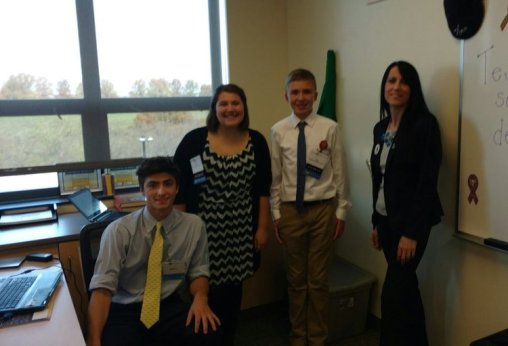
Check out Rachelle’s Pioneer Page

Nearpod and Peardeck – A Comparison

Updated on May 8, 2019

Nearpod and Pear Deck: What is the difference?

When presenting at different edtech conferences, or in conversations at edcamps, I am often asked what makes Nearpod different than PearDeck. We know there are many great digital tools available that open up the spaces and time for students to learn. Lessons become more interactive, students can work on them in or out of class, blended learning is facilitated easier with tools like these. So what are the similarities and differences between them? Both offer many options, that it truly can come down to a personal preference or comfort level.

Features

  Both Nearpod and Pear Deck offer a variety of question types and activities as ways to assess students, but more importantly, these tools help to increase student engagement and expand where and when students learn. Both tools offer free as well as paid versions. Through Nearpod, all question types are available in the free version (Open Ended, Polls, Quiz, Draw, and Collaborate), as well the ability to add an activity “on the fly”, whereas in Pear Deck, only three types of questions are available in the free version (Multiple Choice, Numbers, and Text). For reports, all are accessible through the free version of Nearpod, however with Pear Deck, the “session review” is only available with the paid version. Some of the additional features available through Nearpod make it distinct in comparison with Pear Deck. 

Nearpod enables students to experience Virtual Reality (VR), by interacting with 3D shapes or going on a Virtual Field Trip, powered by 360 cities, right from the classroom. This immersive capability promotes global knowledge, expanding student comprehension of different perspectives and allows students to become immersed in new environments. Nearpod continues to add new features, most recently, “Collaborate” an interactive brainstorming tool where teachers and students can share posts and images, such as a quick reflection or a more engaging way to have a discussion during a live session. The posts can be “liked” by students and are sortable by the teacher. In Nearpod student notes, students can annotate the Nearpod lesson and have their notes and responses saved to a Google document or a PDF, in the Nearpod School and District subscriptions. Here is the  Nearpod Library of resources. 

Pear Deck has some distinct features as well (available in the premium accounts) that can be added when creating a deck, as part of the “slides.” Through a unique question type named “DraggableTM ” students can place dots onto images for various purposes. For example, using “thumbs up” and “thumbs down” students can place a dot as to whether they understand the material, draw dots on a map or a graph, and then the teacher can cast all responses on the screen, without showing the name of each student. Individual responses can be highlighted separately when projected on the screen, still without showing student names. Another feature in Pear Deck is the ability to lock student screens so that a student cannot change an answer. In terms of assessments, this is a nice feature to have, to help in the area of academic integrity. Some of the “add-ons” available in the premium account are the “takeaways”  from sessions, with student responses, which can then be published to a Google Document, students can then review, and the document goes to the Google Drive.

Usability

Creating a lesson and presenting it “live” in class, assigning it for homework or a “student-paced session”, can be done with both of these tools, although the manner of creating the lessons differs in how you add slides and the types of content. Both tools work with Google Classroom, Nearpod also integrates with Schoology and Canvas. Both platforms can be accessed on any device from the web, and Nearpod has native apps for iOS and Android operating systems. With Nearpod, links can be shared to have students access the lesson as well.  With Pear Deck, students log in using a Join Code or directly through Google Classroom and access it through Chromebooks or the Chrome add on through the web. It is available for use on all devices. Teachers can facilitate lessons in class or as student-paced rather easily with either tool, but there are more options available within Nearpod at the free level.

Content

Nearpod has the edge with its library of thousands of lessons for different content areas and grade levels, ready for free download and customization. In Pear Deck’s “Orchard”, there are a few free sample decks available to download and copy to your Drive, and introductory decks are available to learn how to create your own lessons. The Pear Deck Orchard does not appear to offer as many lessons as does Nearpod’s library. Comparisons of the Nearpod Features in depth.

Integrations

Both Nearpod and Pear Deck integrate with Google Classroom. Nearpod also integrates with Blackboard, Canvas, itsLearning and Schoology, and offers the ability to “upload files” from OneDrive, Dropbox, Box, Google Drive, and the computer. Pear Deck offers the ability to import class rosters directly from Google Classroom. Powerpoints can be uploaded for free with Nearpod, whereas this capability is a paid featured with Pear Deck.

Conclusion

Each tool offers many options for enhancing student learning and provides diverse methods of assessing students and delivering content. They each offer websites full of information to help educators get started creating lessons. There is a range of features within each tool, however for someone looking for more interactive lessons in and out of the classroom, or ready-made digital lessons, Nearpod has the edge with its library full of lessons on different content areas and levels. And for opportunities to engage students in learning, promote active learning and exploration, and assess students through multiple methods, Nearpod also edges Pear Deck in this, as there are more options available in the free version. Pear Deck offers some distinct features especially if you are in a Google Classroom. The session takeaways and reviews with comments are a great way to involve students in self-assessment.

When it comes down to it, the decision has to be made based on what’s best for your students and your classroom. Either way, offering new ways for students to be engaged in learning is win-win.


Implementing an App in the Classroom in 3 Steps

Thank you to Meghan and EdTech: Focus on K-12:  Glad to be a part of this discussion.

Two education experts offer up best practices for utilizing mobile technology.

With more and more K–12 students owning mobile devices, and with Pearson Education reporting that 72 percent of elementary students and 66 percent of middle school students want use mobile devices more in classroom, now might be the best time to add an app as a regular part of school work.

However, as EdTech reported, a survey done by Kent State University’s Research Center for Educational Technology (RCET) found that 30 percent of general education had received training on apps, and 87 percent wished to receive some sort of training on mobile apps.

We’ve consulted with a researcher and an educator who have expertise in adding mobile technology — particularly apps — into the classroom.

Step One: Identify What Kind of App You’d Like to Use

For Rachelle Poth, a Spanish teacher at Pennsylvania’s Riverview Junior/Senior High School, using mobile technology in her classroom came out of a desire to provide easier and more accessible communication with her students. For Poth, the messaging app Celly was the perfect fit to remind students of assignments and provide a place to put class resources.

“[Using an app] can seem overwhelming for a teacher who isn’t necessarily using technology at all or not using it much,” Poth says. “The key is to look at your classroom and ask, ‘What is one thing that is bothering me or taking up too much time?’”

Poth, who is also an education technology mentor with Common Sense Education, says that finding an app that will work with your class is dependent on what category you might need. She recommends the following:

  • For messaging: Celly and Remind for communicating with students, and Bloomz for parent-teacher communication
  • For assessment: Quiz creation tools like Quizlet and Kahoot!
  • For classroom organization: Learning management tools like Edmodo and Google Classroom

Another way to figure out where an app might be helpful is by asking students, Poth says.

“Pose the question to students, like, ‘If you could change one thing about homework, what would it be?’” she says. “You might hear no more homework at first, but if you dig deeper, you’ll find issues.”

Step Two: Find a Quality App and Test It

Once educators have decided what they want in an app, they might get overwhelmed by the sheer number of options.

Poth recommends reading teacher reviews and sample uses on a site like Common Sense Education or EdShelf. She also says you can chat with the communities on those sites or on Twitter to get feedback from other educators.

At Kent State’s RCET, Karl Kosko, an assistant professor, and others are evaluating apps specifically for special education teachers as part of the SpedApps project. Their database can be accessed by all educators.

Once a teacher has found the right app, he or she will need to do one more thing before introducing it to students: Test it.

“It seems like a very simple thing, but it is the first and foremost,” Kosko says. “Educators should play through the app and think about how their students will use it and misuse it.”

Step Three: Make Sure the App Connects with Your Lesson

Perhaps the most important step of all for educators is choosing technology that supports their teaching and their curricula.

Kosko suggests that teachers really think about how they are going to teach their students to use the app, and then use it for a purpose that will work in the classroom.

“Don’t just use it randomly,” he says. “The apps should be related to something students are currently learning.”

Also, if using anything that needs technology at home, Poth says teachers need to be aware of what students have access to.

“At the beginning of each school year, I give my students a paper and ask them what kind of device they have, if they access at home and what kind of tools they know how to use,” she says.

WAVEBREAKMEDIA/THINKSTOCK

Flipping Roles: Students Move From Edtech Learners To Leader

Student reflections

Published on November 30, 2016

By Formative Educator Rachelle Dene Poth

Technology has created so many ways for teachers to provide choices for students, enable learning to occur anytime and anywhere, and to also be able to further differentiate instruction for the students. In addition to teachers being able to take advantage of the resources available to deliver instruction and assess students, these digital tools also create the possibility for students to take more ownership in their learning and become empowered learners.

Rachelle and her edtech leaders!

Rachelle and her edtech leaders!

We need to offer diverse learning opportunities for students and to provide the support needed to encourage them to take more ownership in their learning and to become the leaders in the classroom. Students have to be more than just consumers, they need the chance to create, to experience learning from different perspectives and take this new knowledge and apply it in different ways to meet their needs.

How do teachers know what is working in the classroom? Teachers can use assessment tools and monitor student progress, but it is far more valuable and important to classroom culture and growth, to work on relationships and build collaboration by asking students to be a part of the conversation and creation of class materials. When teachers do this, they understand what helps students to learn better, be more engaged, and have a more authentic learning experience.  It also becomes a way to build student confidence and transform them into classroom leaders and advocates, who can then share their knowledge and experience with others in their class and then the community.

Give Them Choices And Let Them Lead

At the end of last year, I wanted to see what students thought about creating these assessments using tools which were traditionally used by teachers to deliver instruction.  Cassy shared her experience in the prior post and emphasized the importance of including students in the decisions of when and how to integrate technology.  Because reflection is key, I took this information and thought about the logical next step.  How could I share the message about Formative, or even more importantly, how could the students share their input with others, especially educators?

Students Take Over

Last month, Cassy had the opportunity to take the lead and present to a group of educators at a technology conference in Pittsburgh, and show how Formative can be used in their classrooms. Cassy had become the teacher, she created a lesson with Formative and offered her perspective on the use of edtech.  This time, I asked several students to participate in an edtech conference, and to present the session. Cassy taught the attendees about Formative. Here are her thoughts on the experience…

Student Perspective On Edtech: Cassy Becomes The Teacher

9th grader Cassy presenting Formative to teachers!

9th grader Cassy presenting Formative to teachers!

Cassy: “On November 8th, 2016, I participated with two other students in TRETC (Three Rivers Educational Technology Conference) where educators and technology directors from the Pittsburgh area presented sessions on uses of technology.  I am extremely grateful that I had this opportunity to share what I learned about and what I have created with technology. Formative was the perfect choice of a tool to share with the group of educators. I feel Formative is a wonderful, interactive and creative way to teach, complete assessments and increase engagement in teaching environments. I was very excited that I was able to inform others about this web tool because it means other students can have the same great opportunity I have been given, which is to use technology to learn and be creative.

Cassy had teachers respond to a Show Your Work question and draw their own flowers!

Cassy had teachers respond to a Show Your Work question and draw their own flowers!

    For the presentation, I created my own Formativewhich included a video, a true/false question, a multiple choice question, a short answer question, and a draw your response question. I included all of these so the group could see how many different options and aspects there are to Formative. I also explained the other possibilites with Formative, how to assign the Formative and answered any questions from educators or technology directors. One teacher asked if we (meaning my Spanish 3 class) have used Formative in the classroom. I told her that we have used it very often and I enjoyed it every time. I also explained how it is possible to see all of the responses of those participating in the Formative. While I talked about all of these great aspects of Formative and more, the group participated in the Formative I created and were able to see all of each other’s’ responses.

The dynamic teacher-student duo showing educators how to act on live responses!

The dynamic teacher-student duo showing educators how to act on live responses!

    I was very pleased with how the group reacted. I felt I had explained Formative well enough that everyone had a general, if not advanced understanding of how Formative worked and the advantages of using it. Seeing the smiles and hearing the laughter of everyone in the room meant that I had accomplished my goal of informing and sharing what I was so passionate about and making an impact with technology.

I am so lucky to have had the opportunity to present at TRETC with my fellow students and my extremely talented and intelligent teacher. Mrs. Poth has opened so many doors for me and has taught me so much. Learning about tools, like Formative, has made me realize how useful technology is for learning. It was wonderful to hear what Mrs. Poth had to say about Formative on top of what I had to share about it. The group was able to see two perspectives on how Formative has impacted the classroom, which I felt made a very big impact.  I admire her opinions and her comments. I am very appreciative that I could hear and see my fellow students and teacher talk about what they love so much about technology.

Being able to present with Mrs. Poth, was a great opportunity. I am very pleased I could share what I love so much about technology. Formative encompasses everything I love about technology: maximum creativity, endless possibilities and strong usefulness. I can’t think of a better tool I would have wanted to present than one that shows and encompasses my passion for technology: Formative.”

Want to learn more about giving your students ownership over edtech and opportunities to present tools to teachers? Tweet to @Rdene915  or @goformative !  

Technology Can Make The Learning Process More Transparent

TeachThought: Thanks to Terry Heick for publishing part two of this post.

Technology Can Make The Learning Process More Transparentby Rachelle Dene Poth

In my last post, Finding Out What Students Are Thinking: 10 Tools To Get Them Talking, I shared tools that can help promote student communication.

The additional benefit for using tools like these is that you can take what you hear and learn and the next day in class anonymously share some ideas to get the discussion going.

Even if you try to keep things anonymous, you will have the students who immediately fess up and say “yeah that’s mine,” because that’s just what the students do, which is okay because they are willingly sharing what they said.

And if it does come down to a right or wrong kind of question and that student is in fact incorrect, that’s an even better lesson–a better example for the other students in the classroom to show that it’s okay to answer something and to be wrong.

These are the experiences that build character and growth mindset and help students become more involved in their own learning path.

A Few More Tools: Communication Through Collaboration

If you’re looking for a way to have students speak more regularly about different topics, share their ideas, or be more involved in class discussions, you may want to consider some other format for “talking.”

Having students write in their own blog, where they can keep their responses private and you can respond directly, is a great way to learn about the students and what they are thinking. Having this communication format is also helpful with relationship building.

Through blogging, you can give feedback which helps to provide support for students and can help them to gain confidence. By building confidence in this way, they have a chance to become more open to and comfortable with sharing their ideas in class.

As teachers, any opportunity to share our own experiences, especially when we share experiences that reflect our fears of making mistakes and taking risks, is helpful to our students.  Showing that we are sometimes wrong is okay, because we are all are constantly growing.

Writing Spaces

So what about some tools?

Wikispaces is a social writing platform for creating an online space for collaboration. Creating a wiki might be a great way to have students collaborate together on a topic if they are working in small groups. Some options for collaboration are creating a page for a discussion, set up a pro/con debate, or a even class website. Students can build confidence and comfort by collaborating in this way.

Padlet is a virtual wall for posting thoughts, discussion, and more. It could also be another way for students to work together and build some of these skills for collaborating any time and anywhere.

Tools For Reflection & Feedback

Choosing the right tool comes down to what type of conversation you looking to involve students in.

Is it open-ended?

Do you want the students to speak out in class or do you want them to think about something, have time to process it and answer after class?

That’s the benefit of offering blended or flipped learning experiences. The conversations don’t have to end when class ends. The questions don’t have to be asked during class because teachers can set up questions after class using tools like these I’ve shared, or Let’s Recap.

Let’s Recap is a way to record a prompt, ask questions, and then have students respond through video. Teachers can then view the response or see the daily reel, and provide feedback to each student.

A tool such as TodaysMeet can be useful for a “backchannel” chat in class, or to open up discussion after the school day ends. Either way, it is another quick option to get the conversation going or to use as a way for students to ask questions.

The goal of all of these tools is to get them talking–to know what their thoughts are–so that we can help them grow.

Why Does Student Feedback Matter?

Teachers need student feedback to help guide our next steps and provide learning experiences which are meaningful.  We want our students to feel comfortable. Depending on the age group being taught, the content being covered, and whether the technology is available and accessible to the students, you can determine which of these tools might facilitate learning the best.

Using technology just to use it doesn’t make sense. But using it to help students find their voice, learn more about what they want to do, what they can do, and what they are having trouble understanding does.

These tools and others like them, can help to connect those ends. And since learning feedback is critical to student growth, sometimes we need other methods for connecting with the students; this is when technology has a purpose.

Technology can expedite the feedback process and gives us real live results. We can give feedback to the students, the information is saved, and we can use it as a way to give a voice to those who would not necessarily be willing to use their voice in the classroom.

For now, maybe keep it simple. Start with the question, “What do I need to know about my students?”

Then look at these tools and others like them and start experimenting.

How Students Can Use Timeline Templates in the Classroom

Written by: Rachelle Dene Poth

Published on November 11, 2016

How Students Can Use Timeline Templates in the Classroom

As a foreign language teacher, I am always looking for innovative ways to allow my students to demonstrate what they have learned.

I want students to be able to choose a tool that brings out their creative side and, as a result, leads to a more authentic and meaningful learning experience.

Because learning a language can be difficult, I try to design a variety of activities and projects that will provide students with practice and unique opportunities to develop their language skills through the creation of their projects.

RELATED: Visme Introduces New Infographic Timeline Templates


Using a Timeline Template as a Learning Tool

using-a-timeline-template-as-a-learning-tool

As a student, I recall having to create a timeline in a history or science class to display events or processes. Timelines are a great way to help students organize thoughts and can be very beneficial for meeting the needs of different learning styles.

Creating timelines on paper or poster board are still great options, especially when availability and accessibility of technology and resources is an issue. However, through the use of digital tools, it is much easier to create a timeline that is more visually engaging and provides additional interactive features.

With a tool like Visme, students can select their preferred timeline template and add icons, search for images within the platform or upload their own. With such a wide selection of fonts and other graphic assets, they are able to enhance their visual thinking skills and create a personalized learning product.


How to Use Timelines in the Classroom

types of timelines for classroom and education

In each level, we discuss topics like childhood, recipes, travel plans, school schedules, future plans and more. It had not occurred to me before that I could have students create a timeline to narrate these events.

A timeline could be just as effective as the traditional narrative format, so I decided to go with it and have students choose a timeline template for one of the summer assignments, which entailed narrating a sequence of ten events.

I looked forward to seeing what students created with Visme. Some used the timeline templates available and others decided to design their own timelines from scratch.


Ideas for Timeline Projects

ideas-for-timeline-projects for students

In an educational setting, the use of an infographic timeline can serve many purposes. Students can use it to narrate a personal experience or illustrate something they have learned in class. Teachers can use one to show students the steps they should follow in a process, rather than a traditional word document or other worksheet.

For example, here are just a few ideas of how teachers and educators in general can use timeline templates in the classroom:

  • In a physics or chemistry lab, a teacher could easily create an infographic timeline to tell students how to complete the lab assignment.
  • In an elementary setting, teachers could create a timeline to help students learn how to count to 10, learn the alphabet, or even show the steps to tying one’s shoe.
  • In a cooking class, a timeline template can be customized with your own information to explain the sequence of food preparation, steps in a recipe or procedures for cleaning up the classroom space.

There really are a lot of options available to teachers and students in an educational setting, or to anyone who wants to highlight events or the chronology of something.

And even if the subject matter at hand does not seem like it could involve the creation of a timeline, this is a great opportunity to let students devise their own way of thinking about a topic.


Why Choose Visme?

visme timeline template

Creating a timeline with Visme is a simple and engaging process. The timeline templates available can help teachers and students create something very visual and clearly labeled that can be quickly customized to their needs because of Visme’s easy-to-use drag-and-drop tool.

I decided that the “back to school” summer assignment for some of my Spanish classes this year would be to create a timeline that included at least ten events. Some options included sharing summer experiences, creating a top ten list of favorite activities, talking about a special summer trip–no topic was off limits as long as it included the required grammar topics.

Part of their task was to also choose whether they wanted to create a horizontal or vertical timeline.


Questions to Consider

Any time I try something new, I ask students about their learning experiences. Was it something beneficial? Did it help them learn the material better?

Student feedback is so vital to what we do as teachers, so I took this as an opportunity to try something new with them and let them decide how they wanted to complete this task and then to gather information and reflect on their feedback.

The students were excited to work with the new timeline templates and happy to share their experiences and opinions:


What Students Had to Say

examples of student timeline projects


Christoph

“To start, I absolutely love Visme. I have used it for two Spanish Projects so far, and it is a very easy tool to use. The presentation style makes it very easy to present information in a way that is pleasing to the eye and engaging. Along with this, it makes it possible to share large amounts of information for completing projects of any size, in a much cleaner and clearer format.

I can picture myself using Visme in the future to create mini-presentations as well as large scale projects that I could use notecards with as well. In addition, Visme offers an option to switch things up from a normal presentation.

In class, after ten people have shared Powerpoint presentations, a teacher finds it nice to have another well-made project shown that stands out and is different from all the others.

quote Visme timeline templates

Finally, Visme allows the user to create things with more detail than any other project-creating website or tool. There are a plethora of tools that can be utilized to enhance the project such as icons, shapes, pictures, audio, and a ton of themes. I would recommend this to other students and will continue using Visme in the future for more classes!”


Marina

“Visme was such an amazing tool to work with for our Spanish timeline project! I absolutely loved being able to create my own template while also being able to choose from a lot of different timeline templates.

Visme is a very easy tool to use. Everything is set up and labeled so if a person would have not read the directions about how to use the site to create, they still would have been able to use it. It is an amazing tool for presentations and is unlike any other presentation tools we have ever used. They give you so many options with how to make your project really unique.

quote Visme timeline templates

Visme allows you to insert audio, pictures, shapes and many other wonderful details to customize and really make it your own. I would recommend Visme to a lot of the people in my class because it is unlike any tool we have used before!”


Cassy

“Visme is a great tool to use for projects, presentations, infographics and more. My favorite thing about Visme is how easy it is to use. The timeline templates create an outline that allow you to organize your information in a way that is attractive to the eye. I enjoyed using Visme because it also enabled me to be creative with my project.

Visme has so many options and variations in creating my project. I could insert photos, text, graphics, backgrounds and add audio to enhance my project.

quote Visme timeline templates

I can complete a project in a variety of different ways to fit my needs for what is best for my assignment. It is also very easy to share the work that I have created using Visme. I can publish my work to social media and websites or just present my project to my class.

I am appreciative that I am able to use Visme in class. Web tools like Visme can enhance my learning and understanding of many topics while also letting me be creative and use my imagination. You can create with Visme in an easy and organized fashion.”


Your Turn

What types of infographic projects have you tried with your students or in a classroom setting? If you have any specific projects or ideas you’d like to share, don’t hesitate to drop us a line in the comments section below.

And if you haven’t already taken Visme for a test run, you can sign up here and use it for free for as long as you like.

90% of all information transmitted to our brains is visual.
People remember…
Become a more effective visual communicator.With Visme, you can create, share or download your visuals with no design training.It’s free! Take a tour.

About the Author

Rachelle Poth is a Spanish Teacher at Riverview Junior Senior High School in Oakmont, PA. She is also an attorney and earned her Juris Doctor Degree from Duquesne University School of Law and recently received the Master’s Degree in Instructional Technology from Duquesne.

She enjoys presenting at conferences on technology and learning more ways to advance student learning. Connect with her on Twitter @rdene915.

Leave a Reply

Name (required)

Mail (will not be published) (required)

Website

timeline template classroom header

How Students Can Use Timeline Templates in the Classroom

Mastering Infographics

November 11, 2016

visual-thinking5

How to Unlock Your Creative Potential Through Visual Thinking

Mastering Infographics

September 8, 2016

Load More

Create Stunning Infographics

Want to set yourself apart from the rest? Start creating stunning infographics within minutes with our easy drag-and-drop software. Access 100+ beautiful templates, 100+ free fonts and millions of images and icons right now.

Start Creating Now for Free

Savehttps://accounts.google.com/o/oauth2/postmessageRelay?parent=http%3A%2F%2Fblog.visme.co&jsh=m%3B%2F_%2Fscs%2Fapps-static%2F_%2Fjs%2Fk%3Doz.gapi.en.bRDJBM_7ci0.O%2Fm%3D__features__%2Fam%3DAQ%2Frt%3Dj%2Fd%3D1%2Frs%3DAGLTcCOSwnIWUMP5w0nTVAkpqqeITg0qCA#rpctoken=314119063&forcesecure=1

Some Alternatives to Traditional Homework

Posted in Edutopia Community Discussion, the second part of my thoughts on Homework Alternatives.

As a student in elementary and high school, I recall having homework assignments in most, if not all of my classes each night. I remember carrying home a lot of worksheets, lugging home several textbooks, and at times transporting poster board and binders back and forth to school.  We had a lot of tests, pop quizzes, and projects.  Most of the time, I remember the homework was the same for each student, in each class, and I cannot recall now nor do I even know if I was aware back then, of students doing different assignments. I understand why teachers assign homework which is the same, the purpose is to assess students on a particular skill, and maybe it just really works for that learning target. And some benefits for students are having a peer, to work through an assignment with or ask for clarification, can be helpful.  But it can also be detrimental, for a few reasons.  Students are not getting the practice they need by having the same assignment, and the possibility of students copying assignments is also something to consider.  Copying assignments leads to a loss of learning, and students will have to re-learn the material twice. There is a lot of discussion about the real value of and purpose for homework, and these are just a few of the pros and cons to consider.


Over the past few years, with the rise of technology and so many options available for learning experiences through it, solely using a worksheet or assigning the same homework does not have to persist. I have noticed variations in my students, both during our interactions in the classroom but also while grading assignments and projects, or even just reading the responses to their reflections or blogs.  For homework, some students can finish the worksheet in two minutes, possibly before the end of the class period, if time remains.  And there are others, who may struggle to complete the work and as a result, end up spending 20 or 30 minutes on the exact same assignment. So, I asked myself, how can I reach both types of learners, and provide opportunities that will be beneficial, meaningful, but more importantly more personal to their needs. How can I give each student the practice that they need?

Making some changes

So how did I decide to change the “everybody has the same homework” practice?  After a holiday break and taking some time to reflect over the first part of the year and talking with students, I decided to seek ways to give students options for the type of homework they wanted to complete.  I came up with two or three choices of how I could do this, and will admit, that I was a bit anxious, since changing the traditional homework assignments would involve taking a risk.  But I truly believed that it was worth it, to see what, if any difference it would make for my students.

The three options I started with were:

1.    Quizlet: I had sets of cards and as an alternate assignment, I asked the students to select and complete activities which they felt would help them the most.  Because we have a class account, I can monitor their progress and they have many options for practicing the vocabulary, playing games and other activities to build their skills.

2.    Kahoot!: We have played games of Kahoot! in class for the past few years, and initially I was using it as a class game, using games which I created. But I soon realized that making up so many quizzes was really time consuming.  While there are lots of public quizzes available, I wanted to have the questions be more specific to their needs.  So for a different type of homework assignment, I asked students to create their own Kahoot! game using a specific number of terms or verbs and share it with our class. This led to more authentic practice and a lot more resources for all students to learn from.

3.    Blendspace: I have an account with Blendspace, and I can create and share lessons that I have created which include videos, games, tutorials and much more.  As homework practice, I can decide to assign a particular lesson for students to work through or I can simply share the URL and provide resources and give students the choice to use the resources within the lesson.

4.    Other options: Some other ideas for changing the type of homework assignments used are to create a list of different assignments or tasks and give students some choices in how to practice the content material. They may decide to work through all of them, or simply use some, but the important thing is that the choice is theirs and the practice will be more meaningful. Assigning homework in this way encourages students to have a choice on where to begin, not all students have to do the same thing, and it helps to focus on their individual needs.


What did the students think?

The students appreciated having more of a choice in assignments.  Using these options gave them the chance to try some new ways of learning, which they were not used to, but it was a way to provide differentiation.  I know that having a lot of games available to play in class with Kahoot and the extra Quizlet study cards, benefitted all students. The one tricky part is being able to monitor their work, but this comes with developing the relationships and having clear expectations. Including students in the conversation and making sure we focus on the accountability and responsibility aspects will help. The students are more engaged, become more empowered by having a choice in their learning path.

We can use methods like this to focus on the areas where students need help the most. Personalizing the homework assignments in these ways can prove to be time consuming, as far as tracking their work, but it is completely worth it because of how beneficial it is to their learning. And that is what matters most.

4 Simple Ideas To Use Technology To Engage Students

Thank you Terry Heick and TeachThought for this opportunity to share ideas for some tech tools to engage students. Published Monday, September 26, 2016.

4 Simple Ideas To Use Technology To Engage Students        
by Rachelle Dene Poth
 

Fall is an exciting time of the year.

Summer provides an opportunity to relax, but is also a time to explore new ideas and reflect on the previous year. We have to ask ourselves what worked and what did not. With the start of each school year, teachers begin by establishing classroom procedures, getting to know the students, and then starting their instruction.

Even with the best plans thought out in advance, things can come up that limit our time to try something new. There is nothing wrong with sticking to some of the same instructional strategies and using some of the same tools that were used last year. We all have methods and tools we use that are beneficial to our students. But summer does offer an opportunity to think about some new things to bring to our classroom and our students at the start of the new school year.

Because time is a factor, it can seem overwhelming to try too many new things at once. It is helpful to think about maybe just slightly altering how we used a certain tool or presented a topic in the prior year. Start by focusing on one thing at a time and see how it goes. The most important part is to remember that we want to implement something that will positively benefit our students. It should be something that has a true purpose and will amplify the learning experiences and potential for our students.

Below are a few ideas that I have used in my classroom which have been fun for the students and had positive effects on their learning.

4 Simple Ideas To Use Technology To Engage Students

Idea: Use infographics to create an engaging syllabus

Instead of creating your course syllabus on paper and handing it out to your students, try creating an infographic to post online through your class website or LMS if you have one. It will be easier to read, model a sense of enthusiasm for your own craft, and separate your classroom from others in the eyes of students/parents/admin.

With a graphic, you can also print and laminate the infographic to keep it accessible in your classroom. There are many tools to choose from for creating one and many options for implementing them into your course. In order to create one you simply take the information from your document and paste it into the infographic.

There are many choices available for templates, icons, fonts and much more. As an alternative to having your students complete assignments or projects which traditionally are done on paper or using a Word document, have them create something creative and visual using one of the infographic tools available. It will be a more engaging, visual way to share information, have a more authentic learning experience, and they can be created rather quickly.

Some recommendations of tools to create infographics are Canva, Piktochart, Smore and Visme.

Idea: Create interactive lessons

Students need to be actively involved in the classroom and in learning.  A good way to do this is through interactive video lessons. There are many digital tools available which enable a teacher to choose a video from YouTube or other video source, and use it to create a quick interactive lesson with questions or other activities for the students to complete. The nice thing about the tools available for interactive video lessons is that there are some lessons available for public use allowing you to try them out with your class first before creating your own.

Trying one of these out first is a good way to see what the students think, and use their feedback to help guide the next steps, whether to create one and which tool to use. Offering lessons like this is great for having students complete assignments outside of the traditional “brick and mortar” classroom as part of an asynchronous lesson or in a blended or flipped learning environment. You can quickly assess students, track their progress, and hold them accountable for having watched the videos.

A few suggestions of some of the tools available are EDpuzzle, Playposit, Vizia, and even a Google document could be used with questions added in for students to complete. My suggestion is that you choose one of these options, see what is available, and then be very clear how you can use it to benefit your class. There are tutorials available on the websites which offer guidance to help you to create your first video.

Simply select a video that you would typically show in class or assign for students to watch outside of class and think about the questions you could or would ask to check their understanding. It is easy to add your video into the lesson editor, add in different question styles including true and false, multiple choice or short answer, in addition to other formats. There are also options for quizzes to be self-graded, making the data available right away.

Each tool offers different features which add extra benefits to learning. For example, you can also see how long it took the student to view the video and if they tried to skip through it, depending on which tool you choose.

Idea: Student Created Lessons

Instead of the teacher creating the lessons, you could also have the students create lessons to share with the class. When I did this with my students, they sent their completed video lessons to me and I completed the lesson. It gave them an opportunity to see what teachers see and an opportunity to provide feedback to their “student.” By doing this, the students learned in a more authentic way because they decided which video to use, created the questions and as a result, it reinforced the material; it was more personal for them.

Teachers learn by seeing the type of content the students choose and can use this information to guide the next steps in the lesson. The class as a whole learns and benefits by having more resources available for practice and students can become more proficient in the content. One other great thing besides improved learning is that it can be fun for students to create these videos as well.

And fun is good, yes?

Idea: Use engaging digital quizzes & tools

There are a variety of tools to use for creating quizzes and lessons for students to complete in and outside of class.

In many cases, you can upload your own documents or PowerPoint presentations into the lesson, and keep everything organized in one place. Using some formative assessment tools like Formative, Kahoot, Nearpod, Quizizz, and Quizlet to name a few, are ways to have some fun with the students and add to the learning resources available for your classes.

Students enjoy creating their own quizzes and lessons, having a choice in the tool and types of questions included, and being able to further develop their technology skills in the process. These activities are all highly beneficial to student growth. By giving students more choices, we empower them in the classroom.

Conclusion

When used with a purpose, there a lot of ways that technology helps teachers and students. Using technology saves time, makes feedback available immediately, and gives students the chance to be creators and have a choice. It also promotes learning outside of the traditional classroom setting, which reserves the time in class to do other activities, to clear up any misunderstandings and to spend time getting to know the students and giving individual feedback.

Once you decide on one of these ideas, give it some time, see how it goes, and then think about taking the next step. Be sure to involve the students in the conversation because their input is vital and it matters. When students feel valued, learning is more meaningful and this leads to many positive results. Teachers and students working together, creating lessons, providing feedback, will add to a positive classroom culture.

Perhaps one of these areas is the next step that you could take, try and see how your students respond. It was a nice change in my classroom, my students were creative, engaged, and really enjoyed the chance to lead. The learning that occurred was more meaningful and they recalled the content information much more when they created their own product or recalled the work of one of their classmates.

Either way, it was a much more meaningful experience, and something that I will continue to do this school year to grow my classroom.

4 Simple Ideas To Use Technology To Engage Students; image attribution flickr user flickeringbrad

How I Solved My Classroom Management Problems

How I Solved My Classroom Management Problems

Achievement unlocked: Making assignments and resources available to everyone, anytime.

Common Sense Education, posted on September 15, 2016

Rachelle Dene Poth

Classroom teacher, Technology Presenter

Students often have organizational problems. It’s an ongoing struggle, so I’ve always done the best I could to help them stay organized. Years ago, that often came in the form of a planner students were supposed to fill out with assignments, and I’d sign off on it.

There was one particular student with a planner whom I remember. The system worked well when she remembered the planner, but sometimes she didn’t.

On the whiteboard at the back of my room, I have a space where I write down the assignments for students. I keep my door open most days, so if they want to stop in and peek at the board, they can. I’m available anytime; the only thing I ask is that they kind of discreetly come in.

So, this particular student would appear in the morning during homeroom or at the beginning of class to check the whiteboard. Sometimes she got the assignment. But sometimes, what I wrote was erased. Anything can happen: Other students might erase it and write over it, for example.

Then her mom would send an email to clarify things — and I’m really good about checking email, but sometimes email doesn’t go through. And if you call me — well, we work with voicemail extensions so it’s not like there’s a direct line to me. You have to filter through the office, and I’m always available to talk, but obviously if I’m teaching class, I’m not reachable.

Other students would pop in to check on an assignment, or they’d want to stop by and pick up a worksheet. I have everything in my room set out, but students would put papers down, and things would get covered up. So it might not be easy to find.

Or, the students would come in and leave notes saying, “I stopped by to find out … ” or “I wasn’t sure … ,” and they’d leave me a note on the board or on my desk. But if I were going to be late or had a long meeting, I might not see those notes until the next day. And if my board was cleaned that night, I might not see them at all.

So again, the students came in to get help, and I wasn’t there.

That’s when I really started to ask, “What can I do?”

I thought the board was great because students could come in anytime, but that’s not accessible in the evening when they sit down to do homework. Planners are great, too, but what if you forget them or they’re lost? I was looking for something to fix a lot of these things I saw impeding the learning process. The lack of access to resources was really bothering me because I wanted to do more.

I first decided to use the messaging tool Celly to message my students. I used it to send reminders and answer questions. I could quickly respond to messages about homework or what was missed during an absence, and I didn’t have to use class time to help students catch up.

I use it with my Spanish club, too, and now there are other groups in the school that use it for field trips and other things. It’s really quite nice, because if you’re on the bus and you’re missing students, now you can reach them instead of waiting and wondering.

But students were still asking for help finding class materials and keeping them organized. I wanted some kind of assurance that everything was centralized and easy to find. And I hadn’t found an easy way to keep parents in the loop. I decided to give another tool a try: Edmodo.

It’s a web-based app, so students can use their phones to log in, or a computer at home if they don’t have a phone, or a phone with data. Students get a join code so they can join a class when I’ve created one, and parents get a parent code so they can sign up and see what I post to the class and see their kids’ work, the grade they got, and the comments I’ve made. They know everything we’re doing in class.

Usually students log in once a day. I post homework reminders and share links. One of the nice things about Edmodo is students can reply to a post I’ve made and ask a general question, and anyone in the class can answer. For example, if they forget something — a textbook or a worksheet — they can ask, “Can somebody please share an image of the homework?” They help each other out.

It helps me, too, because if a student has been absent for a day or more, they can easily go back and see what you did in class. It’s part of my routine now, and I have five courses. Generally if a student says, “I was absent three days ago. What did I miss?” I have some idea but I’m not exactly sure. So it’s nice to have that reference.

It’s more than just communication — it’s collaboration. And I keep thinking of new ideas I can use it for.

The first two assignments I gave my Spanish 1 and 2 classes this year were discussions on Edmodo. The first was on how they study and learn, with personal kinds of questions so I could get to know them and give them ideas. The second was to come up with five personal learning goals. I gave them a reply, and in a week or two we’re going to reevaluate: “You said you were going to study every day for 30 minutes. What happened?”

You can use it as a reflection tool or as a digital portfolio. If the students do a project with technology, they can put it on Edmodo, and we can go back to it to share learning.

These tools have made a tremendous difference in my ability to provide the best possible learning experience for my students — and that’s what I wanted. And bonus: They’ve made my life easier, too.

Digital Tools to Build Communication Skills

Digital Tools to Build Communication Skills

Use reflective practice to encourage student relationships!

Posted on Common Sense Education on September 12, 2016

Rachelle Dene Poth

Classroom teacher
Riverview High School
Oakmont, PA
CATEGORIESIn the Classroom

Reflection is part of our practice — it has to be for us to grow as professionals and for our students to be successful. Reflection is an ongoing process; it happens after each class period, at the end of the day, and even in the evening. Reflecting on instructional practices and our interactions with students is important, and we must use this reflection time to plan for the future.

Oftentimes, reflection starts and ends with relationships. How does what we say and do help our students become confident learners and sharers? While the first few weeks of school are normally busy and chaotic, it’s important to take time to build relationships, and the best way to do this is to foster your students’ communication skills.

Talking and technology

There are lots of ways to get students talking to build relationships. Depending on the level you teach, some options might be easier or more feasible than others — but if you want to learn about your students, it might be as easy as creating a Google form and asking some general questions to get an idea of their interests. Immediately, this can lead to more discussion, some laughs, and a lot of learning about each other.

Another idea is to have students participate in a scavenger hunt. There are many digital tools available, such as Klikalu Playerand Social Scavenger. Whether you use a new digital tool or stick with tried-and-true paper activities, creating something that gets all your students involved, connected, and working together will build the engagement and respect needed to sustain positive peer relationships and a positive classroom all year long.

Set up a way to communicate

Teachers want to hear from students. We want students to feel comfortable coming to us for help, asking questions in class, and getting involved in classroom conversations. Unfortunately, many students struggle with speaking out; they become too nervous to answer or feel embarrassed asking a question. To create a feeling of support in the classroom, fostering communication is key. Luckily, many digital tools are available to help build students’ communication skills.

If this sounds like something that could benefit your classroom, try one of the many great messaging tools available: Bloomz,Celly, Voxer, Remind, or any of the dozens of similar apps. Once you feel comfortable with your choice, start thinking about another way you can add to the learning experience in your classroom.

A helpful way to implement these tools is to think about connections — who am I connecting to whom or what, and why? When students have opportunities to work with technology, having a choice in how they learn, are included in the conversation, and are asked for feedback engages and empowers them within the classroom. Start the conversations and keep them going, and soon your classroom will be filled with confident students.