New features to our favorite tools: Part III

I have really enjoyed getting to know the creators of Quizizz and being able to try some of the new features and learn about how they got started with this great learning tool. I am impressed with their dedication to creating a learning tool that will engage students in learning and offer more ways for students to engage in more authentic experiences. There is more to come from them, stay tuned!

Quizizz has continued to improve and add new features over the past two years,  especially with the option to assign games for practice, which students can do wherever they are, at any time. There is so much discussion and debate about the value of homework, and the “value” in having students complete the exact same assignment. Quizizz offers a better way to engage students in more authentic practice and be able to receive feedback available instantly. It is of great benefit for students to then be able to review their responses after completing the game. Learning opportunities like this are much more authentic than having students complete a traditional worksheet.

Joining a game of Quizizz simply requires sharing a join code with students, whether it be during a live session or assigned as a practice game. Teachers can set up a practice game for students and extend the time period that the game is open, for up to 15 days, and if students start the game, they can resume at a later time by using the same login information.

In addition to these ways of sharing the game, I was absolutely thrilled to find that I can assign the games directly to my students through Edmodo which is our base for our class.  I had been sharing games by posting the join code on our class pages in Edmodo, and I had no idea that this option existed until I created the game for practice, and it showed up as an option. Let me just say that my students in the room wondered what happened because I jumped up and yelled “YES!”  I really was excited to see this available. 

How does it work? When assigning a game for practice, you now have the option for sharing to Edmodo. When this is done, it creates an assignment where you can choose which class to assign it to, and you can also provide additional instructions. Once completed,  it posts the game directly to Edmodo for students to access. This addition makes it a lot easier to share games rather than having to remember the join code or going back to search through the reports to find it. Quizizz also integrates with Google Classroom.

Earlier this fall, Quizizz also launched their app, ZipQuiz, full of games to challenge friends in different content areas. Read about it in my prior post here.


Stay tuned for some new things coming from Quizizz, not going to give any details yet, but let’s just say, they’ve got some really great updates and features coming out very soon. Stay tuned!!


These are just a few of the newer updates to some very popular digital tools. If you have not tried them, choose one and start there. See what your students think, and see how adding just one of these in can increase student engagement and provide more meaningful practice for students.

Next up, taking a lot at the AR and VR tools available! Metaverse, Merge VR, CoSpaces, ARKit

IMG_20170628_111914745.jpg

New features to our favorite tools: Part II

Kahoot!

Over the past couple of years, there have been a lot of new features added to make Kahoot even more engaging for students and teachers. Some of my favorite features are the questions automatically going through to the next one, the podium feature, its method for kicking out inappropriate names, the new Kahoot! app and other subtle changes to layout and options of the platform.  This year has brought two new things, that may be my favorites so far.

The first one I learned about while at ISTE in San Antonio, when I had the opportunity to spend some time with the team of Kahoot and learned about the “challenges” that they were creating. If you haven’t had the chance, you can “challenge” students to complete one of your games by sharing a code with them, just as you do for the live games but students can log into it within the app on their phones. Students can even challenge one another on different topics that they find in the app and so it’s a good way to provide practice for students outside of the classroom, where they don’t have to rely on the Smartboard to see the questions but rather have everything available on their device.

Screen Shot 2017-12-04 at 10.25.45 PM

Photo from Kahoot! Blog

RockstarPanda, EpicFox, Friendly Moose and StellarCheetah?

But the most fun that I’ve noticed is unexpectedly was about 2 weeks ago, I created a game for my students to play and at the top of the options, I noticed the option for “generating creative usernames”. So I figured why not, selected it and couldn’t wait for the students’ responses. The generating of creative student names resulted in my students saying that I was taking away their creativity. Kind of funny but these generated names were much more original than the names that they had commonly used when joining our games. I’m not going to lie, it was quite fun to yell out who is “Mystery Panda”, “Fantastic Bat”, “Daring Dog” rather than the usual names. Plus I think it’s a nice way to have anonymity in the game so that students feel more comfortable answering and not so worried about what their score is in front of everyone else.(Even though the often yell out what their score is).

The “Nickname Generator” has a list of 800 unique two word name combinations and using it is a great idea, because it saves the time lost while students try to come up with their own “Creative” names.

Games for the Hour of Code

In recognition of the week of December 4th through the 10th, being Computer Science Education Week, and the “Hour of Code”, Kahoot has added some games to help students understand some basics of coding. Try these out for some fun ways to get the students involved with coding and use the game as a starting point for some class discussion.

Screen Shot 2017-12-04 at 10.24.44 PM.png

From Kahoot!

New Look for the Kahoot details page

 I noticed something different when I launched a Kahoot game and that was the appearance of the page once I clicked on the game we wanted to play. It has a much clearer appearance, easy to navigate and a nicer layout. Here is how it looks:

Screen Shot 2017-12-04 at 10.17.26 PM.png

The “Play” and “Challenge” buttons are easy to find. You can see the questions and timers for each. By selecting the “Show Answer”, you are then able to see the choices for each and the correct response for each question.

Screen Shot 2017-12-04 at 10.20.48 PM

New features to our Favorite tools! Part I

Here is the first part of a series focused on some of the latest updates to four of the digital tools that we regularly use in our classroom. I admit that I may have been more excited than the students, when I came across these updates, but once we tried them in class, the students were just as excited for these new features.

First is Nearpod. Nearpod + VR College Tours and Remind! Nearpod has been a game changer in my classroom. Students have engaged more in learning when we do lessons in class and they are interested in creating their own lessons, and taking on more of a leadership role by running the lessons on their own. Nearpod continues to add new features, making it a versatile tool that provides an immense library of lessons to choose from and a wide selection of activities, content and other resources to include into each lesson. Over the past few months, Nearpod has made some updates and integrated new features into the already extensive platform. Some of the new features  launched include: having more than 50 video lessons available through the BBC, option to view in “Student Mode” on the Teacher Dashboard, PheT Sims interactive Math and Science Lessons, and  making lessons with these resources available for immediate implementation into class. It is easy to find lessons that pertain to different content areas and grade levels, and which include a variety of tools for assessment and for engaging students more in learning.

Nearpod provides a very user friendly interface, which makes it easier for teachers to start using Nearpod and to build comfort when designing their own lessons. It is also highly beneficial for keeping the students actively learning on days when teachers have to be away from the classroom, through the use of Nearpod for Subs.
Launching lessons can be done live, with a join code in class, or shared through
a link, social connections, or through Google Classroom. But there is a new
update that makes it even easier to share, and that is Nearpod’s integration of
Remind as a way to share lessons. By integrating with Remind, educators send
the link through Remind, enabling students to start the lesson whenever they can
and wherever they are.
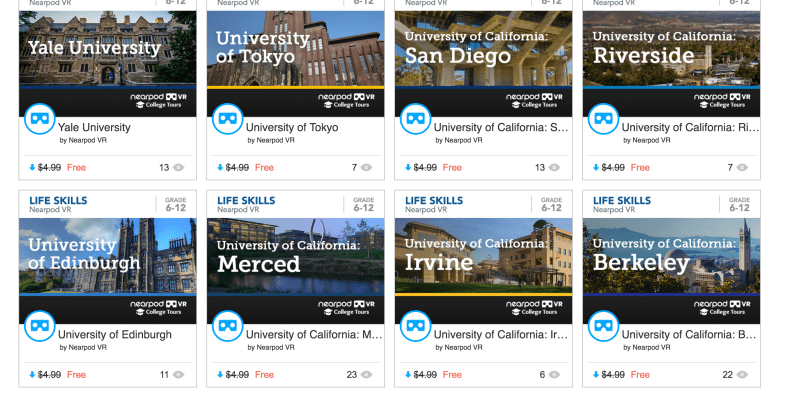
Another recent addition to the vast Nearpod library are the College Tours,
available in VR. What a great way to have students take a look at different
schools, without having to travel the distance, and to be able to immerse in the
campus and look around. There are currently 27 different colleges represented in
the collection, which include Universities such as Cambridge, Oxford, UNAM and
Taiwan and Tokyo, to name a few. A really great addition to the Nearpod collection and I recommend checking out the tours, and you can even use these as a way to create a scavenger hunt for students.

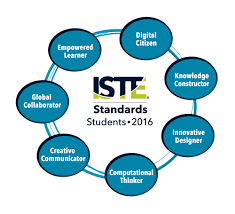
How Kidblog supports and meets the ISTE Standards for Students


  1. Empowered Learner
  2. Digital Citizen
  3. Knowledge Constructor
  4. Innovative Designer
  5. Computational Thinker
  6. Creative Communicator
  7. Global Collaborator


The Student Standards reflect the skills that we want the students of today to develop, so they can become more connected with their learning and prepare for their future in an increasingly digital world. The use of blogging is a good way to address the ISTE Standards for Students. The new standards, which were released in June 2016, focus more on what we want for students – The pursuit of lifelong learning and ways in which we can help to empower students in their learning. The emphasis is on providing opportunities which promote student voice and choice and help educators to implement technology in ways that will increase student growth and readiness for the future. The ISTE standards represent the skills and qualities that students need for su​​ccess in the 21st century.

Supporting the standards with technology
There are many educational tools (both digital and traditional) available to promote student voice in the classroom. Blogging is one tool that serves to support and meet the ISTE standards. Educators can refer to the standards as a guide for selecting tools to use with students that will amplify learning and promote student choice. The goal is to support students so they begin to take ownership in their learning. A move in the classroom from teacher-centered, to student-centered and optimally, student driven. Here is how Kidblog can help.

1. Empowered Learner: As empowered learners, students “leverage” technology to show their learning and demonstrate their mastery in a platform that is comfortable to them and in a personalized space. Students take more responsibility for and have choices in how to show their learning.

2. Digital Citizen: Blogging promotes digital citizenship as it helps students to develop their social presence. Through blogging, students become active in online communication, learn about proper use of internet and resources and interact in a safe learning environment. Posting online and sharing information helps students to develop the skills they will need in the future and to recognize their responsibility when it comes to digital resources. Blogging gives students the opportunity to practice appropriate and ethical online behaviors, which transfer into the classroom space as well.

3. Knowledge Constructor: Students gather information and resources to use in creating stories, conveying information in a way that is more authentic and meaningful for their learning. The use of blogs helps students to work on their writing skills and ties in nicely with gathering information to share in their digital space. Students can research and analyze the resources, to determine which is most relevant and applicable to their task.

4. Innovative Designer: Students can use the different tools and features in the Kidblog platform to express themselves in a more unique way, share ideas and create in an innovative way. Designing and creating more authentic ways to show their knowledge as well as creating new and more “imaginative” solutions to a question or problem presented.

5. Computational Thinker: Students can use blogs as a way to discuss and talk through a process of decision-making. Blogging is a great format for working through projects or solving complex problems, and to demonstrate the thought processes and analysis involved through their writing.

6. Creative Communicator: Students can use the different features of Kidblog to share their knowledge, convey information or tell a story in a more engaging and creative way, to be shared with peers and the teacher. Blogging opens up more opportunities for students to be more expressive than the traditional formats such as paper or other digital tools. Students can express themselves in a way which promotes creativity and with Kidblog, can incorporate other tools to present their information in a way that supports the learning goals and meets individual student needs and interests.

7. Global Collaborator: Students can use blogs as a way to learn about other cultures and connect with others by posting their blogs and sharing information with peers. Students narrate background experiences and connect with others in a safe learning environment that builds confidence and promotes student learning. Students share their blogs with peers and can also connect with other students from around the world. It facilitates the opportunity to local and global issues and perspectives, and to use the blog as a way to express their thoughts.

The focus of the ISTE Student Standards, helping students to become better with communication, collaboration, critical thinking, problem solving and to express themselves in more creative and innovative ways, falls in line with the features of Kidblog.

Quizlet Live: A student perspective

Teacher to Teacher: Does technology in the classroom help? Ask the students.

Quizlet HQ ·

This post was written by Rachelle Dene Poth and Sean, a student in one of her Spanish classes. Rachelle teaches French, Spanish, and STEAM at Riverview Junior-Senior High School in Pennsylvania. 

quizletlive

Quizlet Live: An instant hit in my classroom

The availability of technology, and especially of digital tools like Quizlet, have opened up tremendous possibilities for classrooms today. Because of the diverse tools available, teachers now have new ways to deliver content both in and out of the classroom, and students have more engaging and personalized ways to learn.

Quizlet is something I have used in my classroom for the past few years in many different ways. I have used it in class to play Quizlet Live, to give students time to use the activities to review while I work with them individually, and to play games like Gravity on the Smartboard. Toward the end of last school year, I was able to beta test Quizlet Live, their newest collaborative in-class game, with my Spanish II class. It was an instant hit. Once we figured out how to play the game (which was easy), it became a great way to practice the vocabulary and verbs. It also created more opportunities for students to work with and learn from their peers, and build those vital classroom relationships that form a positive classroom culture. (To learn more about how to play Quizlet Live, check out my previous post on this topic.)

How to know when the technology has a purpose: Ask the students

IMG_20161108_131159.jpg

Sean, an 11th grader in my Spanish courses, has been an advocate for the use of technology at school. He recently led a presentation for an edtech conference, TRETC (Three Rivers Education and Technology Conference) and chose to present on Quizlet Live. He explained the purpose of the game, highlighted how to play, and led a game with those present — many of whom were playing for the first time. Sean had great, first-hand information to share and, coming from a student, the benefit of using Quizlet Live in the classroom was clear to everyone.

In Sean’s own words

Quizlet has a purpose when it comes to studying or just having fun. For example, in my Spanish II class, we used Quizlet for studying outside of class or to create cards for homework, and then when we met again as a class, we would play Quizlet Live and it would be fun for everyone. It is a tool that can be used multiple ways for school and work. An example of using it outside of school is when we were coming home from the PAECT student technology showcase. We were bored during the bus ride, so Mrs. Poth asked us if we wanted to play and we said sure.

Screen Shot 2017-01-10 at 1.08.33 PM.png

At the time we didn’t know any topics that could be played on Quizlet Live except for school topics, but we were introduced to some of the other topics that could played. We struggled with some of the TV trivia, which dated back to the 1950s, but we worked as a team and won the game. This activity showed our group that there were a variety of things that could be done using Quizlet Live.

This school year, I have already created a Quizlet Live that my class has played and everyone loved it. I will continue to create more Quizlets to use and help out the class, and to also have a fun time at home. We will be presenting a session during our state technology conference, PETE&C, and in addition to the student showcase, we will take over a full session and teach teachers about these tools. The students will once again be the leaders and engage the attendees with Quizlet Live.

6 Digital Tools To Engage Students

 Original Post Published on Teach Thought May 22, 2017, few updates added


Are you looking for some new ways to get students engaged this school year?

Here are 6 tools that I had found to be quite helpful as this school year winds down. More importantly, these are also some of the student favorites, in no particular order.


Flipgrid

Flipgrid is another video response tool that offers ways for students and teachers to interact with a variety of discussion topics. You start by creating a “grid” and then adding a “topic.” There have been some major updates and new features added to Flipgrid this summer. Longer recording length, stickers, gifs, integrations and more. Be sure to check it out!

A grid in my case is one of my Spanish classes.  Students go to the grid to see new topics which are posted for discussion and then record a response and even reply to classmates.

I have used Flipgrid as a way for students to reflect on their project-based learning, and for basic speaking assessments with my Spanish 1 and 2 students, where I can listen to their pronunciation and provide feedback. Flipgrid is also a way to connect students with other classrooms or even professionals in different fields, to connect with real-world applications of the content material.

Some additional features include the ability to give a rating to the response, read the transcript, provide written feedback which can then be emailed to each respondent, as long as an email address has been provided.

When setting up the topic, there are options for recording a video prompt, adding additional details in writing, and then customizing the topic based on whether or not other people can see the responses. You can freeze a topic, so new responses cannot be recorded but all prior responses can be viewed.

There are other features such as tracking the number of views, likes, and comments. Flipgrid is available on Chromebooks, iOS and Android devices and can also be embedded into an LMS or other websites. It is another tool that is easy to set up and might just be what you are looking for, especially at the end of the year,  to have students provide feedback on the course, to offer some information to help with the summer reflection.


This slideshow requires JavaScript.

Recap 2.0

Recap 2.0 is a Question and Answer platform available on Chromebooks, iPads, iPhones and Android devices, which can be implemented right away and is easy to use. Recap enables teachers and students to ask questions, share a reflection, and provides a comfortable way for students to communicate their thoughts. Recap also had many new updates this summer and is a great way to spark curiosity in students and to help students learn ways of asking questions and seeking more independent learning.

Students can submit questions and receive direct feedback from the teacher, parents can receive feedback by email through Recap, and there are many other features available for assessment and classroom management. Recently Recap added another feature to its platform by introducing ‘Journeys.’

In a Recap Journey, teachers create a multi-step path for students. It starts with a 60-second video and then the learning path, which leads to more independent learning and can also be a great way to differentiate instruction. As an end to the “Journey”, students can share their information or create a presentation.

In my experience with the Journeys, I had students explore Spanish-speaking countries and included different links for them to explore more based on their own interests.

It was very easy to create my own Journey and there are also many Journeys available to try through the Recap Discover.

2016 Pioneer Badge

Kahoot!

By now, you’ve likely heard of Kahoot! Especially last week when CHALLENGES came out after a period of Beta testing following discussions at ISTE in San Antonio. I was fortunate to be one of the testers and Challenges are great for having students practice the content and even for fun with family and friends.

Kahoot! is great for assessments and having a game based learning element added to your classroom. It can even be used for professional development or family fun. Kahoot! offers many quizzes in the public library which can be duplicated and then edited to make your own.

When playing, it also has added new features for auto advancing, playing in ” ghost mode ” which enables players to try and beat their first score. ‘Jumble,’ which is one of the most recent additions has proved to be a lot of fun and very beneficial for learning.

In Jumble, you create a question and each of the four colored tiles becomes part of the response. When the question appears on the board, the squares on the board are shown but the order is “jumbled.” Players must then slide the squares into the right order to either spell the word, properly form the sentence, or answer the question.

As a foreign language teacher, this has been quite beneficial for having students practice their spelling as well as for reinforcing proper word order for sentence structure in Spanish. Playing with Jumble mode has livened up the classroom because it is something different to try and the students are always excited about trying new things.

Setting up a game played in Jumble mode, or encouraging students to create games as a review, will add to classroom resources and be more authentic practice for the students.

Buncee

Buncee is a multimedia presentation tool which can be used to create interactive presentations, cards, signs and other engaging visuals.  (see recent post on new Buncee features, and look into Buncee Classroom)

There are many new items added to their library and some additional features, including the ability to use it for assessment. I have enjoyed testing out Buncee with my students. It is easy to create with Buncee, you can add multiple items o n to the canvas and move them around very easily. Teachers can create lessons with assessments through the classroom edition.

But what is most exciting about Buncee is that it offers many ways for students to be creative and more engaged in learning by creating something authentic, as there are thousands of items that you can add to bring it to life and make it your own.

Students can design Buncees for any class and will have the opportunity to create more authentic work which represents what they can do with the language material we have covered. Creating will be a lot of fun for students and teachers. And great for doing a Twitter Chat too! Lots of great templates.
full-1

Telegraph

Telegraph is a very easy site to publish a stand-alone web page, which can be used to create a sign, a newsletter, a journal entry, or anything as an alternative format to pen and paper or using a Word or Google Document.

It is simple to use: type in the website, add a title to it, your name and add some pictures or links to other websites and once you’re finished, you publish it and it provides you with a web address. You can easily share that link with anyone.

My students created a site to tell about a favorite trip, one to talk about sports and favorite athletes, and another some even made Mother’s Day pages and then printed them. If you’re looking for a way to have students practice simple writing skills and do so in a more digital way, I’d recommend trying Telegraph. No log-in is required and it’s very easy to use.

Quizizz

Quizziz is a fun assessment tool that continues to add more features, which makes obtaining feedback from students and providing feedback to them much easier. Some of the newer features include receiving a daily report of the Quizizz summary and being able to send parents the results of a student’s Quizizz game. (See new Quizizz features)

The daily summary report shows the number of Quizizz games used, number of responses, percentage correct as well as additional information. It’s nice to be able to have that data available so quickly. There is also the option to email the data directly to parents, which is great especially for communicating student progress and in a timely manner.

Quizizz is another tool which is easy to implement, you simply create your own by adding your own questions or search from the public Quizizz available and drag in the questions you want and then edit them according to your preferences.

Other benefits include the ability to either play it live or assign it as “practice” or homework. You can store your Quizizz games into Collections to find them easily, quickly build games and it has a much improved UI, and it was pretty good to begin with.

And if you create the Quizizz and do not have enough time for students to finish, no worries because when students use the same login and pin number, they can pick up right where they left off in the game.

This slideshow requires JavaScript.

10 EdTech Tools for Encouraging Classroom Collaboration

Thank you Getting Smart for the opportunity to be a Guest Author for this post.

10 EdTech Tools for Encouraging Classroom Collaboration

By Rachelle Dene Poth

Today’s technology offers so many options for educators and students that deciding on where to begin can be overwhelming. To get started, think about one new approach that could be the catalyst for positive change in your classroom. In looking at your learning environment, what could benefit your students the most?

How do you find tools to help meet your needs? Resources are everywhere: books, blogs, social media like Twitter chats, Voxer groups, your PLN, or even conferences, EdCamps and similar professional development opportunities. But even with all of these resources available, it still comes down to taking a risk and trying something new.

Here are some helpful and versatile technology tools to easily and quickly integrate into your classroom and help meet your needs.

Discussion Tools: Get Them Talking

Teachers need to hear from students, and we know that asking questions or calling on students to discuss a topic can often make them nervous. When students, or anyone, develop that feeling of “being on the spot”, it can become more difficult to encourage students to share what they are thinking, what they are feeling and what their true opinions are. This is where digital tools can provide security and opportunities for students to express themselves. Technology has a true purpose. Students still need to develop an ability and gain confidence to speak in class, but these tools can help by providing a comfortable way for students to develop their voice and express themselves.

Depending on the type of question or discussion format you want for your classroom, there are many tools available that can help.

  1. SurveyMonkey is a good way to ask a variety of questions, find out what students are thinking, use it for a quick formative assessment, and many other possibilities. I have used it to find out how students prepared for tests, what areas they need help with, and even for voting for club officers and planning trips. You have the results quickly and can provide feedback instantly, to plan your next steps in class. It can be a different way to find out about your students and their needs.
  2. TodaysMeet is a backchannel tool that can be used in or out of class, as a way for students to contribute to a discussion or ask questions. It can also be used to provide “office hours” online, for students to ask questions beyond the school day. There are many possible uses for this tool, and setting it up is easy.
  3. GoSoapBox is a response tool that can be used to ask a variety of questions without students having to create accounts. Students simply need an “event code” provided by the teacher to access the activities available. GoSoapBox can be used for polls, discussion questions, quizzes and more, and provides a fast way to assess students or to simply learn more about them and their thoughts.
  4. Recap is a video response tool, where students can respond to a prompt and all responses are compiled into a “daily reel” for teachers to view and provide feedback. Students can respond from anywhere and feel comfortable in sharing their thoughts using this tool.

These are just four of the many options—sometimes it just takes a bit of research. Asking the students for new ways to use the tools you have already been using in class can also be helpful.

Communication Through Collaboration

There are many options which promote student collaboration and enhance writing skills and student voice.

5) Blogging: Through blogging, teachers can provide support for students and help them to gain confidence in writing and speaking. We have used Kidblog to complete many writing tasks and creative writing assignments.

6) Wikispaces: A Wiki has worked really well in our classes for having students collaborate on a topic, create a discussion page, and set it up to inform on a topic, to list just a few examples. We created a wiki on Spanish art and also created our own travel agency.

7) Padlet: Padlet is a “virtual wall” which promotes collaboration, communication, creativity and more because of its versatility. Students can write a response to a discussion question, add resources for a collaborative class project, work in small groups, use it for brainstorming or connect with other students and classrooms throughout the world.

Using digital tools in this way is great because the discussions don’t have to end when class does. These tools give ways to get students talking, share their ideas, so that we can help them grow.

Creating presentations and telling a story

A few options for having students present information in a visual way with options for multimedia include the following:

8) Buncee is a web based tool that can be used for creating presentations, interactive lessons and more, with many options for including different characters, fonts, animations, video and more.

9) Piktochart is a tool for creating infographics, social media flyers, engaging presentations and more. Students have created menus, self-descriptions, movie and tv advertisements, recipe presentations and much more.

10) Visme is a “drag and drop” tool that is easy to use for creating infographics, reports, different presentations and more. It has a library full of images, charts and more, making it easy for users to create exactly what they need.

What are the benefits of these tools?

Each of these tools promote more personalized and meaningful learning for students. These tools can be used to enhance, amplify and facilitate deeper and more authentic learning . Using technology just for the sake of using it doesn’t make sense. But using it to help students find their voice, learn what they want to do, what they can do and what they need help with, does makes sense. Purpose.

For more, see:

Rachelle Dene Poth is a Foreign Language and STEAM Teacher at Riverview Junior Senior High in Oakmont, PA. Follow her on Twitter at @rdene915.

Kidblog: Don’t Let the Learning Stop: How to keep students engaged over extended breaks

Don’t Let the Learning Stop: How to keep students engaged over extended breaks

stocksnap_c91r095cw5

The “Slide”

Throughout the school year, extended breaks provide both teachers and students the opportunity to give their mind a chance to reboot. However, learning opportunities do not have to stop while we take a break from the classroom to devote time to family, friends, and relaxation. Without opportunities for active learning during these extended breaks, some loss of knowledge is inevitable.  Similar to what has been termed the “summer slide”, this phenomenon also occurs during shorter breaks throughout the course of the school year.

There are many opportunities available to avoid this “slide”; teachers can help students engage in learning in fun ways that do not feel like “learning” at all. For my students, this means  blogging. Thanks to the availability of technology and platforms like Kidblog, students can stay connected, while still working on building skills over the break.

From “assignment” to “activity”

So, what turns a blog post from “an assignment by the teacher” over break to a fun student activity? It’s all about the content. For example, students may be asked to write a blog surrounding their time over break. Perhaps they describe what activities they participated in; writing a review of a book or movie they experienced, sharing how they spent time with friends or family, or even posting a new recipe they learned over break. These open-ended prompts enable students to work on their writing and literacy skills in a low-key and fun way. Additionally, it gives teachers the chance to stay connected with their students and provide any necessary feedback.

For more reflection, students may be given prompts which ask them to take a look back at some of the work that they have done prior to the break. They can focus on a few specific skills they have gained as well as their strengths or weaknesses throughout the year. Using blogging as a journal, they may then write a personal blog to themselves addressing these areas.  The blog can be shared with the teacher as a reflection, to explain how they perceive their progress in class and offer some ideas for personal goals or describe areas where improvement can be made. This prompt can be a great way for students to prepare for the year ahead of them.

It’s about staying connected

Blogging enables the students and teachers to communicate through a comfortable medium. It gives students an opportunity to write, read, and practice any critical skills they have learned leading up to the break as well as some reflective writing.  Students are encouraged to be creative while they are engaged in the practice of reflection, setting them up for future growth and helping you as the teacher develop a better understanding of student needs.

Project Based Learning: Essential questions and Many Uses of Recap

Posted on December 7, 2016

Posted in Guest Post, User Stories, Why Recap

Excited for the upcoming school year, I decided to start with some new ideas, teaching methods and digital tools. I wanted to continue using some digital tools from last year, but hoped to find different and more creative ways to implement them into the classroom. My motivation for this developed as a combination of time spent over the summer reflecting on the previous year, learning new things at summer conferences and through webinars, and engaging with groups on Voxer. But possibly the most impactful for me, was by obtaining feedback directly from my students. I used Recap over the summer to ask them what they enjoyed in class, what helped or didn’t help, and what they were looking forward to in the new school year. Student voice matters.

A New Experience

The biggest change for my classes this year, was starting PBL (Project Based Learning) with my Spanish 3 and 4 students. When taking on PBL, educators need to have some guidelines set as to how to begin and what the process entails. Students will be taking on a challenging new experience, one which provides opportunities for choices, independent and inquiry based learning. It is a different experience, because the students are in charge of their learning. They are studying something of a personal interest, or a passion to themselves. It is quite liberating and can lead to tremendous, authentic, meaningful learning opportunities, which will be highly beneficial for the students. It can also be a bit scary, because of the amount of independence involved in this method. So there are guidelines and resources available to educators that can help with implementing PBL in the classroom, and guiding students to develop their “Essential Questions.”

Getting Started

There are many great resources available for educators to learn more about and implement PBL (Project based learning) in the classroom. To begin this with my students, I first did some research to prepare myself for this new learning experience. I started with the Bucks Institute for Education (BIE, http://www.bie.org) for guidance before implementing it in my classes. I wanted to be prepared so that I could help to guide the students, even though I knew that I would also need some support along the way.

I carefully read over and took notes from the “8 Essentials for PBL” from BIE and also referred to several publications from ISTE for PBL. Other helpful resources were the weekly blog posts by Ross Cooper and Erin Murphy, offering advice focused on #HackingPBL, to be included in their upcoming publication, “Hacking Project Based Learning”, which will be published this month.

Another helpful book was “Dive Into Inquiry” by Trevor MacKenzie, through which I enjoyed hearing his experience and sharing the helpful images of rubrics with my students. During this process, I was also fortunate to have conversations with these educators, and early on, Don Wettrick, author of “Pure Genius”  spoke to my students about PBL and how to get started, giving them great information and asking thought-provoking questions to challenge them. We had a Skype call with Ross Cooper, who listened to and offered advice to several of my students on crafting their Essential Questions. The students even later got to meet Ross and Erin and talk about the Hacking PBL book.

Next Steps

Taking all of this information in, I guided my students through each step in the process, with focus on the beginning stages of PBL. The first step is to decide upon the Essential Question. What is an Essential Question? From my research, I have learned that it is not something that can easily be answered by conducting a quick Google search or with a Yes or a No. An essential question requires more. It leads students to research and critical thinking, problem solving, independent learning, progress checks and reflection along the way. When focusing on the Essential Question, it is not readily apparent what the end result of the student learning experience will be. My students initially struggled with not knowing where their research would lead. An essential question requires more, leads to more student inquiry and should be something that will sustain student interest along the way.

img_20160926_104209100

Using Recap to focus on the Essential Question and PBL

Rather than have students write their Essential Questions, I asked them to think about what they wanted to study and to share their responses through Recap. I found this was beneficial because they could think through and explain their thoughts, and I could provide feedback directly to them. Having the opportunity to see and listen to the students as they shared their interests enabled me to understand the motivation behind their Essential Question. This method was very beneficial for me.

When we started our PBL, we decided to set aside Fridays as their “PBL” day, and they worked on it independently for the first 9 weeks. We had regular check-ins for updates and at the end, each student shared the product of their PBL experience, which could have taken any form, depending on where their research led them.

One very unique way that one of my students decided to share the information was by using Recap. Recap is a great tool for having students respond or reflect and gives them a comfortable method for sharing information with their teacher and also peers if they choose. One particular student suggesting using Recap to record separate videos of the results of her PBL study on Argentina and the tango. Using Recap for this purpose was a really great way for her to not only share her information and the reasoning of how she crafted her Essential Question, but also her thoughts and steps taken along the way.  Using Recap made  it very obvious to the audience how excited and engaged she was as a result of having the choice to pursue learning  about an area of interest and passion. Even without the video component, the audio itself was enough to inform and engage the listeners in her topic. I could tell that she had chosen an Essential Question which led her through a tremendous learning experience,with sustained inquiry and engagement, and had truly gone through the Project Based Learning process. Selecting this as the “public product” was a great idea, and it also provided her with something to reflect upon as well.

***********************

Using Recap to share the results of PBL

Marina: For my recent Spanish PBL project I decided to use Recap! PBL stands for Project Based Learning which means we come up with a topic that we are interested in learning more about. The first step is to state our essential question, the focus of our research and then being to explore and expand our knowledge. Along the way we might have more questions come up that we may not know how to answer, so we keep searching, learning and expanding our knowledge to find answers  to them. At the end of the PBL project we are basically an “expert” and we can share our findings with our class, in any way that we choose.

image

For my presentation, I decided to use Recap. Recap is like no other tool we have ever used in our classroom and it is by far one of my favorites. Recap is a tool that allows you to record a two minute long video, to answer a prompt, share information, or anything you want. It allows you, as the student, to answer questions that your teacher or professor sends you and you can record yourself, with as many tries as you want and then send it right to your teacher. As a teacher you can create questions and send them through Recap to your students, allowing them to respond in the comfort of their home or anywhere to answer your questions and have a continuous chat with feedback. Or like I did with my PBL, you can just make videos by yourself,  you don’t even need a question to be sent to you to be able to make one.

I love using Recap because I feel comfortable at my house recording my thoughts and then having them on my account to show and share with my whole class.

For my Spanish PBL product, I used Recap and recorded myself at home. I spent the time studying the Argentine tango and I was able to research my topic and prepare to make a couple of two minute videos to talk about and share what I had learned during our PBL. I didn’t have to worry about having to talk in front of the whole class and forget what I was going to say. With Recap it was stress free to present in front of my class because I pre-recorded it.

My class absolutely loved it because it was so different than just using Powerpoint or some other web tool that they had seen before. So not only did they learn about the Argentine Tango, they saw they could use Recap in a different way.

Recap is an amazing tool that can bring a whole new element to classrooms everywhere, at any time, because it is so simple and easy and not to mention a lot of fun! I really suggest it to students and teachers because trust me, they will love it!


Check out Rachelle’s Pioneer Page

Post on Storyboard That

Encouraging Creativity and Innovative Designs

Students Share Their Stories

By Rachelle Dene Poth


Thank you Storyboard That for the opportunity to share our story!
Find this and other great teacher resources in our Education Blog!

Storyboard That is a tool which offers many opportunities, not only for education, but for anyone looking to share information, tell a story, or produce a product in a more visually engaging way. It is a very authentic tool that promotes critical thinking, communication, and creativity. It fosters innovation in designing and empowers students in the learning process. Students take control of how they show what they have learned and can now do with the material, in their own personal way. Each of these opportunities help to promote the integration of the new ISTE Student Standards.

By using Storyboard That, students are able to select from so many templates with diverse options for themes, backgrounds, characters, text, props, and more. The tool applies to any level and any content area quite easily. It offers so much, that providing students with opportunities to express themselves and apply their learning in a unique way that is more meaningful, is easily done.

Some Options for Classroom Use of Storyboard That

There are so many possibilities for having students complete a project with Storyboard That. Teachers can use one of the many lesson plans available to implement with their classes. Whether you teach History, English, Foreign Languages and more, Storyboard That is a great option to provide to students, it will appeal to students because of the variety of options available to express creativity and promote student choice and voice.

Deciding how to best use digital tools can be challenging at times, but a good place to start is to hear directly from the students. Involving the students in the classroom decisions and then asking for reflections on their experience with using the tool helps educators to understand if and how technology is enhancing their learning process. Asking students to share the ease of creating with it, how it enhances or amplifies their learning and in general, what their perspective is about this particular tool, are important to include in teaching practice.

Students as Advocates

Several of my students have used and become advocates for the use of Storyboard That and share the impact it has had on providing more meaningful learning for them and their classmates. Celaine and Emma have created with it and produced visually engaging projects that have enhanced their learning.

Celaine has used this tool for many projects as well as for conference presentations over the past few years. She has become an advocate for its use, for teaching others how to use it at conferences and at school, and serving as a role model for other students with a positive message of the benefits of technology for learning. Here are her thoughts on why you should try Storyboard That and what you can expect from its for learning in your classroom:

Before I started using Storyboard That, my school assignments were rather dull. I tried to put my own personal touches into every slideshow presentation that I made, but after a while it got boring just typing text onto a slide, adding photos and animations etc. When I found Storyboard That, my educational mindset flipped 180 degrees. Now I could finally have some say in my assignments and showcase my personality by creating something that showed exactly what I pictured in my mind. Plus, I actually enjoyed doing my school work again because there were so many ways that I could personalize my assignment. I could choose characters and make them look any way I wanted them to. I could even choose from a variety of backgrounds that date from medieval times to mythical times to the present. That is what I love about Storyboard That: it allows anyone to create a visually appealing presentation in a unique format that will engage students in their learning and allow teachers to learn about/from their students.

In Spanish 3, students were to create a project using chapter vocabulary related to the medical field and had the task of telling a story, using any tool for their project creation. Emma has also participated in several technology showcases and is an advocate for having choices in project tools and how beneficial these tools can be for learning. Emma decided to use Storyboard That to create her medical story, selecting from the diverse backgrounds to really bring her story to life. Emma shares her thoughts on Storyboard That:

Storyboard That has given me the opportunity to truly personalize and create projects exactly the way I would like. It has endless possibilities for creativity and imagination. I really enjoyed using Storyboard That because it enabled me to put so many different things into the medical project. I was able to type anything into the search box and get back some great options, that were exactly what I was looking for. For example, I searched the word “pumpkin” and I got back multiple pictures of pumpkins and jack-o-lanterns so I was able to have choices and find the perfect picture. I found Storyboard That to be the perfect choice for the medical project because, as with most of our projects, this one did not require too many specifics. The requirements were mostly just to be creative and have fun as long as we use the proper vocabulary and verb conjugations.

I have noticed that other web tools do not offer the same amount of options that Storyboard That does for project and presentation making. Some other web tools seem to be limited in the offerings for backgrounds and templates that you can use. Also, I have noticed that it can be a little confusing and difficult to understand some of these other tools. With Storyboard That, it is very easy and simple to figure out how to put in your own backgrounds, characters, images, animations, etc. Storyboard That has made project making a lot more fun.