Why Students should learn to code and how to get started

Published originally on Getting Smart December 15, 2017

Coding is one of the topics that has received greater attention in education over the past couple of years. With a greater emphasis on computer science and coding and the demand for knowledge in these areas, there has been an increase in the variety of resources available to encourage schools to provide opportunities for students to learn about coding. The “Hour of Code” takes place annually during “Computer Science Education Week”. The week is in recognition of the birthday of Admiral Grace Murray Hopper, a computing pioneer. To see some of the events and activities from this year’s “Hour of Code” week, go to the Code.org site or check out the hashtags on Twitter for #HourofCode and #CSweek.

The goal of participating in an “Hour of Code”, is to show that anyone can code and to highlight how vital computer science knowledge is for today’s students, as it helps them to develop the skills they need to be prepared for their future. Data provided on Code.Org provide statistics which support the growing need for students to have opportunities to learn about and develop skills in coding and computer science. According to the site, the majority of schools do not teach computer science, with only 40% reported as having courses available for students. For careers in STEM, 71% of the jobs available are in computing, however, only 8% of STEM graduates are in Computer Science. As for future employment, computing jobs are the #1 source of new wages in the United States, a number that is expected to increase. In addition to the future benefits for employment, what are the other benefits of coding for students?

Why should students learn to code?

Coding is something that each student can do and is a more engaging way for students to work on their collaboration, critical thinking and problem-solving skills. Coding can help to promote SEL (Social and Emotional Learning) skills as well. For example, in working through the various modules available on Code.org or through other coding programs, students develop their self-awareness as they work through the challenges of coding and they develop a greater understanding of their strengths and being able to set goals for oneself based on this self-awareness. Students will become more confident as they problem solve and experience success along the way and by helping peers as well. Students build relationship skills through the collaboration during activities, seeking and offering help when needed and learning to cooperate with one another to solve a coding challenge.

Students can also experience more inquiry-based learning, where they are exploring on their own, problem solving and discovering how to make a program work, where the steps fit in and then being able to share the experience with one another. Personally, I enjoy trying to work through the activities on my own, to experience the challenges and be better equipped to anticipate student questions, but also to be more familiar with areas of struggle.

Getting Started

The idea of coding can be a bit overwhelming, at least that is how I felt when I first started a few years ago with the game Hopscotch. It was challenging to create a game and it took a lot of patience to push through. However, back in the early 1980s, as a 7th-grade student, I had my first experience in writing lines of code with the Apple computers. Once you learn the basic structure and the commands, it is a gradual process that does not seem to take too long to master. Even nearly 35 years later, the concept of coding really is quite the same, except that we can create more visually engaging games and programs. There are so many resources and websites available to help educators and students get started, making it less intimidating than it may initially seem.

When trying some of the resources below, be sure to engage students in discussions about their experience with coding. Encourage students to share with their peers and talk about professions which require coding skills or to brainstorm areas where knowledge of coding will prove to be beneficial. Providing this time for students to interact will help them to develop their SEL skills, by building peer relationships and supporting the classroom culture.

Working with students

Be ready for students to express some frustrations when trying to work through the activities. Even if you don’t have experience coding, it’s a great opportunity to learn right along with the students and in many cases to learn from them. How do you prepare? I recommend trying each of the activities on your own, so you are familiar with the set-up and the types of tasks that the students will be completing. As a Star Wars fan, I started with the basics and did encounter some difficulty mid-way. As it turns out, a few of my students had the exact same problem with it and asked for help. Although I did figure out how to work through it, I wanted them to work through it on their own as well. We need to give students time and space to problem solve, to ask for peer support and to experience the frustration that comes with solving problems and the joy that replaces it when the solution is reached.

Seeing the students begin to collaborate and step in to help their peers, demonstrated the benefits beyond just learning to code, it promotes their SEL skills. A lot of what is involved in coding is critical thinking, problem-solving and definitely collaboration and with all this comes an amount of frustration perhaps when the code does not work as one expects. This is when we see the students start to connect and help one another and I have also seen students become very frustrated, understandably but it is what we do with that frustration, pushing through even in the face of challenges, knowing that there is support available amongst peers and the “teacher” in the room. There is always an identifiable teacher, but as we have learned in our classes, we all have something to learn and something to teach.

Ten resources to try

  1. Code Studio: A part of the Code.org, there are full courses available for learning different types of code, for different grade levels, as well as one-hour tutorials on themes such as Minecraft and Star Wars. Teachers can also use the “App Lab” and “Game Lab” to help students learn how to create using Javascript. Also available are more than 20 million projects created by students.
  2. Scratch: Created by MIT, Scratch is a website for more than just programming. Scratch provides an online community for sharing projects and for learning from the library of resources available on the site.
  3. Code Academy:  Through Code Academy, you can enroll in courses to learn how to program, or search the catalog to find a specific language to learn, such as Java, Javascript, HTML and CSS, for example.
  4. BrainPOP: Teachers can engage students in the “Creative Coding” module, in which students create stop-motion animation movies, memes and newscasts. Students follow the instructions to write their own lines of code and see how each line changes the program. Working through the module leads students to create their own codes and publish a movie or create a meme. The Creative Coding module is free for Teachers through the end of the year.  There are also lessons available which focus on Computer Science and Coding and offer a variety of activities for students to develop their skills.
  5. Hopscotch: an iPad app in which students can learn to make their own games and apps, available for students ages 8 and older. There are tutorials which include videos and lessons plans, making it easy to get started with this in class.
  6. Swift Playground: An iPad app that enables students to get started with coding quickly, without any coding knowledge. Students can start by solving puzzles in order to learn the basics, and then continue through challenges to do more advanced coding.
  7. Pencil Code: A collaborative programming site which provides resources for teachers, student project samples, and choices of creating games, playing music, drawing art, and working with mathematical equations and graphing.
  8. TeachersFirst: There is a rather extensive list of different types of websites for coding based on theme and grade level for getting students involved.
  9. Girls Who Code: A non-profit organization which focuses on closing the gender gap in technology. Girls Who Code offers information for creating after-school clubs for girls in grades six through 12 to learn about coding, as well as two-week-long summer courses and a seven-week-long specialized summer program for 10th and 11th grade girls to learn about coding and job opportunities.
  10. Khan Academy: A non-profit organization which offers free educational resources including practice activities and videos, which enable you to learn at your own pace. Khan Academy provides lessons on Computing, with options including computer animation, hour of code, computer programming and computer science. It is easy to get started by either choosing the basics and working through a whole lesson, or selecting a specific concept.

Coding is not just about learning to write a program, it’s about connecting with the learning and building relationships in the process. Learning to problem solve, collaborate and work together to build skills for the future. Developing our interpersonal skills and fostering the development of meaningful and supportive relationships in the classroom will empower students in learning.

For This Lesson, I Stepped Aside To Become A Facilitator Of Learning


Posted on TeachThought, August 29th, 2017  (Thank you Terry Heick)

It started with a cross-class collaboration idea.

I was not sure the idea would work, but was willing to give it a try and it had captured the interest of students. I connected four levels of Spanish and created a team project using Google and Padlet so students could collaborate and share their work.

The experience went so well that it led me to think about other ways to engage students more in a collaborative online learning space. Students need to be connected with authentic learning experiences and develop digital citizenship skills, and to be given choices in learning. Trying to build on the prior project collaboration, I wanted to explore possibilities of using Google slides to have students work simultaneously on a whole-class project.

I asked the students if they had done any type of collaboration online like this before, and I was surprised that they had not. Knowing this pushed me more to decide that I should definitely create this learning experience with them.

Connecting students

I decided to try something more collaborative by using Google Slides. We are a Microsoft Office school, but many students use Google Drive on their own. I also use Edmodo in my classes and like the students to have experience with different kinds of tools. I like that students can work on a document or a presentation at the same time, as this substantively changes the methods and frequency with with students share ideas.

By having students create a class presentation simultaneously, the teacher can then take that extra time to facilitate their learning and interact with students to do something more specific, like assessing their content knowledge. Giving students the opportunity to work as a team toward one whole class project rather than completing individual projects opens up new and more engaging ways for the students to learn not only content or technology skills, or even ‘soft skills’ like collaboration, but also get to know one another more as well.

Connecting students with their peers promotes a friendlier and more cohesive class culture, and I think makes learning more authentic and meaningful for students. To be able to see what they are each working on and to be part of the whole class presentation in real-time requires constant interfacing of different personalities and skill levels.

The divergent interests, backgrounds, and experiences of the students in each class are emphasized in whole-class projects like this, which both strengthens the learning experience while also being more demanding of the technology.

When doing individual projects, it’s not always the case that each student has the opportunity to see the work of the other students. Doing this can be quite time-consuming and feel ‘wasteful,’ but the long-term momentum of successful projects that are as highly-visible as a whole-class collaboration are worth the time taken, and hiccups along the way, especially early in the year.

Our Presentation

To have the students practice the new chapter material on clothing and shopping preferences, I created a Google Slides template for a Fashion Show.

I set up a presentation for each class and shared it with the students. I provided instructions for what was expected for their slide, and reminded them to only work on their slide and respect the work of the other students.

For the fashion show, they were to choose a celebrity, find a picture and write a description in Spanish of the clothing that the person was wearing. They also had to write a few statements about where the clothing could be purchased as well as the cost for the items.

In doing this I thought it would be a great reference because the students could refer back to each slide, read the descriptions, and reinforce and review their content knowledge. Plus, depending on the types of clothing pictures the students chose, it could be a lot more fun–definitely more engaging and an interesting experience for all students than individual study.

This ‘real-world topic meets real-world technology meets whole-class collaboration’ ended up being a more authentic way to practice the content than even I had hoped, increasing the language and content retention for the students as well as teaching them new technology skills.

The students really liked seeing the Fashion Show displayed on the Smartboard, which was another opportunity to reinforce the vocabulary by asking students questions about each slide, reviewing the verb forms, and more.

For the most part, they did respect the work of their classmates. A few students enjoyed adding pictures of some celebrities onto the slides of their peers, which resulted in peers responding instantly and removing them–I didn’t even have to say anything!

A risk in giving open access to the editing of the presentation ended up being worth the risk taken, and was a way to teach lessons about digital citizenship as well.

Next Time

Always thinking of the next thing, I decided that perhaps another opportunity to work collaboratively would be to create a class review presentation for final exams. This might take more planning, but I think the long-term effect will be worth it.

This approach is a great way for the students to prepare for final exams and have a reference to review the material covered in the level 1 Spanish course. The idea is that each student will be assigned a slide and given a verb or grammar topic as well as some vocabulary to include.

For their slide, the goal is to teach a mini-lesson, provide references, include a video or link to a game and some sample sentences. Though I’m taking this approach to teach a foreign language, it could be used to teach, learn, or review almost anything, from math definitions and historical trends to literacy devices, phonics, word parts, and more.

I also hope that it will end up being a good way for students to have some personal instruction as well as a choice in what they are creating–and another opportunity for students to collaborate with their peers as the teacher shifts roles from leader to facilitator of learning.

PBLTT

New features to our favorite tools: Part II

Kahoot!

Over the past couple of years, there have been a lot of new features added to make Kahoot even more engaging for students and teachers. Some of my favorite features are the questions automatically going through to the next one, the podium feature, its method for kicking out inappropriate names, the new Kahoot! app and other subtle changes to layout and options of the platform.  This year has brought two new things, that may be my favorites so far.

The first one I learned about while at ISTE in San Antonio, when I had the opportunity to spend some time with the team of Kahoot and learned about the “challenges” that they were creating. If you haven’t had the chance, you can “challenge” students to complete one of your games by sharing a code with them, just as you do for the live games but students can log into it within the app on their phones. Students can even challenge one another on different topics that they find in the app and so it’s a good way to provide practice for students outside of the classroom, where they don’t have to rely on the Smartboard to see the questions but rather have everything available on their device.

Screen Shot 2017-12-04 at 10.25.45 PM

Photo from Kahoot! Blog

RockstarPanda, EpicFox, Friendly Moose and StellarCheetah?

But the most fun that I’ve noticed is unexpectedly was about 2 weeks ago, I created a game for my students to play and at the top of the options, I noticed the option for “generating creative usernames”. So I figured why not, selected it and couldn’t wait for the students’ responses. The generating of creative student names resulted in my students saying that I was taking away their creativity. Kind of funny but these generated names were much more original than the names that they had commonly used when joining our games. I’m not going to lie, it was quite fun to yell out who is “Mystery Panda”, “Fantastic Bat”, “Daring Dog” rather than the usual names. Plus I think it’s a nice way to have anonymity in the game so that students feel more comfortable answering and not so worried about what their score is in front of everyone else.(Even though the often yell out what their score is).

The “Nickname Generator” has a list of 800 unique two word name combinations and using it is a great idea, because it saves the time lost while students try to come up with their own “Creative” names.

Games for the Hour of Code

In recognition of the week of December 4th through the 10th, being Computer Science Education Week, and the “Hour of Code”, Kahoot has added some games to help students understand some basics of coding. Try these out for some fun ways to get the students involved with coding and use the game as a starting point for some class discussion.

Screen Shot 2017-12-04 at 10.24.44 PM.png

From Kahoot!

New Look for the Kahoot details page

 I noticed something different when I launched a Kahoot game and that was the appearance of the page once I clicked on the game we wanted to play. It has a much clearer appearance, easy to navigate and a nicer layout. Here is how it looks:

Screen Shot 2017-12-04 at 10.17.26 PM.png

The “Play” and “Challenge” buttons are easy to find. You can see the questions and timers for each. By selecting the “Show Answer”, you are then able to see the choices for each and the correct response for each question.

Screen Shot 2017-12-04 at 10.20.48 PM

New features to our Favorite tools! Part I

Here is the first part of a series focused on some of the latest updates to four of the digital tools that we regularly use in our classroom. I admit that I may have been more excited than the students, when I came across these updates, but once we tried them in class, the students were just as excited for these new features.

First is Nearpod. Nearpod + VR College Tours and Remind! Nearpod has been a game changer in my classroom. Students have engaged more in learning when we do lessons in class and they are interested in creating their own lessons, and taking on more of a leadership role by running the lessons on their own. Nearpod continues to add new features, making it a versatile tool that provides an immense library of lessons to choose from and a wide selection of activities, content and other resources to include into each lesson. Over the past few months, Nearpod has made some updates and integrated new features into the already extensive platform. Some of the new features  launched include: having more than 50 video lessons available through the BBC, option to view in “Student Mode” on the Teacher Dashboard, PheT Sims interactive Math and Science Lessons, and  making lessons with these resources available for immediate implementation into class. It is easy to find lessons that pertain to different content areas and grade levels, and which include a variety of tools for assessment and for engaging students more in learning.

Nearpod provides a very user friendly interface, which makes it easier for teachers to start using Nearpod and to build comfort when designing their own lessons. It is also highly beneficial for keeping the students actively learning on days when teachers have to be away from the classroom, through the use of Nearpod for Subs.
Launching lessons can be done live, with a join code in class, or shared through
a link, social connections, or through Google Classroom. But there is a new
update that makes it even easier to share, and that is Nearpod’s integration of
Remind as a way to share lessons. By integrating with Remind, educators send
the link through Remind, enabling students to start the lesson whenever they can
and wherever they are.
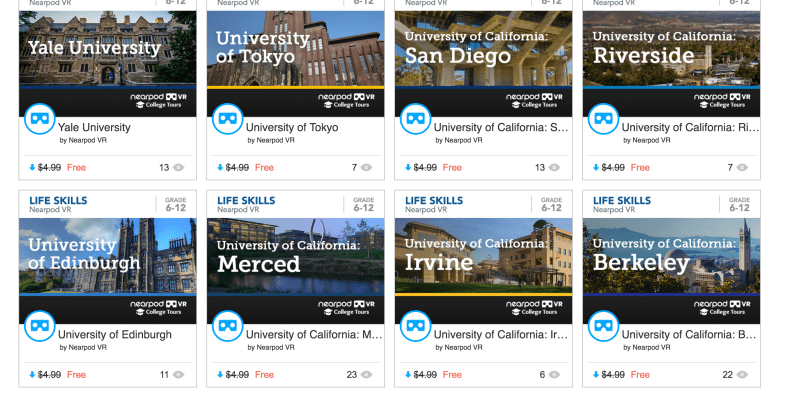
Another recent addition to the vast Nearpod library are the College Tours,
available in VR. What a great way to have students take a look at different
schools, without having to travel the distance, and to be able to immerse in the
campus and look around. There are currently 27 different colleges represented in
the collection, which include Universities such as Cambridge, Oxford, UNAM and
Taiwan and Tokyo, to name a few. A really great addition to the Nearpod collection and I recommend checking out the tours, and you can even use these as a way to create a scavenger hunt for students.

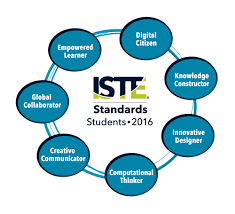
How Kidblog supports and meets the ISTE Standards for Students


  1. Empowered Learner
  2. Digital Citizen
  3. Knowledge Constructor
  4. Innovative Designer
  5. Computational Thinker
  6. Creative Communicator
  7. Global Collaborator


The Student Standards reflect the skills that we want the students of today to develop, so they can become more connected with their learning and prepare for their future in an increasingly digital world. The use of blogging is a good way to address the ISTE Standards for Students. The new standards, which were released in June 2016, focus more on what we want for students – The pursuit of lifelong learning and ways in which we can help to empower students in their learning. The emphasis is on providing opportunities which promote student voice and choice and help educators to implement technology in ways that will increase student growth and readiness for the future. The ISTE standards represent the skills and qualities that students need for su​​ccess in the 21st century.

Supporting the standards with technology
There are many educational tools (both digital and traditional) available to promote student voice in the classroom. Blogging is one tool that serves to support and meet the ISTE standards. Educators can refer to the standards as a guide for selecting tools to use with students that will amplify learning and promote student choice. The goal is to support students so they begin to take ownership in their learning. A move in the classroom from teacher-centered, to student-centered and optimally, student driven. Here is how Kidblog can help.

1. Empowered Learner: As empowered learners, students “leverage” technology to show their learning and demonstrate their mastery in a platform that is comfortable to them and in a personalized space. Students take more responsibility for and have choices in how to show their learning.

2. Digital Citizen: Blogging promotes digital citizenship as it helps students to develop their social presence. Through blogging, students become active in online communication, learn about proper use of internet and resources and interact in a safe learning environment. Posting online and sharing information helps students to develop the skills they will need in the future and to recognize their responsibility when it comes to digital resources. Blogging gives students the opportunity to practice appropriate and ethical online behaviors, which transfer into the classroom space as well.

3. Knowledge Constructor: Students gather information and resources to use in creating stories, conveying information in a way that is more authentic and meaningful for their learning. The use of blogs helps students to work on their writing skills and ties in nicely with gathering information to share in their digital space. Students can research and analyze the resources, to determine which is most relevant and applicable to their task.

4. Innovative Designer: Students can use the different tools and features in the Kidblog platform to express themselves in a more unique way, share ideas and create in an innovative way. Designing and creating more authentic ways to show their knowledge as well as creating new and more “imaginative” solutions to a question or problem presented.

5. Computational Thinker: Students can use blogs as a way to discuss and talk through a process of decision-making. Blogging is a great format for working through projects or solving complex problems, and to demonstrate the thought processes and analysis involved through their writing.

6. Creative Communicator: Students can use the different features of Kidblog to share their knowledge, convey information or tell a story in a more engaging and creative way, to be shared with peers and the teacher. Blogging opens up more opportunities for students to be more expressive than the traditional formats such as paper or other digital tools. Students can express themselves in a way which promotes creativity and with Kidblog, can incorporate other tools to present their information in a way that supports the learning goals and meets individual student needs and interests.

7. Global Collaborator: Students can use blogs as a way to learn about other cultures and connect with others by posting their blogs and sharing information with peers. Students narrate background experiences and connect with others in a safe learning environment that builds confidence and promotes student learning. Students share their blogs with peers and can also connect with other students from around the world. It facilitates the opportunity to local and global issues and perspectives, and to use the blog as a way to express their thoughts.

The focus of the ISTE Student Standards, helping students to become better with communication, collaboration, critical thinking, problem solving and to express themselves in more creative and innovative ways, falls in line with the features of Kidblog.

7 Tips to Get The Most Out of Blogging This Year

Getting ready for the start of a new school year – new students, new curriculum, and new tools – means teachers have a lot of preparation ahead of them. Whether new to Kidblog or a veteran classroom blogger, these tips will help you get the most out of your class blog this year.

1) There is no better way to start the year than by way of introductions. Blogging can be a great way to get your students comfortable with you as their new teacher, as well as, their new classmates. In my classroom, I also use this time to cover expectations in the classroom. This is all done in a “Welcome back to school” blog post. Choose a fun theme for the class, add some links and include helpful information. Share information about you, including some fun facts, and encourage students to then respond to your post. You can begin to develop those vital relationships for your classroom.

2) Get parents connected. Make the decision to use blogs as a way to keep parents informed about what is going on in the classroom. Set a goal to write a blog post with a weekly update and share what is going on in the classroom, give highlights of upcoming events and activities the students will be participating in. Also, use the blog as a way to share student work with parents, which will really connect the home and the classroom, and involve all members of the learning community.

3) Involve students in planning for blog posts. Encourage students to come up with their own ideas or to work with peers to brainstorm some writing prompts to use throughout the year. Gather their ideas and then draw from their prompts. Involving students in the decision making process in the classroom helps to provide more authentic and meaningful learning experiences. It promotes student voice and choice in the classroom and helps students feel more valued and empowered. By actively engaging them in classroom decisions, students will feel more connected to the content and their peers.

4) Create a bridge between content areas by doing some cross-curricular blog posts. Find time to talk with and encourage other teachers who may not be using blogs, to work with you to create some cross-curricular opportunities. The blog can be a way for students to complete some writing assignments or projects for communicating their ideas and showing their learning. Students create their own personal space to share ideas and really have an opportunity to practice their skills for multiple content areas in a comfortable manner.

5) Try adding some other tech tools to app smash with Kidblog or use Kidblog as the means to share student work! Implementing other tools will help students develop their technology skills and digital literacy. For example, have students create a Buncee and write about what they’ve created, or, they may share it with a peer to create a story. These apps can be easily embed into Kidblog for their classmates to comment.

6) Have a routine for sharing student blog posts and set aside time in class for the students to work together to share their blogs, offer feedback and learn to reflect on their work. Making time for students to work with peers will build those positive classroom relationships and help students to become more confident in their learning. Their confidence will increase through the writing process and also by communicating and collaborating in the classroom.

7) Be sure to have resources available for students so they understand how to use the blog, how to write a post and to properly cite any images or other information they add to their posts. A great way to do this is by screen-casting a tutorial available to students, as well as, creating a “guide post” that gives students pointers on how to publish a post, the required format, and other information related to your expectations. By providing all the information in a place which is accessible, the process will be much easier for students throughout the year to have the support they need when they need it.

Kidblog

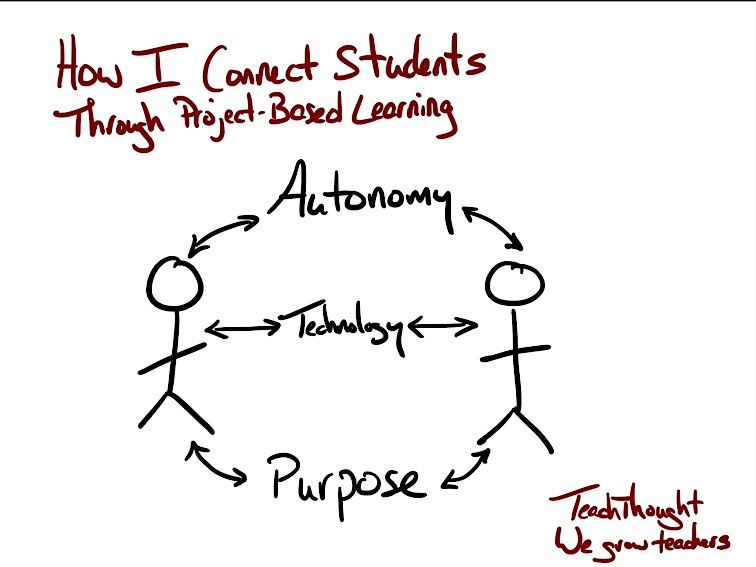
How I Connect Students Through Project-Based Learning

Posted on Teach ThoughtPBLTT.jpg

One area that I’ve tried to focus on more in my teaching recently is collaboration, specifically how students collaborate with one another, and finding more ways to do this in class so that I can facilitate their learning.

I enjoy having students work together within the same class because I believe in the value of building relationships and establishing a positive classroom culture. I also know how effective it is to take advantage of the time in class for students to become more familiar with each other and to work together towards a common goal.

Understanding that not everything can be accomplished in a classroom is a big reason for this shift in my teaching–and this is where I believe that technology can be extraordinarily useful with a real sense of purpose.

The Tools Of Collaboration

I have been using various tools over the past few years which have really opened up the possibilities of how, when, and where students communicate and collaborate.

Our interactions are ​​no longer confined to being in the same classroom, let alone the same school. Collaboration can occur between students across the globe and does not have to be done synchronously. The nature of tools such as Padlet or Wikispaces for example allows students to collaborate on their own terms. Time and place don’t matter as much as purpose and connectivity.

Thinking Bigger

I recall driving home one day and trying to come up with innovative ways to have students create with the language.

I liked the idea of projects, but wanted something more than simply having every student completing an individual project on the same topic. Each of my Spanish courses were at a place where I thought it would be great for them to do a project and work through learning in their own authentic way, so I decided to go big and involve the students from levels 1 through 4 as part of a team project.

I didn’t have a clue how this would work, but it seemed worth figuring out. I hoped that something like this would bring students together and show them the power of technology for collaborating and putting a project like this together, so I gave it some thought and this is what I came up with: A cross-level, cross class team project.

Executing The Project In The Classroom

Here’s how it worked: Spanish IV students had been studying careers and planning for the future. Spanish III was focused on travel and preparing for a trip. Spanish II was learning vocabulary related to a community and and types of activities that one can do in a neighborhood. Spanish I was learning vocabulary for houses, chores and describing living arrangements.

Taking all of these themes into consideration, I decided that one student from Spanish IV would be the ‘Team leader,’ and their ‘mission’ would be finding a job to apply for in a Spanish speaking country with the idea of going to work abroad.

Their task was to create a collaborative space, whether that be by creating a Padlet or Google Slides or something else altogether, and share it with the other members of their ‘team.’

Team leaders also had to write a brief note to their Travel Agent, Community Specialist and Realtor (students from Spanish I, II, and III) to let them know their travel interests and needs they have for moving abroad. The team members would then take this information when creating their part of the project. Spanish III would then plan how their team leader was getting there.

To make it more fun, I included a requirement that each Team Leader wanted a chance to sightsee before starting work, so the Travel Agent’s task was to plan a two-day tour that would meet the interests of their client.

Spanish II would research the neighborhoods where the client would be living and let them know what types of services and businesses were available for their new community. Spanish I, with two members assigned to each team, had to prepare to real estate ads for the clients. Each group would take the information from the notes and try to cater to the needs of their client.

There was a tricky part to this which was that I had to be out of school for a period of time. I was not there to oversee the work, however I use messaging tools like Celly, Voxer, and edmodo to communicate. The biggest tool I used, though, was the concept of collaboration among students.

While I didn’t plan this wrinkle in the beginning, I started to see that I relied on them as much as they relied on me and one another.

Stepping Aside & Letting Students Work: The Outcome

I distributed list of teams to each student. I put the team list on the board and left a space for the team leaders to put their link and their notes or however they saw fit to share this information.

There were problems at first. Students said they did not have the link, or had the link but did not have access and a few other issues, all of which I had expected and told the students to send messages or leave a note on the board. Always plan for failure, and have a backup for your backup.


Ultimately, I wanted the students to practice the vocabulary in their respective Spanish classes, but I also wanted them to learn how to work towards a common goal and without having to be in the same physical space or during the same time. I wanted them to see what great resources are available through technology and how they can work as a team without being in the same place.

The team leaders had the opportunity to say whether or not they really liked what the group members had put together for them, and for me it gave me another opportunity to let the students be creative, independent, to decide whatever they wanted to in terms of this project and that’s very important.

Giving the students a choice in how they show what they know and can do with the material and being open to their ideas was crucial to the success of the project. When planning, keep in mind that even if things don’t turn out the way you had planned, if the critical objectives of the project are met (whether academic standard-based, soft-skill, or something else), then the project has to be considered successful.

While planning is important and leadership essential, the tighter you hold to your vision of things as a teacher, the less ownership students can take over their learning.

Quizlet Live: A student perspective

Teacher to Teacher: Does technology in the classroom help? Ask the students.

Quizlet HQ ·

This post was written by Rachelle Dene Poth and Sean, a student in one of her Spanish classes. Rachelle teaches French, Spanish, and STEAM at Riverview Junior-Senior High School in Pennsylvania. 

quizletlive

Quizlet Live: An instant hit in my classroom

The availability of technology, and especially of digital tools like Quizlet, have opened up tremendous possibilities for classrooms today. Because of the diverse tools available, teachers now have new ways to deliver content both in and out of the classroom, and students have more engaging and personalized ways to learn.

Quizlet is something I have used in my classroom for the past few years in many different ways. I have used it in class to play Quizlet Live, to give students time to use the activities to review while I work with them individually, and to play games like Gravity on the Smartboard. Toward the end of last school year, I was able to beta test Quizlet Live, their newest collaborative in-class game, with my Spanish II class. It was an instant hit. Once we figured out how to play the game (which was easy), it became a great way to practice the vocabulary and verbs. It also created more opportunities for students to work with and learn from their peers, and build those vital classroom relationships that form a positive classroom culture. (To learn more about how to play Quizlet Live, check out my previous post on this topic.)

How to know when the technology has a purpose: Ask the students

IMG_20161108_131159.jpg

Sean, an 11th grader in my Spanish courses, has been an advocate for the use of technology at school. He recently led a presentation for an edtech conference, TRETC (Three Rivers Education and Technology Conference) and chose to present on Quizlet Live. He explained the purpose of the game, highlighted how to play, and led a game with those present — many of whom were playing for the first time. Sean had great, first-hand information to share and, coming from a student, the benefit of using Quizlet Live in the classroom was clear to everyone.

In Sean’s own words

Quizlet has a purpose when it comes to studying or just having fun. For example, in my Spanish II class, we used Quizlet for studying outside of class or to create cards for homework, and then when we met again as a class, we would play Quizlet Live and it would be fun for everyone. It is a tool that can be used multiple ways for school and work. An example of using it outside of school is when we were coming home from the PAECT student technology showcase. We were bored during the bus ride, so Mrs. Poth asked us if we wanted to play and we said sure.

Screen Shot 2017-01-10 at 1.08.33 PM.png

At the time we didn’t know any topics that could be played on Quizlet Live except for school topics, but we were introduced to some of the other topics that could played. We struggled with some of the TV trivia, which dated back to the 1950s, but we worked as a team and won the game. This activity showed our group that there were a variety of things that could be done using Quizlet Live.

This school year, I have already created a Quizlet Live that my class has played and everyone loved it. I will continue to create more Quizlets to use and help out the class, and to also have a fun time at home. We will be presenting a session during our state technology conference, PETE&C, and in addition to the student showcase, we will take over a full session and teach teachers about these tools. The students will once again be the leaders and engage the attendees with Quizlet Live.

6 Digital Tools To Engage Students

 Original Post Published on Teach Thought May 22, 2017, few updates added


Are you looking for some new ways to get students engaged this school year?

Here are 6 tools that I had found to be quite helpful as this school year winds down. More importantly, these are also some of the student favorites, in no particular order.


Flipgrid

Flipgrid is another video response tool that offers ways for students and teachers to interact with a variety of discussion topics. You start by creating a “grid” and then adding a “topic.” There have been some major updates and new features added to Flipgrid this summer. Longer recording length, stickers, gifs, integrations and more. Be sure to check it out!

A grid in my case is one of my Spanish classes.  Students go to the grid to see new topics which are posted for discussion and then record a response and even reply to classmates.

I have used Flipgrid as a way for students to reflect on their project-based learning, and for basic speaking assessments with my Spanish 1 and 2 students, where I can listen to their pronunciation and provide feedback. Flipgrid is also a way to connect students with other classrooms or even professionals in different fields, to connect with real-world applications of the content material.

Some additional features include the ability to give a rating to the response, read the transcript, provide written feedback which can then be emailed to each respondent, as long as an email address has been provided.

When setting up the topic, there are options for recording a video prompt, adding additional details in writing, and then customizing the topic based on whether or not other people can see the responses. You can freeze a topic, so new responses cannot be recorded but all prior responses can be viewed.

There are other features such as tracking the number of views, likes, and comments. Flipgrid is available on Chromebooks, iOS and Android devices and can also be embedded into an LMS or other websites. It is another tool that is easy to set up and might just be what you are looking for, especially at the end of the year,  to have students provide feedback on the course, to offer some information to help with the summer reflection.


This slideshow requires JavaScript.

Recap 2.0

Recap 2.0 is a Question and Answer platform available on Chromebooks, iPads, iPhones and Android devices, which can be implemented right away and is easy to use. Recap enables teachers and students to ask questions, share a reflection, and provides a comfortable way for students to communicate their thoughts. Recap also had many new updates this summer and is a great way to spark curiosity in students and to help students learn ways of asking questions and seeking more independent learning.

Students can submit questions and receive direct feedback from the teacher, parents can receive feedback by email through Recap, and there are many other features available for assessment and classroom management. Recently Recap added another feature to its platform by introducing ‘Journeys.’

In a Recap Journey, teachers create a multi-step path for students. It starts with a 60-second video and then the learning path, which leads to more independent learning and can also be a great way to differentiate instruction. As an end to the “Journey”, students can share their information or create a presentation.

In my experience with the Journeys, I had students explore Spanish-speaking countries and included different links for them to explore more based on their own interests.

It was very easy to create my own Journey and there are also many Journeys available to try through the Recap Discover.

2016 Pioneer Badge

Kahoot!

By now, you’ve likely heard of Kahoot! Especially last week when CHALLENGES came out after a period of Beta testing following discussions at ISTE in San Antonio. I was fortunate to be one of the testers and Challenges are great for having students practice the content and even for fun with family and friends.

Kahoot! is great for assessments and having a game based learning element added to your classroom. It can even be used for professional development or family fun. Kahoot! offers many quizzes in the public library which can be duplicated and then edited to make your own.

When playing, it also has added new features for auto advancing, playing in ” ghost mode ” which enables players to try and beat their first score. ‘Jumble,’ which is one of the most recent additions has proved to be a lot of fun and very beneficial for learning.

In Jumble, you create a question and each of the four colored tiles becomes part of the response. When the question appears on the board, the squares on the board are shown but the order is “jumbled.” Players must then slide the squares into the right order to either spell the word, properly form the sentence, or answer the question.

As a foreign language teacher, this has been quite beneficial for having students practice their spelling as well as for reinforcing proper word order for sentence structure in Spanish. Playing with Jumble mode has livened up the classroom because it is something different to try and the students are always excited about trying new things.

Setting up a game played in Jumble mode, or encouraging students to create games as a review, will add to classroom resources and be more authentic practice for the students.

Buncee

Buncee is a multimedia presentation tool which can be used to create interactive presentations, cards, signs and other engaging visuals.  (see recent post on new Buncee features, and look into Buncee Classroom)

There are many new items added to their library and some additional features, including the ability to use it for assessment. I have enjoyed testing out Buncee with my students. It is easy to create with Buncee, you can add multiple items o n to the canvas and move them around very easily. Teachers can create lessons with assessments through the classroom edition.

But what is most exciting about Buncee is that it offers many ways for students to be creative and more engaged in learning by creating something authentic, as there are thousands of items that you can add to bring it to life and make it your own.

Students can design Buncees for any class and will have the opportunity to create more authentic work which represents what they can do with the language material we have covered. Creating will be a lot of fun for students and teachers. And great for doing a Twitter Chat too! Lots of great templates.

full-1

Telegraph

Telegraph is a very easy site to publish a stand-alone web page, which can be used to create a sign, a newsletter, a journal entry, or anything as an alternative format to pen and paper or using a Word or Google Document.

It is simple to use: type in the website, add a title to it, your name and add some pictures or links to other websites and once you’re finished, you publish it and it provides you with a web address. You can easily share that link with anyone.

My students created a site to tell about a favorite trip, one to talk about sports and favorite athletes, and another some even made Mother’s Day pages and then printed them. If you’re looking for a way to have students practice simple writing skills and do so in a more digital way, I’d recommend trying Telegraph. No log-in is required and it’s very easy to use.

Quizizz

Quizziz is a fun assessment tool that continues to add more features, which makes obtaining feedback from students and providing feedback to them much easier. Some of the newer features include receiving a daily report of the Quizizz summary and being able to send parents the results of a student’s Quizizz game. (See new Quizizz features)

The daily summary report shows the number of Quizizz games used, number of responses, percentage correct as well as additional information. It’s nice to be able to have that data available so quickly. There is also the option to email the data directly to parents, which is great especially for communicating student progress and in a timely manner.

Quizizz is another tool which is easy to implement, you simply create your own by adding your own questions or search from the public Quizizz available and drag in the questions you want and then edit them according to your preferences.

Other benefits include the ability to either play it live or assign it as “practice” or homework. You can store your Quizizz games into Collections to find them easily, quickly build games and it has a much improved UI, and it was pretty good to begin with.

And if you create the Quizizz and do not have enough time for students to finish, no worries because when students use the same login and pin number, they can pick up right where they left off in the game.

This slideshow requires JavaScript.

CoSpacesEdu

CoSpacesEdu: Opening up new learning worlds 

COSP.jpeg

I have always been a fan of technology and any time I learn about a new tool, I go straight to the computer if time allows, create an account and start trying to figure it out on my own.  Or if I don’t have time, I will add it to my seemingly never-ending list of tools that I want to check out. Last summer, I came across CoSpaces. I had no idea what to expect other than knowing that the purpose was for creating and experiencing a virtual learning environment. I created an account, looked at the gallery of what was available, and tried to figure out exactly how to create my own 3D space.

I am the type of learner who would rather struggle and figure things out on my own first. I think it is better as a teacher, to work through those struggles so that we can better help our students. If I’ve exhausted all of my efforts, then I will look for a help section or connect with other educators that I know have experience using the tool. Sometimes even simply posting a question on Twitter, or searching YouTube for helpful videos, will give the answers that I need. However with CoSpaces, I was determined to work through it on my own because as soon as I started trying it, I knew right away that it was something I would want to use in my new STEAM Emerging Technology course for the upcoming school year. And while I greatly enjoy  learning from the students, I also enjoy being there to watch the student responses as they begin to figure things out on their own and have those “aha” moments when they realize that they’ve uncovered exactly how to do something. Better yet is when they share this knowledge with their peers and also teach me new things to do with what we are working on.


My plans for using CoSpacesEdu were uncertain at the time, because I knew virtual reality was a topic that I wanted to cover in my class. My course is focused on STEAM and Emerging Tech. I had plans to help students develop some vital technology skills, starting with learning about digital citizenship and then adding on new tech skills as we progressed.  I knew that many students did not have much experience creating with anything other than Microsoft Word or PowerPoint, if even these two. I also wanted to know the different possibilities for using CoSpaces in the classroom, so I spent some time looking at the gallery, I joined the community on Facebook and reached out to the CoSpaces team to see what additional information I could find. But while doing all of this I did manage to create my own project in which I added many random items and had a lot of fun creating. I was truly amazed at what I was able to do within my own “space”. The ideas started flowing for how I could use this in my STEAM course and also with my foreign language classes. I could foresee students who had to create items such as biomes or do a book report, or a science project using CoSpaces as a way to represent these by building their own space and environment to represent the story they were trying to recreate or to tell. Talk about creativity, imagination, innovation and critical thinking, and more all in one tool.


As with my other projects this year with my STEAM course, I wanted to find a way to connect using this tool for our class with a learning target or project for another class. There are so many possibilities. While waiting for some feedback, I decided to offer a few different options for students to choose from after looking through the gallery. Consulting a friend of mine who is outstanding in the field of AR/VR, Jaime Donally, (@JaimeDonally) who gave me some really fantastic ideas for creating with CoSpaces. I was also fortunate to have a conversation with Manuela, who provided a lot of insight into the new features that CoSpaces would be offering. There are updates sent regularly with details about the new features and links to sample projects and helpful videos.  

So if you have not yet checked out CoSpacesEdu, I recommend that you do because I guarantee that you will find it has applicability for something in your classroom. And it is a tool that will further engage students in their learning. Once they have created their own project, they can then immerse themselves in their own environment with the use of the app on the iPad or installing it on their phone and having a headset to walk through their own environment. How cool is that!


So for our first project in STEAM, I asked students to create three scenes in which they either told a story about a TV show, a movie or a book that they had read, or create a different type of a living space, or come up with their own focus, as long as they included the required number of elements into their project. Once they were finished, I had them share their link on a Padlet, so that all projects could be accessible and that students could take turns walking through each other’s environment. The students were excited and amazed at what they were doing. While looking at the gallery and playing some of the games were fun, being able to create their own space, walk through it and explore on their own was way better, according to several of my students.

Screen Shot 2017-08-20 at 5.48.06 PM.png


There are some new features with CoSpaces and I’m sure the changes will continue to come. I recommend that you check it out and think about something that you may be teaching in your class or a project coming up in which students could create a virtual space. Using CoSpaces will really open up your learning environment and immerse students in authentic experiences, increase student engagement and I believe add to motivation the students have for learning and taking some risks and being up to the challenge of figuring out exactly how things work. And hopefully the next time they have project rather than wanting to create in PowerPoint or with Google Slides, they will think of CoSpaces Edu as the perfect way to represent what they know and can do with the material