
Guest Post by: Jeni Long & Sallee Clark, @salleeclark @Jlo731 @Jenallee1
Instructional Technologists from Eagle Mountain Saginaw ISD, Ft Worth, TX
#Jenallee #MIEExpert #MicrosoftEDU #Onederful
https://linktr.ee/thejenalleeshow
As you probably know by now, #Jenallee LOVES OneNote! We feel it is one of the best educational technology applications for our students for many reasons. (Check out the original post here).
- When we look at using technology, we do not look at the technology first and then decide what to teach… We look at what our learning objective is and then we select an application to fit our goals. Because OneNote offers a vast amount of educational benefits, we like suggesting it for teachers to utilize. Through using OneNote, teachers can help their students master their learning objectives first, while also utilizing one application versus a new app each week.
- One phrase we use a lot with teachers is to “Select an educational technology application and own it”. Meaning, don’t get overwhelmed with all of the different applications available, yet select one and learn how to use it in your classroom well. Own that one app and then move on to another when you are ready.
- With OneNote, students have the opportunity to learn through research based strategies including the ability to:
- Justify their work both verbally and through writing
- See worked examples in action
- Listen to direct instruction or videos of instruction
- Collaborate with their peers
- Receive timely feedback from their teachers
- And so much more
All of this is great but the real question is how? Here are 5 ways we use OneNote to empower our students.
#1 Student Portfolios
Student portfolios offer students the ability to create products, evaluate their creations, revise their products, and curate their best work throughout the year. It allows the students time to reflect upon their growth, set goals and truly see the evidence, purpose, & benefit of their learning. Read this blog post to see step by step directions on how to create and implement student portfolios in the K-3 classroom.
#2 Worked Examples
Recently we ran across a great article online written by Shaun Killian, “8 Strategies Robert Marzano & John Hattie Agree On” We really enjoyed reading this article because it showed the strategies both researchers found in their study of how students learn. One of the strategies both agreed upon was utilizing direct instruction.
Robert Marzano claims, “It is important to explicitly teach your students,” while Hattie says, “Direct Instruction involves explicitly teaching a carefully sequenced curriculum. And, it has built-in cumulative practice.” Hattie also highlighted the power of giving students worked examples.
OneNote makes it easy for teachers to implement this strategy into their daily instruction.
Here’s How:
- Teachers can directly teach their students specific content from OneNote. It is an infinite white board! It goes on and on and on. The draw feature offers teachers ease in writing content (space pen is our favorite), highlighting content to be learned, and it automatically saves and updates in student notebooks or shared OneNotes! Boom! You just provided your students with class notes so that they can refer back to your content at any time.
- We love the replay feature. Work out a math problem, label a diagram, fill in the blanks, and students can “replay” those steps at a later time. Once class is over and students want to review the content taught, they can simply click on View > Replay and see the steps replayed as many times as needed!! Did you catch that? As many times as needed! This is powerful and empowering for students! Check it out in action below
Replay ink strokes in OneNote for Windows 10
- Don’t want to write? No problem! OneNote allows you to insert a printout of any PDF, Word, or image into OneNote. Why is this beneficial? Well, now students can follow along and make their own notes, highlight, and learn as you directly tell them the content to be learned with examples of what to do and what not to do.
- According to Sebastian Waack and his Visible Learning chart of Hattie’s strategies, video review of lessons has a .88 effect size! Wow! This is also a way to provide examples for students that explicitly teach the content. OneNote makes it easy to embed YouTube videos into your pages! Simply copy the link and paste it in the page. All students can view the video in your OneNote.
#3 OneNote Breakouts
Looking for a way to help your students engage in problem solving and bring a slightly competitive gaming aspect into learning? Try using a OneNote Breakout! In the same article mentioned above by Shaun Killian, “8 Strategies Robert Marzano & John Hattie Agree On” It is also mentioned that both Marzano and Hattie both agree that problem solving and collaboration are high yield strategies. OneNote Breakouts offer students the ability to engage in solving relative problems in a collaborative way. This allows students to apply their knowledge of concepts to solve problems. “They also agree that inter-group competition can increase the effect of cooperative learning even more.” Breakouts are the way to go!
How does it work?
Students work together to “Breakout or escape” a series of challenges all housed in a OneNote. We complete this by locking pages in a OneNote and students reveal the lock combinations through completing various challenges utilizing their knowledge of concepts. Find out more about how we create and use breakouts with our students in this blog post.
#4 Feedback
We also know from Visible Learning that offering feedback has .70 effect size! Wow! OneNote offers teachers a powerful and meaningful way to give feedback to students. While students are working on content, teachers can access and see their progress. We want to offer our students feedback during the entirety of their work, not just at the end of a project. OneNote allows teachers to see student progress in real time, leave feedback throughout the process, and truly impact learning.
#5 Differentiation
OneNote offers teachers ease in differentiating content and providing accommodations for students. With the ability to distribute pages, teachers can distribute specific content to specific students, groups, or the entire class. That means you can distribute articles to groups of students according to reading level, or chunk assignments for certain students, or provide graphic organizers to specific students, etc. This allows the teacher the ability to scaffold instruction for their students strategically and with ease.
Not only can I send out individualized assignments, I can also empower my students with access to content. Students that may struggle with reading, writing, have dyslexia or ADHD, etc. are empowered by the learning tools that are built in to OneNote! According to Visible Learning, we see that when students with learning needs utilize technology, the effect size is 0.57. Utilizing OneNote with these students is a great way to empower them to be able to access content on their own, read on their own, and to write on their own. Let’s just say… they own their learning. We think Mike Tholfsen, Microsoft Product Manager, says it best!
OneNote Learning Tools are non-stigmatizing, mainstream, built in, and free.
So what are Learning Tools? These are tools built into Microsoft OneNote, Word, Forms, and many other partner companies. See the list of partner companies below
These tools include:
Immersive Reader – Reads any typed text, PDF, or word documents to the students!
Features include:
- Human like recorded voices in both male and female
- Reading speed settings
- Customization for background color
- Font options
- Grammar options
- Line focus
- Picture dictionary
- Translates a word or the entire document into over 80 different languages (yes, it still reads many of these languages!)
- https://youtu.be/3n5emMEm3
Check out these click by click tutorials by MicrosoftEDU!
Want to see how we use Microsoft OneNote to offer our students audio tests? Check out this Jenallee blog post.
Recently we shared all of these ways and more on an episode of Ditch That Textbook with Matt Miller and Holly Clark. Watch the episode to learn more.
**Interested in writing a guest blog for my site? Would love to share your ideas! Submit your post here.
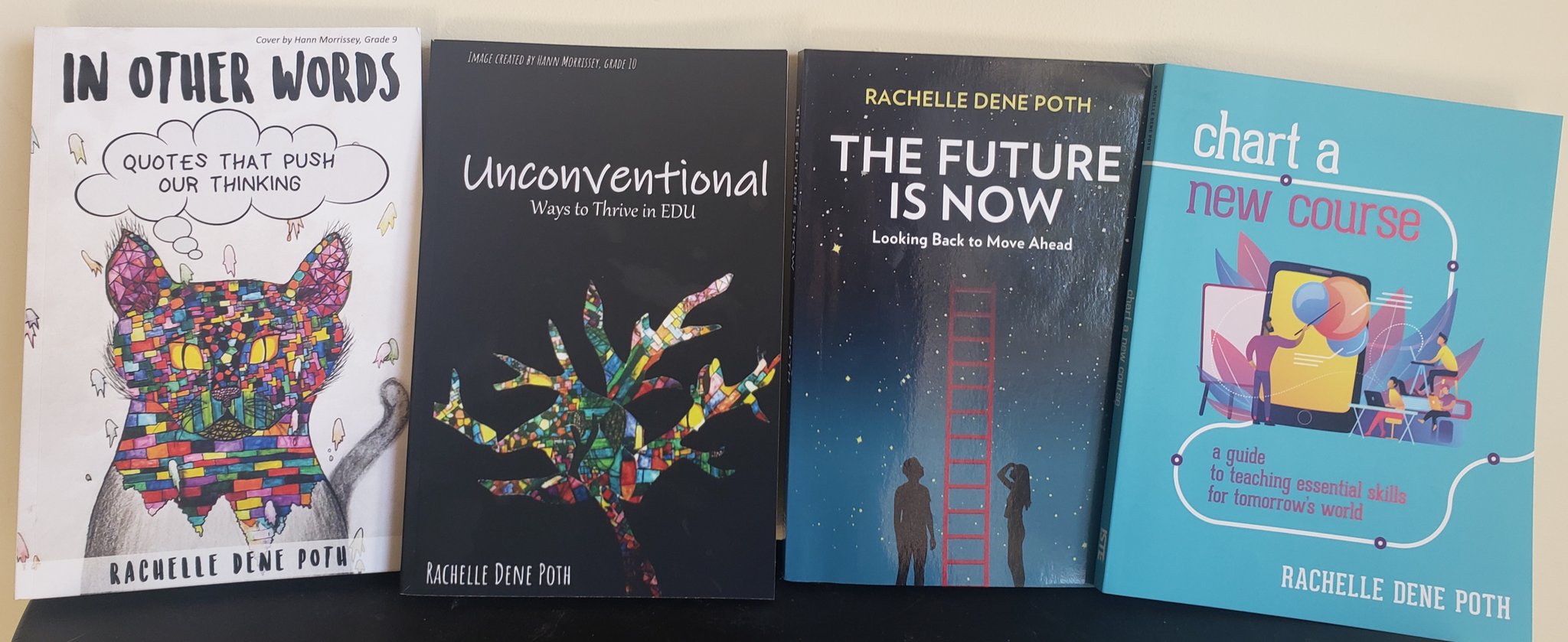
Looking for a new book to read? Many stories from educators, two student chapters, and a student-designed cover for In Other Words.
Find these available at bit.ly/Pothbooks
************ Also check out my THRIVEinEDU Podcast Here!
 Learning as I go: Reflections & lessons learned