
10 EdTech Tools for Encouraging Classroom Collaboration

Thank you Getting Smart for the opportunity to be a Guest Author for this post.

10 EdTech Tools for Encouraging Classroom Collaboration

By Rachelle Dene Poth

Today’s technology offers so many options for educators and students that deciding on where to begin can be overwhelming. To get started, think about one new approach that could be the catalyst for positive change in your classroom. In looking at your learning environment, what could benefit your students the most?

How do you find tools to help meet your needs? Resources are everywhere: books, blogs, social media like Twitter chats, Voxer groups, your PLN, or even conferences, EdCamps and similar professional development opportunities. But even with all of these resources available, it still comes down to taking a risk and trying something new.

Here are some helpful and versatile technology tools to easily and quickly integrate into your classroom and help meet your needs.

Discussion Tools: Get Them Talking

Teachers need to hear from students, and we know that asking questions or calling on students to discuss a topic can often make them nervous. When students, or anyone, develop that feeling of “being on the spot”, it can become more difficult to encourage students to share what they are thinking, what they are feeling and what their true opinions are. This is where digital tools can provide security and opportunities for students to express themselves. Technology has a true purpose. Students still need to develop an ability and gain confidence to speak in class, but these tools can help by providing a comfortable way for students to develop their voice and express themselves.

Depending on the type of question or discussion format you want for your classroom, there are many tools available that can help.

  1. SurveyMonkey is a good way to ask a variety of questions, find out what students are thinking, use it for a quick formative assessment, and many other possibilities. I have used it to find out how students prepared for tests, what areas they need help with, and even for voting for club officers and planning trips. You have the results quickly and can provide feedback instantly, to plan your next steps in class. It can be a different way to find out about your students and their needs.
  2. TodaysMeet is a backchannel tool that can be used in or out of class, as a way for students to contribute to a discussion or ask questions. It can also be used to provide “office hours” online, for students to ask questions beyond the school day. There are many possible uses for this tool, and setting it up is easy.
  3. GoSoapBox is a response tool that can be used to ask a variety of questions without students having to create accounts. Students simply need an “event code” provided by the teacher to access the activities available. GoSoapBox can be used for polls, discussion questions, quizzes and more, and provides a fast way to assess students or to simply learn more about them and their thoughts.
  4. Recap is a video response tool, where students can respond to a prompt and all responses are compiled into a “daily reel” for teachers to view and provide feedback. Students can respond from anywhere and feel comfortable in sharing their thoughts using this tool.

These are just four of the many options—sometimes it just takes a bit of research. Asking the students for new ways to use the tools you have already been using in class can also be helpful.

Communication Through Collaboration

There are many options which promote student collaboration and enhance writing skills and student voice.

5) Blogging: Through blogging, teachers can provide support for students and help them to gain confidence in writing and speaking. We have used Kidblog to complete many writing tasks and creative writing assignments.

6) Wikispaces: A Wiki has worked really well in our classes for having students collaborate on a topic, create a discussion page, and set it up to inform on a topic, to list just a few examples. We created a wiki on Spanish art and also created our own travel agency.

7) Padlet: Padlet is a “virtual wall” which promotes collaboration, communication, creativity and more because of its versatility. Students can write a response to a discussion question, add resources for a collaborative class project, work in small groups, use it for brainstorming or connect with other students and classrooms throughout the world.

Using digital tools in this way is great because the discussions don’t have to end when class does. These tools give ways to get students talking, share their ideas, so that we can help them grow.

Creating presentations and telling a story

A few options for having students present information in a visual way with options for multimedia include the following:

8) Buncee is a web based tool that can be used for creating presentations, interactive lessons and more, with many options for including different characters, fonts, animations, video and more.

9) Piktochart is a tool for creating infographics, social media flyers, engaging presentations and more. Students have created menus, self-descriptions, movie and tv advertisements, recipe presentations and much more.

10) Visme is a “drag and drop” tool that is easy to use for creating infographics, reports, different presentations and more. It has a library full of images, charts and more, making it easy for users to create exactly what they need.

What are the benefits of these tools?

Each of these tools promote more personalized and meaningful learning for students. These tools can be used to enhance, amplify and facilitate deeper and more authentic learning . Using technology just for the sake of using it doesn’t make sense. But using it to help students find their voice, learn what they want to do, what they can do and what they need help with, does makes sense. Purpose.

For more, see:

Rachelle Dene Poth is a Foreign Language and STEAM Teacher at Riverview Junior Senior High in Oakmont, PA. Follow her on Twitter at @rdene915.

Another social media “risk”: Wrong again

This is the second part of my posts sharing how I was wrong about the value of Social Media for professional learning

So enter Twitter, the “twitterverse”. I was really wrong about this one and as a very reflective person, if I am mistaken, I will readily admit when I am wrong. And I will also take a step back and think about why I was wrong. For Twitter, I had no idea what was out there in the Twitterverse. I really knew nothing about anything related to Twitter.

I have had a Twitter account for probably 10 years, an account that was created only because a family member sent me a link, which required a Twitter account in order to see the post. I used my regular email address (original AOL by the way) and joined Twitter. I think I looked at it a few times for a week and then 5 years went by, never again looking at Twitter.

It wasn’t until the summer of 2014, when I was leading a session at a technology Summit, when someone tweeted about my session, to what they thought was my Twitter account. So I decided to create an account in that username and I have been actively involved in Twitter more or less ever since.

I had the misconception that it was only for celebrities. But I decided to look into it a bit more. I really didn’t know how it worked but I came across a Twitter chat one night and I started to connect with a few people from North Carolina and Tennessee. That was my start toward becoming a more connected educator and seeing the true value in Twitter. I added additional Twitter chats to my weekly activities and looked forward to the interactions with the new friends that I had made.

Shortly before ISTE 2015, I learned about “tweetdeck”. I had no idea what that meant, and I did not ask because I figured that it was something that I should know if I was using Twitter. I think I googled it. Before Tweetdeck, I used one window, with 1 chat and flipped back and forth between each chat window. To say it was a bit difficult at times is an understatement. I decided to try Tweetdeck, during my train ride to ISTE, multitasking by reading my Teach like a Pirate, involved in a Saturday chat with Tweetdeck and amazed at what was happening. It hit me. The power of communication and technology. In and of itself the fact of sitting on a train, reading a book with Wi-Fi access to enable me to use my computer, engage in multiple tasks, communicating with people around the country and world, at any point in the day during the travels. When you stop and think about it, it’s so amazing what we are capable of today. And with these two social media platforms alone, (ones which I adamantly avoided), the possibilities for learning, connecting, and so much more happen instantly anytime and anywhere. But that’s just my view of it and people may not see the value in having accounts with these or may prefer to stay away from social media. And it may not be for everyone, but I’ve learned that you can’t really say that you don’t like something or that you hate something, until you at least give it a try. And you certainly can’t go based on what somebody else says. While I greatly value the opinion of others, and can and have in the past been swayed because of someone else’s opinion, I really try to think about what is best for me. As an educator, I think about what is best for my students. I might love a certain digital tool but if it’s not going to benefit my students,  I won’t just throw it out there and say have fun with it. And that’s what I’m saying about Facebook and Twitter. As a start, either of these would be something that might surprise you in terms of the benefits personally and/or professionally. And again, I admit that I was wrong.  Lessons learned about Facebook and Twitter: Educational value is huge and learning to write concisely is an acquired skill.

Kidblog: Don’t Let the Learning Stop: How to keep students engaged over extended breaks

Don’t Let the Learning Stop: How to keep students engaged over extended breaks

stocksnap_c91r095cw5

The “Slide”

Throughout the school year, extended breaks provide both teachers and students the opportunity to give their mind a chance to reboot. However, learning opportunities do not have to stop while we take a break from the classroom to devote time to family, friends, and relaxation. Without opportunities for active learning during these extended breaks, some loss of knowledge is inevitable.  Similar to what has been termed the “summer slide”, this phenomenon also occurs during shorter breaks throughout the course of the school year.

There are many opportunities available to avoid this “slide”; teachers can help students engage in learning in fun ways that do not feel like “learning” at all. For my students, this means  blogging. Thanks to the availability of technology and platforms like Kidblog, students can stay connected, while still working on building skills over the break.

From “assignment” to “activity”

So, what turns a blog post from “an assignment by the teacher” over break to a fun student activity? It’s all about the content. For example, students may be asked to write a blog surrounding their time over break. Perhaps they describe what activities they participated in; writing a review of a book or movie they experienced, sharing how they spent time with friends or family, or even posting a new recipe they learned over break. These open-ended prompts enable students to work on their writing and literacy skills in a low-key and fun way. Additionally, it gives teachers the chance to stay connected with their students and provide any necessary feedback.

For more reflection, students may be given prompts which ask them to take a look back at some of the work that they have done prior to the break. They can focus on a few specific skills they have gained as well as their strengths or weaknesses throughout the year. Using blogging as a journal, they may then write a personal blog to themselves addressing these areas.  The blog can be shared with the teacher as a reflection, to explain how they perceive their progress in class and offer some ideas for personal goals or describe areas where improvement can be made. This prompt can be a great way for students to prepare for the year ahead of them.

It’s about staying connected

Blogging enables the students and teachers to communicate through a comfortable medium. It gives students an opportunity to write, read, and practice any critical skills they have learned leading up to the break as well as some reflective writing.  Students are encouraged to be creative while they are engaged in the practice of reflection, setting them up for future growth and helping you as the teacher develop a better understanding of student needs.

Project Based Learning: Essential questions and Many Uses of Recap

Posted on December 7, 2016

Posted in Guest Post, User Stories, Why Recap

Excited for the upcoming school year, I decided to start with some new ideas, teaching methods and digital tools. I wanted to continue using some digital tools from last year, but hoped to find different and more creative ways to implement them into the classroom. My motivation for this developed as a combination of time spent over the summer reflecting on the previous year, learning new things at summer conferences and through webinars, and engaging with groups on Voxer. But possibly the most impactful for me, was by obtaining feedback directly from my students. I used Recap over the summer to ask them what they enjoyed in class, what helped or didn’t help, and what they were looking forward to in the new school year. Student voice matters.

A New Experience

The biggest change for my classes this year, was starting PBL (Project Based Learning) with my Spanish 3 and 4 students. When taking on PBL, educators need to have some guidelines set as to how to begin and what the process entails. Students will be taking on a challenging new experience, one which provides opportunities for choices, independent and inquiry based learning. It is a different experience, because the students are in charge of their learning. They are studying something of a personal interest, or a passion to themselves. It is quite liberating and can lead to tremendous, authentic, meaningful learning opportunities, which will be highly beneficial for the students. It can also be a bit scary, because of the amount of independence involved in this method. So there are guidelines and resources available to educators that can help with implementing PBL in the classroom, and guiding students to develop their “Essential Questions.”

Getting Started

There are many great resources available for educators to learn more about and implement PBL (Project based learning) in the classroom. To begin this with my students, I first did some research to prepare myself for this new learning experience. I started with the Bucks Institute for Education (BIE, http://www.bie.org) for guidance before implementing it in my classes. I wanted to be prepared so that I could help to guide the students, even though I knew that I would also need some support along the way.

I carefully read over and took notes from the “8 Essentials for PBL” from BIE and also referred to several publications from ISTE for PBL. Other helpful resources were the weekly blog posts by Ross Cooper and Erin Murphy, offering advice focused on #HackingPBL, to be included in their upcoming publication, “Hacking Project Based Learning”, which will be published this month.

Another helpful book was “Dive Into Inquiry” by Trevor MacKenzie, through which I enjoyed hearing his experience and sharing the helpful images of rubrics with my students. During this process, I was also fortunate to have conversations with these educators, and early on, Don Wettrick, author of “Pure Genius”  spoke to my students about PBL and how to get started, giving them great information and asking thought-provoking questions to challenge them. We had a Skype call with Ross Cooper, who listened to and offered advice to several of my students on crafting their Essential Questions. The students even later got to meet Ross and Erin and talk about the Hacking PBL book.

Next Steps

Taking all of this information in, I guided my students through each step in the process, with focus on the beginning stages of PBL. The first step is to decide upon the Essential Question. What is an Essential Question? From my research, I have learned that it is not something that can easily be answered by conducting a quick Google search or with a Yes or a No. An essential question requires more. It leads students to research and critical thinking, problem solving, independent learning, progress checks and reflection along the way. When focusing on the Essential Question, it is not readily apparent what the end result of the student learning experience will be. My students initially struggled with not knowing where their research would lead. An essential question requires more, leads to more student inquiry and should be something that will sustain student interest along the way.

img_20160926_104209100

Using Recap to focus on the Essential Question and PBL

Rather than have students write their Essential Questions, I asked them to think about what they wanted to study and to share their responses through Recap. I found this was beneficial because they could think through and explain their thoughts, and I could provide feedback directly to them. Having the opportunity to see and listen to the students as they shared their interests enabled me to understand the motivation behind their Essential Question. This method was very beneficial for me.

When we started our PBL, we decided to set aside Fridays as their “PBL” day, and they worked on it independently for the first 9 weeks. We had regular check-ins for updates and at the end, each student shared the product of their PBL experience, which could have taken any form, depending on where their research led them.

One very unique way that one of my students decided to share the information was by using Recap. Recap is a great tool for having students respond or reflect and gives them a comfortable method for sharing information with their teacher and also peers if they choose. One particular student suggesting using Recap to record separate videos of the results of her PBL study on Argentina and the tango. Using Recap for this purpose was a really great way for her to not only share her information and the reasoning of how she crafted her Essential Question, but also her thoughts and steps taken along the way.  Using Recap made  it very obvious to the audience how excited and engaged she was as a result of having the choice to pursue learning  about an area of interest and passion. Even without the video component, the audio itself was enough to inform and engage the listeners in her topic. I could tell that she had chosen an Essential Question which led her through a tremendous learning experience,with sustained inquiry and engagement, and had truly gone through the Project Based Learning process. Selecting this as the “public product” was a great idea, and it also provided her with something to reflect upon as well.

***********************

Using Recap to share the results of PBL

Marina: For my recent Spanish PBL project I decided to use Recap! PBL stands for Project Based Learning which means we come up with a topic that we are interested in learning more about. The first step is to state our essential question, the focus of our research and then being to explore and expand our knowledge. Along the way we might have more questions come up that we may not know how to answer, so we keep searching, learning and expanding our knowledge to find answers  to them. At the end of the PBL project we are basically an “expert” and we can share our findings with our class, in any way that we choose.

image

For my presentation, I decided to use Recap. Recap is like no other tool we have ever used in our classroom and it is by far one of my favorites. Recap is a tool that allows you to record a two minute long video, to answer a prompt, share information, or anything you want. It allows you, as the student, to answer questions that your teacher or professor sends you and you can record yourself, with as many tries as you want and then send it right to your teacher. As a teacher you can create questions and send them through Recap to your students, allowing them to respond in the comfort of their home or anywhere to answer your questions and have a continuous chat with feedback. Or like I did with my PBL, you can just make videos by yourself,  you don’t even need a question to be sent to you to be able to make one.

I love using Recap because I feel comfortable at my house recording my thoughts and then having them on my account to show and share with my whole class.

For my Spanish PBL product, I used Recap and recorded myself at home. I spent the time studying the Argentine tango and I was able to research my topic and prepare to make a couple of two minute videos to talk about and share what I had learned during our PBL. I didn’t have to worry about having to talk in front of the whole class and forget what I was going to say. With Recap it was stress free to present in front of my class because I pre-recorded it.

My class absolutely loved it because it was so different than just using Powerpoint or some other web tool that they had seen before. So not only did they learn about the Argentine Tango, they saw they could use Recap in a different way.

Recap is an amazing tool that can bring a whole new element to classrooms everywhere, at any time, because it is so simple and easy and not to mention a lot of fun! I really suggest it to students and teachers because trust me, they will love it!


Check out Rachelle’s Pioneer Page

Nearpod and Peardeck – A Comparison

Updated on May 8, 2019

Nearpod and Pear Deck: What is the difference?

When presenting at different edtech conferences, or in conversations at edcamps, I am often asked what makes Nearpod different than PearDeck. We know there are many great digital tools available that open up the spaces and time for students to learn. Lessons become more interactive, students can work on them in or out of class, blended learning is facilitated easier with tools like these. So what are the similarities and differences between them? Both offer many options, that it truly can come down to a personal preference or comfort level.

Features

  Both Nearpod and Pear Deck offer a variety of question types and activities as ways to assess students, but more importantly, these tools help to increase student engagement and expand where and when students learn. Both tools offer free as well as paid versions. Through Nearpod, all question types are available in the free version (Open Ended, Polls, Quiz, Draw, and Collaborate), as well the ability to add an activity “on the fly”, whereas in Pear Deck, only three types of questions are available in the free version (Multiple Choice, Numbers, and Text). For reports, all are accessible through the free version of Nearpod, however with Pear Deck, the “session review” is only available with the paid version. Some of the additional features available through Nearpod make it distinct in comparison with Pear Deck. 

Nearpod enables students to experience Virtual Reality (VR), by interacting with 3D shapes or going on a Virtual Field Trip, powered by 360 cities, right from the classroom. This immersive capability promotes global knowledge, expanding student comprehension of different perspectives and allows students to become immersed in new environments. Nearpod continues to add new features, most recently, “Collaborate” an interactive brainstorming tool where teachers and students can share posts and images, such as a quick reflection or a more engaging way to have a discussion during a live session. The posts can be “liked” by students and are sortable by the teacher. In Nearpod student notes, students can annotate the Nearpod lesson and have their notes and responses saved to a Google document or a PDF, in the Nearpod School and District subscriptions. Here is the  Nearpod Library of resources. 

Pear Deck has some distinct features as well (available in the premium accounts) that can be added when creating a deck, as part of the “slides.” Through a unique question type named “DraggableTM ” students can place dots onto images for various purposes. For example, using “thumbs up” and “thumbs down” students can place a dot as to whether they understand the material, draw dots on a map or a graph, and then the teacher can cast all responses on the screen, without showing the name of each student. Individual responses can be highlighted separately when projected on the screen, still without showing student names. Another feature in Pear Deck is the ability to lock student screens so that a student cannot change an answer. In terms of assessments, this is a nice feature to have, to help in the area of academic integrity. Some of the “add-ons” available in the premium account are the “takeaways”  from sessions, with student responses, which can then be published to a Google Document, students can then review, and the document goes to the Google Drive.

Usability

Creating a lesson and presenting it “live” in class, assigning it for homework or a “student-paced session”, can be done with both of these tools, although the manner of creating the lessons differs in how you add slides and the types of content. Both tools work with Google Classroom, Nearpod also integrates with Schoology and Canvas. Both platforms can be accessed on any device from the web, and Nearpod has native apps for iOS and Android operating systems. With Nearpod, links can be shared to have students access the lesson as well.  With Pear Deck, students log in using a Join Code or directly through Google Classroom and access it through Chromebooks or the Chrome add on through the web. It is available for use on all devices. Teachers can facilitate lessons in class or as student-paced rather easily with either tool, but there are more options available within Nearpod at the free level.

Content

Nearpod has the edge with its library of thousands of lessons for different content areas and grade levels, ready for free download and customization. In Pear Deck’s “Orchard”, there are a few free sample decks available to download and copy to your Drive, and introductory decks are available to learn how to create your own lessons. The Pear Deck Orchard does not appear to offer as many lessons as does Nearpod’s library. Comparisons of the Nearpod Features in depth.

Integrations

Both Nearpod and Pear Deck integrate with Google Classroom. Nearpod also integrates with Blackboard, Canvas, itsLearning and Schoology, and offers the ability to “upload files” from OneDrive, Dropbox, Box, Google Drive, and the computer. Pear Deck offers the ability to import class rosters directly from Google Classroom. Powerpoints can be uploaded for free with Nearpod, whereas this capability is a paid featured with Pear Deck.

Conclusion

Each tool offers many options for enhancing student learning and provides diverse methods of assessing students and delivering content. They each offer websites full of information to help educators get started creating lessons. There is a range of features within each tool, however for someone looking for more interactive lessons in and out of the classroom, or ready-made digital lessons, Nearpod has the edge with its library full of lessons on different content areas and levels. And for opportunities to engage students in learning, promote active learning and exploration, and assess students through multiple methods, Nearpod also edges Pear Deck in this, as there are more options available in the free version. Pear Deck offers some distinct features especially if you are in a Google Classroom. The session takeaways and reviews with comments are a great way to involve students in self-assessment.

When it comes down to it, the decision has to be made based on what’s best for your students and your classroom. Either way, offering new ways for students to be engaged in learning is win-win.


Post on Storyboard That

Encouraging Creativity and Innovative Designs

Students Share Their Stories

By Rachelle Dene Poth


Thank you Storyboard That for the opportunity to share our story!
Find this and other great teacher resources in our Education Blog!

Storyboard That is a tool which offers many opportunities, not only for education, but for anyone looking to share information, tell a story, or produce a product in a more visually engaging way. It is a very authentic tool that promotes critical thinking, communication, and creativity. It fosters innovation in designing and empowers students in the learning process. Students take control of how they show what they have learned and can now do with the material, in their own personal way. Each of these opportunities help to promote the integration of the new ISTE Student Standards.

By using Storyboard That, students are able to select from so many templates with diverse options for themes, backgrounds, characters, text, props, and more. The tool applies to any level and any content area quite easily. It offers so much, that providing students with opportunities to express themselves and apply their learning in a unique way that is more meaningful, is easily done.

Some Options for Classroom Use of Storyboard That

There are so many possibilities for having students complete a project with Storyboard That. Teachers can use one of the many lesson plans available to implement with their classes. Whether you teach History, English, Foreign Languages and more, Storyboard That is a great option to provide to students, it will appeal to students because of the variety of options available to express creativity and promote student choice and voice.

Deciding how to best use digital tools can be challenging at times, but a good place to start is to hear directly from the students. Involving the students in the classroom decisions and then asking for reflections on their experience with using the tool helps educators to understand if and how technology is enhancing their learning process. Asking students to share the ease of creating with it, how it enhances or amplifies their learning and in general, what their perspective is about this particular tool, are important to include in teaching practice.

Students as Advocates

Several of my students have used and become advocates for the use of Storyboard That and share the impact it has had on providing more meaningful learning for them and their classmates. Celaine and Emma have created with it and produced visually engaging projects that have enhanced their learning.

Celaine has used this tool for many projects as well as for conference presentations over the past few years. She has become an advocate for its use, for teaching others how to use it at conferences and at school, and serving as a role model for other students with a positive message of the benefits of technology for learning. Here are her thoughts on why you should try Storyboard That and what you can expect from its for learning in your classroom:

Before I started using Storyboard That, my school assignments were rather dull. I tried to put my own personal touches into every slideshow presentation that I made, but after a while it got boring just typing text onto a slide, adding photos and animations etc. When I found Storyboard That, my educational mindset flipped 180 degrees. Now I could finally have some say in my assignments and showcase my personality by creating something that showed exactly what I pictured in my mind. Plus, I actually enjoyed doing my school work again because there were so many ways that I could personalize my assignment. I could choose characters and make them look any way I wanted them to. I could even choose from a variety of backgrounds that date from medieval times to mythical times to the present. That is what I love about Storyboard That: it allows anyone to create a visually appealing presentation in a unique format that will engage students in their learning and allow teachers to learn about/from their students.

In Spanish 3, students were to create a project using chapter vocabulary related to the medical field and had the task of telling a story, using any tool for their project creation. Emma has also participated in several technology showcases and is an advocate for having choices in project tools and how beneficial these tools can be for learning. Emma decided to use Storyboard That to create her medical story, selecting from the diverse backgrounds to really bring her story to life. Emma shares her thoughts on Storyboard That:

Storyboard That has given me the opportunity to truly personalize and create projects exactly the way I would like. It has endless possibilities for creativity and imagination. I really enjoyed using Storyboard That because it enabled me to put so many different things into the medical project. I was able to type anything into the search box and get back some great options, that were exactly what I was looking for. For example, I searched the word “pumpkin” and I got back multiple pictures of pumpkins and jack-o-lanterns so I was able to have choices and find the perfect picture. I found Storyboard That to be the perfect choice for the medical project because, as with most of our projects, this one did not require too many specifics. The requirements were mostly just to be creative and have fun as long as we use the proper vocabulary and verb conjugations.

I have noticed that other web tools do not offer the same amount of options that Storyboard That does for project and presentation making. Some other web tools seem to be limited in the offerings for backgrounds and templates that you can use. Also, I have noticed that it can be a little confusing and difficult to understand some of these other tools. With Storyboard That, it is very easy and simple to figure out how to put in your own backgrounds, characters, images, animations, etc. Storyboard That has made project making a lot more fun.

Kidblog Post:How to Use Blogging with Project Based Learning

How to Use Blogging with Project Based Learning

pexels-photo-58457

Over the past few years, I have looked for more ways—especially creative ways—to use blogging in my classroom. What initially started as a way to have my students practice their writing skills in a digital format (rather than the traditional “Daily Journal” writing), has taken different forms over the past year.

Blogging brings students’ work into a digital learning space, where they can feel free to share their ideas, to express themselves without so much worry on grammatical accuracy, and build their confidence in the process. It enabled me as the teacher to not only focus on what they were sharing, and assess them as needed, but also to learn about them in the process. It provided me with a way to further personalize my instruction and to be able to give the needed feedback in a more direct way.

I also use student blogs, in addition to my own, as a means to reflect on what I have been doing the classroom. Giving this information to the students affords them an opportunity for that critical reflection as well. So through blogging, many skills are enhanced and many things are possible besides the initial use of writing in response to a prompt.

Blogging with #PBL

Approaching this school year, I had many new ideas in mind, one of which was the implementation of PBL (Project-based learning) in my upper-level Spanish courses. A big part of the undertaking of PBL is for students to have an “essential question,” to think about what they wish to explore further in their studies.  We discuss how it will work, plan to have progress checks throughout, and once they have completed their cycle of research, they prepare to share their information. An important part of PBL is the reflection element.

I chose to use Kidblog as a way for students to take time to reflect on what they have uncovered in their research and to give others an opportunity to learn from them. I can give feedback, and we both have access to that information and refer back to it as often as needed. We can also continue to comment on it moving forward. I can write comments to offer suggestions and provide support. More importantly, a private digital learning space gives students a way to be more independent in their learning. For our PBL, students use their blog as a way to create a guide for themselves during the process. After posting of their initial “Essential Question,” students are reminded of where they started and how far they have come.

All of this valuable information can then be used during the next phase of PBL. It is a great way to track growth, increase communication skills, and collaborate. The use of blogging aids in the building of relationships. It is rewarding to read what students have written, to understand how they worked through their project-based learning experience, and to have that element of reflection as a result of their blogging. For me, it is great to hear directly from students as they share what they have learned, but better to hear them acknowledge how much they have grown.  Being able to review and reflect aids students in planning new goals and continuing their path toward lifelong learning.


********************************************************************

As an addition to this, it is helpful as a teacher to reflect on our practices, in what ways can we improve, how is PBL working in our classroom, what are the thoughts of the students.  Using this information can be quite helpful, as well as referring to the many resources available through BIE, and recent books including Hacking Project Based Learning by Ross Cooper and Erin Murphy, Dive Into Inquiry by Trevor MacKenzie, and Pure Genius by Don Wettrick.  The #pblchat is also a great place to learn on Twitter.

Implementing an App in the Classroom in 3 Steps

Thank you to Meghan and EdTech: Focus on K-12:  Glad to be a part of this discussion.

Two education experts offer up best practices for utilizing mobile technology.

With more and more K–12 students owning mobile devices, and with Pearson Education reporting that 72 percent of elementary students and 66 percent of middle school students want use mobile devices more in classroom, now might be the best time to add an app as a regular part of school work.

However, as EdTech reported, a survey done by Kent State University’s Research Center for Educational Technology (RCET) found that 30 percent of general education had received training on apps, and 87 percent wished to receive some sort of training on mobile apps.

We’ve consulted with a researcher and an educator who have expertise in adding mobile technology — particularly apps — into the classroom.

Step One: Identify What Kind of App You’d Like to Use

For Rachelle Poth, a Spanish teacher at Pennsylvania’s Riverview Junior/Senior High School, using mobile technology in her classroom came out of a desire to provide easier and more accessible communication with her students. For Poth, the messaging app Celly was the perfect fit to remind students of assignments and provide a place to put class resources.

“[Using an app] can seem overwhelming for a teacher who isn’t necessarily using technology at all or not using it much,” Poth says. “The key is to look at your classroom and ask, ‘What is one thing that is bothering me or taking up too much time?’”

Poth, who is also an education technology mentor with Common Sense Education, says that finding an app that will work with your class is dependent on what category you might need. She recommends the following:

  • For messaging: Celly and Remind for communicating with students, and Bloomz for parent-teacher communication
  • For assessment: Quiz creation tools like Quizlet and Kahoot!
  • For classroom organization: Learning management tools like Edmodo and Google Classroom

Another way to figure out where an app might be helpful is by asking students, Poth says.

“Pose the question to students, like, ‘If you could change one thing about homework, what would it be?’” she says. “You might hear no more homework at first, but if you dig deeper, you’ll find issues.”

Step Two: Find a Quality App and Test It

Once educators have decided what they want in an app, they might get overwhelmed by the sheer number of options.

Poth recommends reading teacher reviews and sample uses on a site like Common Sense Education or EdShelf. She also says you can chat with the communities on those sites or on Twitter to get feedback from other educators.

At Kent State’s RCET, Karl Kosko, an assistant professor, and others are evaluating apps specifically for special education teachers as part of the SpedApps project. Their database can be accessed by all educators.

Once a teacher has found the right app, he or she will need to do one more thing before introducing it to students: Test it.

“It seems like a very simple thing, but it is the first and foremost,” Kosko says. “Educators should play through the app and think about how their students will use it and misuse it.”

Step Three: Make Sure the App Connects with Your Lesson

Perhaps the most important step of all for educators is choosing technology that supports their teaching and their curricula.

Kosko suggests that teachers really think about how they are going to teach their students to use the app, and then use it for a purpose that will work in the classroom.

“Don’t just use it randomly,” he says. “The apps should be related to something students are currently learning.”

Also, if using anything that needs technology at home, Poth says teachers need to be aware of what students have access to.

“At the beginning of each school year, I give my students a paper and ask them what kind of device they have, if they access at home and what kind of tools they know how to use,” she says.

WAVEBREAKMEDIA/THINKSTOCK

Flipping Roles: Students Move From Edtech Learners To Leader

Student reflections

Published on November 30, 2016

By Formative Educator Rachelle Dene Poth

Technology has created so many ways for teachers to provide choices for students, enable learning to occur anytime and anywhere, and to also be able to further differentiate instruction for the students. In addition to teachers being able to take advantage of the resources available to deliver instruction and assess students, these digital tools also create the possibility for students to take more ownership in their learning and become empowered learners.

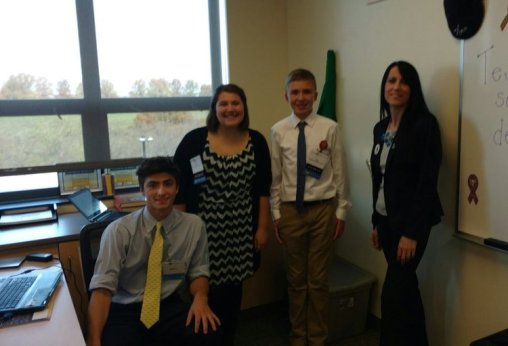
Rachelle and her edtech leaders!

Rachelle and her edtech leaders!

We need to offer diverse learning opportunities for students and to provide the support needed to encourage them to take more ownership in their learning and to become the leaders in the classroom. Students have to be more than just consumers, they need the chance to create, to experience learning from different perspectives and take this new knowledge and apply it in different ways to meet their needs.

How do teachers know what is working in the classroom? Teachers can use assessment tools and monitor student progress, but it is far more valuable and important to classroom culture and growth, to work on relationships and build collaboration by asking students to be a part of the conversation and creation of class materials. When teachers do this, they understand what helps students to learn better, be more engaged, and have a more authentic learning experience.  It also becomes a way to build student confidence and transform them into classroom leaders and advocates, who can then share their knowledge and experience with others in their class and then the community.

Give Them Choices And Let Them Lead

At the end of last year, I wanted to see what students thought about creating these assessments using tools which were traditionally used by teachers to deliver instruction.  Cassy shared her experience in the prior post and emphasized the importance of including students in the decisions of when and how to integrate technology.  Because reflection is key, I took this information and thought about the logical next step.  How could I share the message about Formative, or even more importantly, how could the students share their input with others, especially educators?

Students Take Over

Last month, Cassy had the opportunity to take the lead and present to a group of educators at a technology conference in Pittsburgh, and show how Formative can be used in their classrooms. Cassy had become the teacher, she created a lesson with Formative and offered her perspective on the use of edtech.  This time, I asked several students to participate in an edtech conference, and to present the session. Cassy taught the attendees about Formative. Here are her thoughts on the experience…

Student Perspective On Edtech: Cassy Becomes The Teacher

9th grader Cassy presenting Formative to teachers!

9th grader Cassy presenting Formative to teachers!

Cassy: “On November 8th, 2016, I participated with two other students in TRETC (Three Rivers Educational Technology Conference) where educators and technology directors from the Pittsburgh area presented sessions on uses of technology.  I am extremely grateful that I had this opportunity to share what I learned about and what I have created with technology. Formative was the perfect choice of a tool to share with the group of educators. I feel Formative is a wonderful, interactive and creative way to teach, complete assessments and increase engagement in teaching environments. I was very excited that I was able to inform others about this web tool because it means other students can have the same great opportunity I have been given, which is to use technology to learn and be creative.

Cassy had teachers respond to a Show Your Work question and draw their own flowers!

Cassy had teachers respond to a Show Your Work question and draw their own flowers!

    For the presentation, I created my own Formativewhich included a video, a true/false question, a multiple choice question, a short answer question, and a draw your response question. I included all of these so the group could see how many different options and aspects there are to Formative. I also explained the other possibilites with Formative, how to assign the Formative and answered any questions from educators or technology directors. One teacher asked if we (meaning my Spanish 3 class) have used Formative in the classroom. I told her that we have used it very often and I enjoyed it every time. I also explained how it is possible to see all of the responses of those participating in the Formative. While I talked about all of these great aspects of Formative and more, the group participated in the Formative I created and were able to see all of each other’s’ responses.

The dynamic teacher-student duo showing educators how to act on live responses!

The dynamic teacher-student duo showing educators how to act on live responses!

    I was very pleased with how the group reacted. I felt I had explained Formative well enough that everyone had a general, if not advanced understanding of how Formative worked and the advantages of using it. Seeing the smiles and hearing the laughter of everyone in the room meant that I had accomplished my goal of informing and sharing what I was so passionate about and making an impact with technology.

I am so lucky to have had the opportunity to present at TRETC with my fellow students and my extremely talented and intelligent teacher. Mrs. Poth has opened so many doors for me and has taught me so much. Learning about tools, like Formative, has made me realize how useful technology is for learning. It was wonderful to hear what Mrs. Poth had to say about Formative on top of what I had to share about it. The group was able to see two perspectives on how Formative has impacted the classroom, which I felt made a very big impact.  I admire her opinions and her comments. I am very appreciative that I could hear and see my fellow students and teacher talk about what they love so much about technology.

Being able to present with Mrs. Poth, was a great opportunity. I am very pleased I could share what I love so much about technology. Formative encompasses everything I love about technology: maximum creativity, endless possibilities and strong usefulness. I can’t think of a better tool I would have wanted to present than one that shows and encompasses my passion for technology: Formative.”

Want to learn more about giving your students ownership over edtech and opportunities to present tools to teachers? Tweet to @Rdene915  or @goformative !  

Piktochart: An edtech interview

This is a post by Jacqueline Jensen, following our Blab interview talking edtech in the classroom.  Thanks for this post and the opportunity Jacqueline and Piktochart!

Talking EdTech with Teachers

As Piktochart’s Community Evangelist, fostering community among our 5-million-strong user base is one of my primary goals. As I wrote after first joining, my role here on the Piktochart team focuses on interacting with our users at every level — from live events around the world and conference talks to jumping onto the latest up and coming social platform to chat with Piktochart users.

So far, we’ve tried a number of new initiatives. We think it’s important to share valuable content with not only our user community, but with startups, designers, educators, and marketers all across the globe. When we tried out Blab, we picked an awesome guest and gathered community questions to chat about.

Back in June, we went looking for educators to join us to discuss more about how to bring technology into the classroom. Education technology, also known simply as EdTech, refers to the creation and use of software and hardware intended to bring technology to education.

This segment of the technology world has heated up thanks to investment from organizations like the Bill and Melinda Gates Foundation, the United States government, and even tech venture capital investment firms like Andreessen Horowitz. In fact, in just the first half of 2015, private investors alone poured $2.5 billion into EdTech companies — leading to the creation of countless technologies for classrooms around the world.

Here at Piktochart, our team was thrilled to hear we were recently honored in the American Association of School Librarian’s 2016 Best Websites for Teaching and Learning. Educators have been using Piktochart in their classrooms since we launched in 2012, and we couldn’t be more pleased to know we are making a difference in the minds of students around the world.

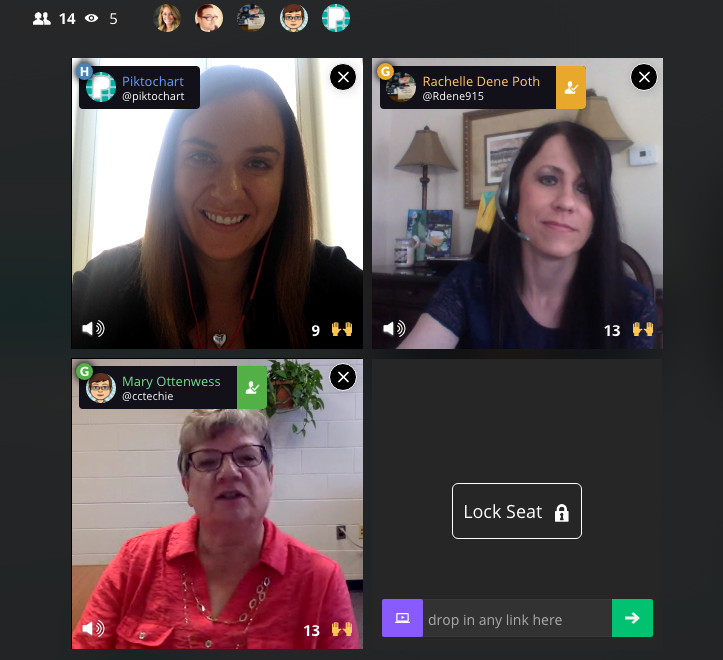
To get the skinny on what’s going on in classrooms when it comes to EdTech — from best practices and challenges to favorite tools and privacy policies — we brought in two Piktochart users who are making a big impact by bringing technology into their school. For the first time, we had two guests on our Blab,Rachelle Poth and Mary Ottenwess.

Rachelle is a foreign language teacher at Riverview Junior-Senior High School in Oakmont, PA. She enjoys using technology in the classroom and finding ways for students to have more choices in their learning. She has presented at several technology conferences in Pennsylvania and at ISTE in Denver this past June.

Mary has been in education for 25 years. She started out in a public high school library and is now the Instructional Technology Specialist at Catholic Central High School in Grand Rapids, MI. She was the one that didn’t step back when they asked for volunteers to run the computer lab and thus her adventures in EdTech began!


What is your biggest pain point with your school’s current EdTech setup?

Rachelle said her biggest complaint when it comes to EdTech tools, which is shared by other teachers she talks to, is the fact that things sometimes don’t go as planned with technology.

“Best case scenario doesn’t always happen when it comes to technology,” she said. “You have to be prepared for the little bumps that come along the way.”

Mary echoed Rachelle’s thoughts about technology being unpredictable. She also added that limited professional development time for teachers is another hurdle when it comes to her school’s EdTech setup.

“An hour once a month just isn’t enough time,” said Mary. “Students come in an hour late and we have a meeting with all teachers at the school. Teachers will go around and talk about what they are using in their classrooms, discuss a particular tool, or discuss a method. Because we are trying to cover so much in a single hour, hitting everyone’s skill and comfort level as well as giving them time to try the tool often means a lot of 1:1 follow-up.”

“As a workaround for time, we have teachers create tutorials to view prior to the professional development sessions,” noted K-12 EdTech coordinatorCourtney Kofeldt in the chat.

What opportunities are given to kids through EdTech and how can teachers learn to embrace them?

Mary said EdTech really expands a student’s world. They can collaborate and share with not only each other, but with experts in the field. Students can use project-based learning and inquiry-learning, and they can use and develop real-world skills for college or a career. For teachers, Mary thinks technology makes things simpler.

Rachelle agreed. She believes the opportunities provided by technology are tremendous.

“Technology provides opportunities to students to allow them to show what they have learned and to use a tool that is meaningful to them. Without the technology, they wouldn’t have been as engaged,” she said. “I don’t use technology for the sake of using it, but rather as a way to increase opportunities.”

When given a choice of tools to utilize on their projects, Rachelle finds students talk to their friends about the learning curve of each software. Students work together, collaborate, and learn from each other about how to use technology.

What’s the best thing technology has allowed you to do in your school that you couldn’t have done otherwise?

Mary shared an example from her school, Catholic Central High School in Grand Rapids, MI. Using technology, a French teacher was able to bring in a video feed from a classroom in Canada. The American students communicate in French to sharpen their skills, and they’re also able to learn more about the other students culturally.

“Students are not only collaborating with the students in another country, but those next to them in their classroom too,” explained Mary. “It’s fun to watch the collaboration.”

Rachelle says that technology has allowed her to continue the conversation with students after class time ends. She found more and more that her students had questions once they got home and started working on their homework or projects, and technology allowed her to be available to them during those key moments.

“It really bothered me that when class ended, that would stop their learning process in a sense,” she said. “I use technology to bridge that disconnect. I use messaging to help.”

Do you as the teacher (or your school) assess the privacy and security of a tool before letting students try it?

Rachelle said she pays close attention to privacy and security settings before bringing a tool into the classroom. She does this by creating an account on her own and reviewing the settings herself. Rachelle also sends home a notice to parents at the beginning of the year informing them of the tools that will be used in the classroom.

She also relies on the thoughts of other teachers, and she noted these sites and communities as her go-to sources:

  • Common Sense Graphite, a community of educators who take the guesswork out of finding innovative ways to use technology in the classroom;
  • EdShelf, a socially-curated discovery engine of websites, mobile apps, desktop programs, and electronic products for teaching and learning;
  • EdCamp, an organic, participant-driven professional learning experience led by a community created by educators, for educators.

Mary added that her school has a tech team on staff who will verify security before launching a new tool in the classroom. First, they start with a pilot program and monitor progress while the new EdTech tool is being tested in the classroom. During that pilot, they will be on the lookout for glitches or security holes.

Which tool/platform/methodology has been the biggest hit in your classroom and why?

Rachelle, Mary, and participants in the chat were excited to share their favorite EdTech tools! Check out the list below:

What are 3 most important skills kids have gained in your classroom thanks to technology?

Everyone agreed that more collaboration and creativity is taking place in the classroom thanks to technology.

“I have noticed students really develop the 6C’s — Communication, Collaboration, Critical Thinking, Creativity, Character, and Citizenship — when tech is integrated,” said Courtney Kofeldt in the chat.

Rachelle added she often notices that projects from her students go above and beyond her expectations. “Technology gives them that voice to speak out and be part of something when otherwise they wouldn’t have been,” she said.

Mary says teachers have benefitted from technology as a way to improve their skills, too. She notices more collaboration happening between teachers and growth of their professional networks thanks to technology making it easier to work together.

Thanks to technology, both students and teachers alike are building up their confidence. “It’s ok to have something not work,” explained Mary. “Technology allows students to take the lead. Teachers aren’t always the one with all the knowledge.”

Mary also touched on her school’s Digital Citizenship Course, which is an ever-changing movement to educate students on the proper use of technology — when to use it (or leave it behind) and best practices.

“I teach motion graphics at UCLA, and it is wonderful to see what the students create once they understand the tools,” added Eric Rosner in the chat.

How can teachers improve their tech skills in order to make classes more interactive and multimedia oriented?

Rachelle’s advice is simple:

“Just pick something and start it!” she said. “Really. You don’t know if it’ll work for you until you try it. Pick something small and give it a try.”

She suggested teachers consider learning new tools alongside students. Rather than a teacher-driven project, why not try a student-driven project? She found her students enjoy it, and as a teacher, it keeps her fresh. Use the challenge of a new tool as a learning lesson for both the students and the educator.

“Not everything is going to work, and that’s ok,” added Mary. “We teach our kids to learn from failure, and we need to do the same.”

Mary advised teachers to expand their professional network to get to know other educators. Social channels are a great way to do this — and Mary specifically suggested getting involved in Twitter chats. For a comprehensive list of Twitter chats all about education, check out this list Mary shared with us on the Blab!

What are your recommendations for someone who is just starting to use technology in the classroom, and may be a bit hesitant?

Rachelle suggested focusing on one area in your classroom you can try to improve using technology. Give a new EdTech tool a shot, use it minimally, and be patient with getting comfortable with it.

Mary suggested finding another educator who is using technology you’d like to try and simply watching them use the tool in their classroom. Finding a tech mentor is key to getting comfortable!

How can tech help all students to be engaged, to reach each student?

If students are on different levels, Mary said EdTech tools can help bridge that gap. She particularly likes Khan Academy for this purpose. She also suggested putting up a rubric for an assignment, but allowing students to choose their technology tool to complete the project.

“Students are not all the same,” added Rachelle. “By giving them choice with technology tools, you’ll see they can create anything they desire, and you learn more about them as individuals. When the choices are given and nothing is set in stone, it pays off.”


The team at Piktochart had a blast during our Blab with Rachelle Poth and Mary Ottenwess! Thanks to both of them for stopping by! If you’re interested in learning more about how Piktochart can help out in your classroom, check out a few more of our EdTech posts!

This post originally appeared on Piktochart’s blog here.