CoSpacesEdu

CoSpacesEdu: Opening up new learning worlds 

COSP.jpeg

I have always been a fan of technology and any time I learn about a new tool, I go straight to the computer if time allows, create an account and start trying to figure it out on my own.  Or if I don’t have time, I will add it to my seemingly never-ending list of tools that I want to check out. Last summer, I came across CoSpaces. I had no idea what to expect other than knowing that the purpose was for creating and experiencing a virtual learning environment. I created an account, looked at the gallery of what was available, and tried to figure out exactly how to create my own 3D space.

I am the type of learner who would rather struggle and figure things out on my own first. I think it is better as a teacher, to work through those struggles so that we can better help our students. If I’ve exhausted all of my efforts, then I will look for a help section or connect with other educators that I know have experience using the tool. Sometimes even simply posting a question on Twitter, or searching YouTube for helpful videos, will give the answers that I need. However with CoSpaces, I was determined to work through it on my own because as soon as I started trying it, I knew right away that it was something I would want to use in my new STEAM Emerging Technology course for the upcoming school year. And while I greatly enjoy  learning from the students, I also enjoy being there to watch the student responses as they begin to figure things out on their own and have those “aha” moments when they realize that they’ve uncovered exactly how to do something. Better yet is when they share this knowledge with their peers and also teach me new things to do with what we are working on.


My plans for using CoSpacesEdu were uncertain at the time, because I knew virtual reality was a topic that I wanted to cover in my class. My course is focused on STEAM and Emerging Tech. I had plans to help students develop some vital technology skills, starting with learning about digital citizenship and then adding on new tech skills as we progressed.  I knew that many students did not have much experience creating with anything other than Microsoft Word or PowerPoint, if even these two. I also wanted to know the different possibilities for using CoSpaces in the classroom, so I spent some time looking at the gallery, I joined the community on Facebook and reached out to the CoSpaces team to see what additional information I could find. But while doing all of this I did manage to create my own project in which I added many random items and had a lot of fun creating. I was truly amazed at what I was able to do within my own “space”. The ideas started flowing for how I could use this in my STEAM course and also with my foreign language classes. I could foresee students who had to create items such as biomes or do a book report, or a science project using CoSpaces as a way to represent these by building their own space and environment to represent the story they were trying to recreate or to tell. Talk about creativity, imagination, innovation and critical thinking, and more all in one tool.


As with my other projects this year with my STEAM course, I wanted to find a way to connect using this tool for our class with a learning target or project for another class. There are so many possibilities. While waiting for some feedback, I decided to offer a few different options for students to choose from after looking through the gallery. Consulting a friend of mine who is outstanding in the field of AR/VR, Jaime Donally, (@JaimeDonally) who gave me some really fantastic ideas for creating with CoSpaces. I was also fortunate to have a conversation with Manuela, who provided a lot of insight into the new features that CoSpaces would be offering. There are updates sent regularly with details about the new features and links to sample projects and helpful videos.  

So if you have not yet checked out CoSpacesEdu, I recommend that you do because I guarantee that you will find it has applicability for something in your classroom. And it is a tool that will further engage students in their learning. Once they have created their own project, they can then immerse themselves in their own environment with the use of the app on the iPad or installing it on their phone and having a headset to walk through their own environment. How cool is that!


So for our first project in STEAM, I asked students to create three scenes in which they either told a story about a TV show, a movie or a book that they had read, or create a different type of a living space, or come up with their own focus, as long as they included the required number of elements into their project. Once they were finished, I had them share their link on a Padlet, so that all projects could be accessible and that students could take turns walking through each other’s environment. The students were excited and amazed at what they were doing. While looking at the gallery and playing some of the games were fun, being able to create their own space, walk through it and explore on their own was way better, according to several of my students.

Screen Shot 2017-08-20 at 5.48.06 PM.png


There are some new features with CoSpaces and I’m sure the changes will continue to come. I recommend that you check it out and think about something that you may be teaching in your class or a project coming up in which students could create a virtual space. Using CoSpaces will really open up your learning environment and immerse students in authentic experiences, increase student engagement and I believe add to motivation the students have for learning and taking some risks and being up to the challenge of figuring out exactly how things work. And hopefully the next time they have project rather than wanting to create in PowerPoint or with Google Slides, they will think of CoSpaces Edu as the perfect way to represent what they know and can do with the material

Nearpod and Peardeck – A Comparison

Updated on May 8, 2019

Nearpod and Pear Deck: What is the difference?

When presenting at different edtech conferences, or in conversations at edcamps, I am often asked what makes Nearpod different than PearDeck. We know there are many great digital tools available that open up the spaces and time for students to learn. Lessons become more interactive, students can work on them in or out of class, blended learning is facilitated easier with tools like these. So what are the similarities and differences between them? Both offer many options, that it truly can come down to a personal preference or comfort level.

Features

  Both Nearpod and Pear Deck offer a variety of question types and activities as ways to assess students, but more importantly, these tools help to increase student engagement and expand where and when students learn. Both tools offer free as well as paid versions. Through Nearpod, all question types are available in the free version (Open Ended, Polls, Quiz, Draw, and Collaborate), as well the ability to add an activity “on the fly”, whereas in Pear Deck, only three types of questions are available in the free version (Multiple Choice, Numbers, and Text). For reports, all are accessible through the free version of Nearpod, however with Pear Deck, the “session review” is only available with the paid version. Some of the additional features available through Nearpod make it distinct in comparison with Pear Deck. 

Nearpod enables students to experience Virtual Reality (VR), by interacting with 3D shapes or going on a Virtual Field Trip, powered by 360 cities, right from the classroom. This immersive capability promotes global knowledge, expanding student comprehension of different perspectives and allows students to become immersed in new environments. Nearpod continues to add new features, most recently, “Collaborate” an interactive brainstorming tool where teachers and students can share posts and images, such as a quick reflection or a more engaging way to have a discussion during a live session. The posts can be “liked” by students and are sortable by the teacher. In Nearpod student notes, students can annotate the Nearpod lesson and have their notes and responses saved to a Google document or a PDF, in the Nearpod School and District subscriptions. Here is the  Nearpod Library of resources. 

Pear Deck has some distinct features as well (available in the premium accounts) that can be added when creating a deck, as part of the “slides.” Through a unique question type named “DraggableTM ” students can place dots onto images for various purposes. For example, using “thumbs up” and “thumbs down” students can place a dot as to whether they understand the material, draw dots on a map or a graph, and then the teacher can cast all responses on the screen, without showing the name of each student. Individual responses can be highlighted separately when projected on the screen, still without showing student names. Another feature in Pear Deck is the ability to lock student screens so that a student cannot change an answer. In terms of assessments, this is a nice feature to have, to help in the area of academic integrity. Some of the “add-ons” available in the premium account are the “takeaways”  from sessions, with student responses, which can then be published to a Google Document, students can then review, and the document goes to the Google Drive.

Usability

Creating a lesson and presenting it “live” in class, assigning it for homework or a “student-paced session”, can be done with both of these tools, although the manner of creating the lessons differs in how you add slides and the types of content. Both tools work with Google Classroom, Nearpod also integrates with Schoology and Canvas. Both platforms can be accessed on any device from the web, and Nearpod has native apps for iOS and Android operating systems. With Nearpod, links can be shared to have students access the lesson as well.  With Pear Deck, students log in using a Join Code or directly through Google Classroom and access it through Chromebooks or the Chrome add on through the web. It is available for use on all devices. Teachers can facilitate lessons in class or as student-paced rather easily with either tool, but there are more options available within Nearpod at the free level.

Content

Nearpod has the edge with its library of thousands of lessons for different content areas and grade levels, ready for free download and customization. In Pear Deck’s “Orchard”, there are a few free sample decks available to download and copy to your Drive, and introductory decks are available to learn how to create your own lessons. The Pear Deck Orchard does not appear to offer as many lessons as does Nearpod’s library. Comparisons of the Nearpod Features in depth.

Integrations

Both Nearpod and Pear Deck integrate with Google Classroom. Nearpod also integrates with Blackboard, Canvas, itsLearning and Schoology, and offers the ability to “upload files” from OneDrive, Dropbox, Box, Google Drive, and the computer. Pear Deck offers the ability to import class rosters directly from Google Classroom. Powerpoints can be uploaded for free with Nearpod, whereas this capability is a paid featured with Pear Deck.

Conclusion

Each tool offers many options for enhancing student learning and provides diverse methods of assessing students and delivering content. They each offer websites full of information to help educators get started creating lessons. There is a range of features within each tool, however for someone looking for more interactive lessons in and out of the classroom, or ready-made digital lessons, Nearpod has the edge with its library full of lessons on different content areas and levels. And for opportunities to engage students in learning, promote active learning and exploration, and assess students through multiple methods, Nearpod also edges Pear Deck in this, as there are more options available in the free version. Pear Deck offers some distinct features especially if you are in a Google Classroom. The session takeaways and reviews with comments are a great way to involve students in self-assessment.

When it comes down to it, the decision has to be made based on what’s best for your students and your classroom. Either way, offering new ways for students to be engaged in learning is win-win.


Nearpod – Increasing cultural awareness and student engagement through interactive lessons and virtual field trips

Using Nearpod in class

I have used Nearpod many times, but during the past few months, I had an opportunity to dive in and see what it can provide for student-led learning. As part of conference presentations, graduate coursework and lessons for my Spanish classes, I have a much greater understanding of its capabilities for instruction and the tremendous features it offers for education. At the end of the school year, after noticing a decrease in student engagement and motivation, I wanted to try some innovative, different methods of instruction.

Technology in our classroom: It has a purpose

Students work with many digital tools and choose how to showcase their learning.  Using technology to provide authentic and meaningful learning experiences leads to an increase in student engagement, motivation, and content mastery. I am invested in providing diverse learning opportunities and look for innovative ways to introduce content and promote student choice.  Students need to do more than just be receptors of information, they need to be creators! After reflecting on my practice and thinking about student needs, I had my students create a project using digital tools typically used by teachers to facilitate a lesson.

The Project

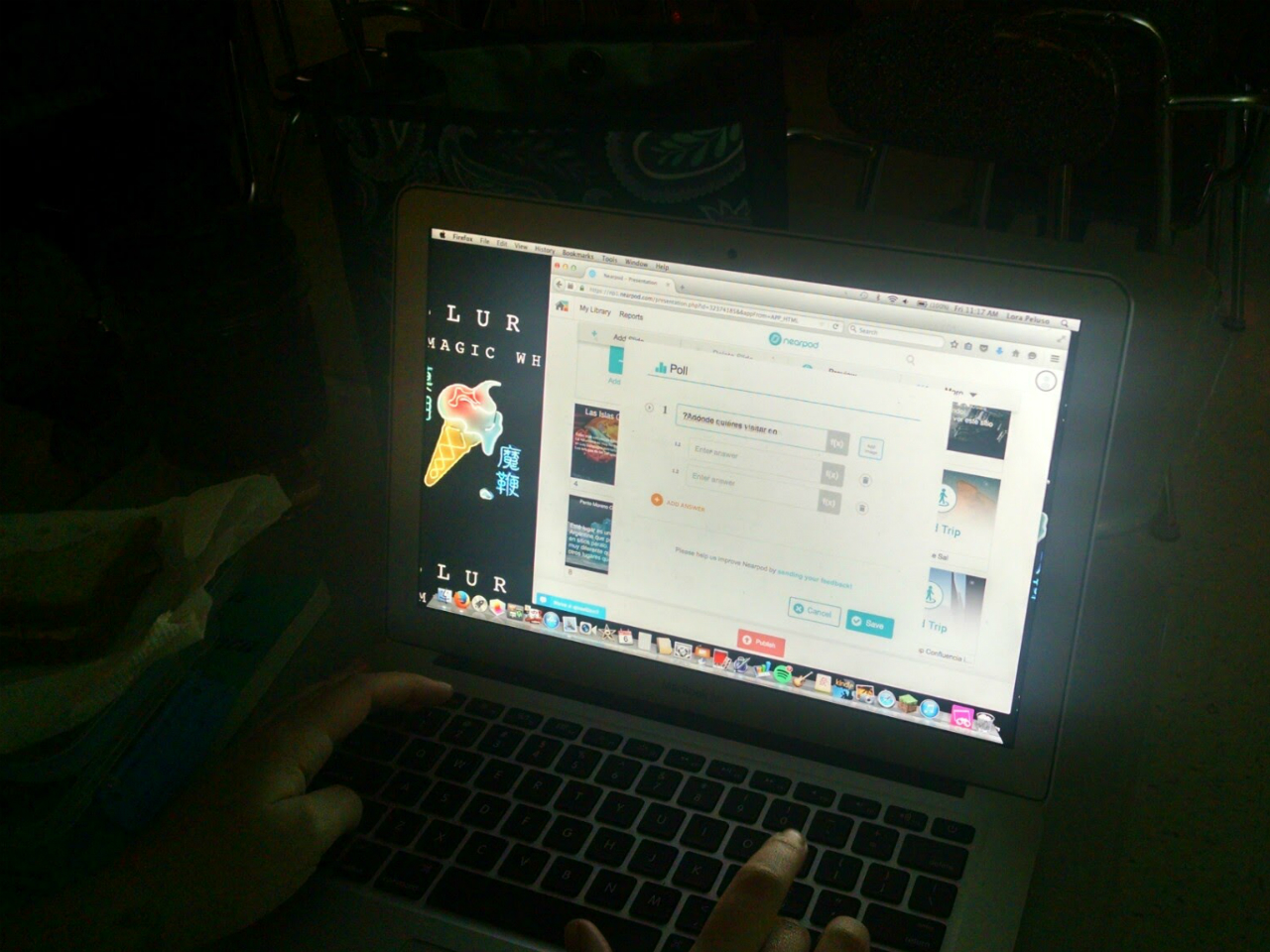
I first used Nearpod to review South American culture and verb tenses.  The virtual field trips were fantastic and the students were much more engaged in the lesson. I then wondered how students would like creating a Nearpod lesson and taking control in the classroom, so I put them up to the challenge! After my students created and facilitated their Nearpod lessons, they had some fantastic feedback about using Nearpod as a tool for both teaching AND learning.

So what did the students say?

“I used Nearpod for a class project about South America, and the amazing virtual tours took my presentation to another level. I consider myself tech-savvy, but I’ve never seen anything like this; I’d recommend Nearpod to anyone wanting a real step-up from Powerpoints, Prezis, or Google Slides!” – Sydney

“As someone who finds technology unnecessary at times, I often do not enjoy using some of the tools I have in the past. Nearpod has really gotten me excited about the possibilities of technology in the classroom! Being able to take an adventure on virtual tours and experience culture first hand is something I have never been able to do before. Nearpod is a great tool for every classroom!”    -Patrick

“Having so many choices for activities to use were educational and fun. Choices make learning more enjoyable for students. It provides more than just listening to a presentation, or watching a video, and not really being held accountable. I recommend Nearpod for other educators and anyone looking for a new way to present information. -Izabel

Learners to leaders

Using Nearpod means that learning is no longer confined to the traditional classroom setting, nor that the “teacher” is the only person providing instruction.  Students were empowered in their learning.  Seeing their transformation from learners to leaders was tremendous. The choice was theirs.

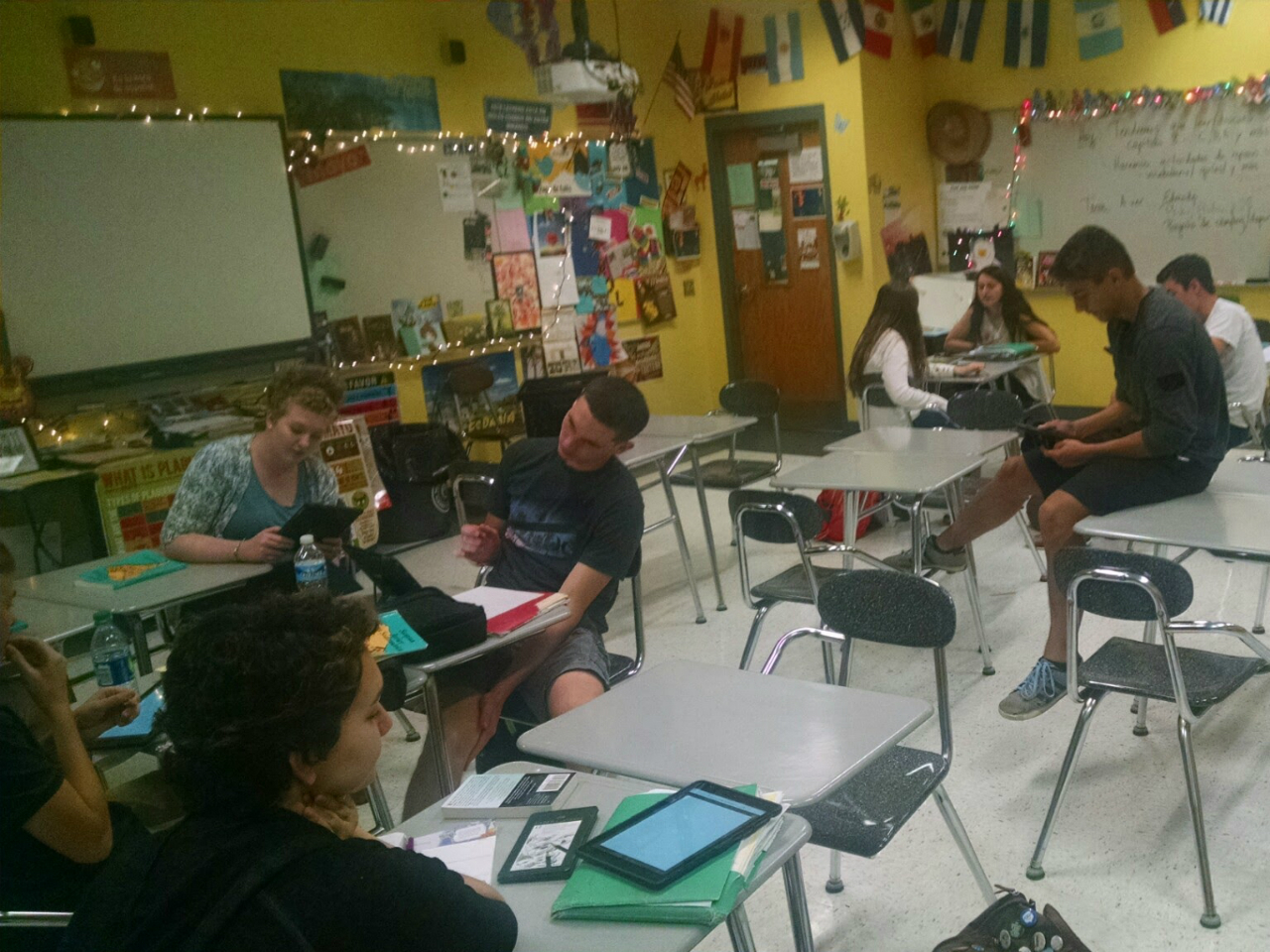
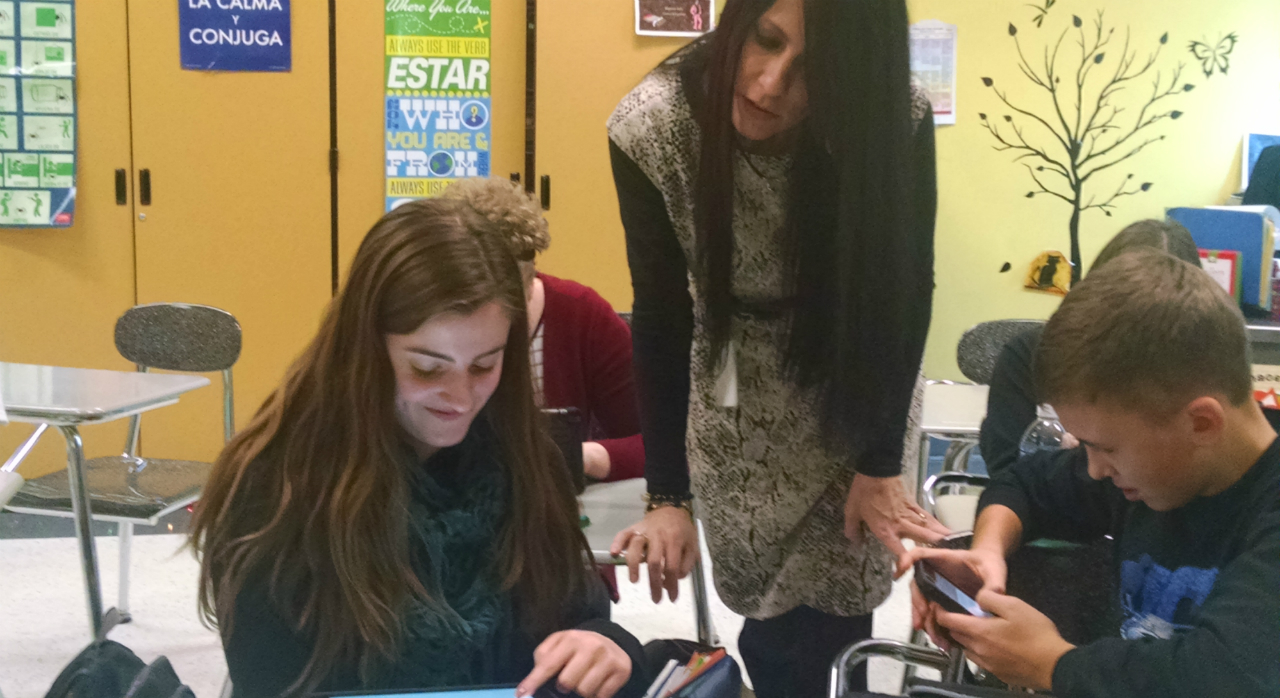
Students teaching a Nearpod lesson 1

Students teaching a Nearpod lesson 2

Students working on projects in class 1

TeacherCast Educational Network | Developing Standards-Based Instructional Technology Integration

Technology Integration - Instructional Coaching - Productivity Secrets for Educators

Leadership Liner Notes: Sean Gaillard

Built on Connection. Tuned for Impact.

Stories by Thomas Oppong on Medium

Dr. Rachelle Dené Poth @Rdene915 Educator, Consultant & Keynote Speaker, Author, Attorney #THRIVEinEDU

Hooked On Innovation

When Innovation slaps you in the face, we slap back.

Teach Better

Dr. Rachelle Dené Poth @Rdene915 Educator, Consultant & Keynote Speaker, Author, Attorney #THRIVEinEDU

BrianKulak.com

Dr. Rachelle Dené Poth @Rdene915 Educator, Consultant & Keynote Speaker, Author, Attorney #THRIVEinEDU

The Principal of Change

Stories of learning and leading

Mandy Froehlich

Dr. Rachelle Dené Poth @Rdene915 Educator, Consultant & Keynote Speaker, Author, Attorney #THRIVEinEDU

Katie Martin

Informed by research, refined by practice

#RocknTheBoat

Rocking today's classrooms, one teacher, student, and class at a time.

User Generated Education

Education as it should be - passion-based.

Learning as I go: Reflections & lessons learned

Dr. Rachelle Dené Poth @Rdene915 Educator, Consultant & Keynote Speaker, Author, Attorney #THRIVEinEDU

Serendipity in Education

Join me, Allyson Apsey, as I stumble upon the fortunes of learning, laughing, and celebrating alongside incredible people.