
Using Text to Speech to support a more inclusive and engaging classroom

In collaboration with ReadSpeaker, guest post by Amy Foxwell

In today’s digital age, technology is a powerful ally in making education more accessible. One notable advancement is Text-to-Speech (TTS) technology, which transforms written text into spoken words. ReadSpeaker, a leading solution in this field, offers a variety of tools to enhance learning, creating a more accessible and engaging experience for all students.

Enhancing Accessibility

For students with visual impairments or reading disabilities such as dyslexia, TTS technology is a game-changer. ReadSpeaker enables these students to access and understand content more easily by converting text into audio. ReadSpeaker also allows users to select the reading language, speed and volume while simultaneously offering a variety of additional study tools to support student reading and writing.

ReadSpeaker Reading and Writing Support 

• Bimodal presentation improves comprehension by presenting information in visual and audio formats at the same time

• Reading tools, such as page mask and reading ruler, available for increased readability

• Dictionary lookup

• Multiple languages available for language fluency and multilingual learners

• Translation check and pronunciation of foreign words and phrases

Supporting Diverse Learning 

ReadSpeaker helps students with diverse needs by providing an alternative method of consuming information. TTS allows students to listen to content while following along, enhancing engagement and retention. ReadSpeaker offers voice for any content, including courses, PDFs, ebooks, web research, training materials, quizzes, OCR images, STEM content and more. Learners enjoy a more immersive reading experience, resulting in greater comprehension, increased self-confidence, and improved academic performance. 

ReadSpeaker and Universal Design for Learning  

The Universal Design for Learning (UDL) framework was developed by CAST to enhance course design to meet the needs of diverse learners. Based on learning science, the UDL framework guides the design of instructional goals, assessments, methods, and materials to meet the individual needs of each student. A champion of UDL for many years, ReadSpeaker provides easy-to-access and easy-to-use text-to-speech for any content on any device and can be used individually or seamlessly integrated into learning platforms or LMSs. ReadSpeaker’s speech-enabled learning tools align with UDL principles by providing visual and auditory alternatives, allowing students to engage with and absorb content in multiple ways according to their needs.  Learn more about ReadSpeaker and UDL here.

Supporting Multilingual Education

In increasingly diverse classrooms, language barriers can pose significant challenges. ReadSpeaker offers multilingual support, allowing students to hear text in their native language or practice new languages. This feature is particularly beneficial for non-native speakers who might find reading in a second language daunting. By listening to the pronunciation and intonation, students can improve their language skills more naturally and effectively.

Second Language Learning: How Text to Speech Can Help https://www.readspeaker.com/blog/second-language-learning/

Enhancing Focus and Reducing Cognitive Load

Reading large amounts of text can be overwhelming, especially for students with attention deficit disorders. TTS technology helps reduce the cognitive load by allowing students to listen to text in addition to reading it. ReadSpeaker’s learning tools, such as highlighting text as it reads aloud, improve student focus, comprehension, and engagement with the content.

Making STEM content engaging and interactive

How does text-to-speech support a student who needs to hear math expressions in class and when working at home? Not every TTS system can accurately read mathematical symbols, and many aren’t set up to understand the code that presents math digitally. ReadSpeaker’s advanced math-reading tools remove this barrier to access by providing accurate audio versions of mathematical expressions and text at once with some of the most lifelike AI voices available.

Improve STEM Accessibility With Text to Speech for Math

https://www.readspeaker.com/blog/readspeaker-launches-web-based-math-audio-reader-for-publishers-to-make-their-educational-content-more-accessible/

Accommodations and Assessments

ReadSpeaker’s text-to-speech solutions provide improved digital accessibility to various populations of learners, including those with learning disabilities, visual impairment, or literacy challenges. TTS tools can be integrated into a secure learning environment or e‑­assessment platform, even in locked browsers and proprietary proctoring systems. This capability allows instructors and administrators to better address the diverse needs of students while more easily meeting accessibility accommodation requirements.

Easily speech-enable assessments

LMS Integration

ReadSpeaker for LMS provides text-to-speech plugins and audio-enhanced learning tools that can be easily integrated into any LMS. The ReadSpeaker Listen icon will appear in the course window. The learner can then choose whether to activate the ReadSpeaker tools or not. When activated, the ReadSpeaker Listen button can be moved to wherever the learner prefers. The cloud-based solutions ensure that when course content is updated, it is immediately speech-enabled.

By supporting students with disabilities, accommodating diverse learning styles, promoting inclusion, facilitating multilingual education, and enhancing focus, ReadSpeaker helps create a more equitable learning environment. Embracing such technologies can ensure that every student has the opportunity to succeed and realize their individual goals.

For more information or to set up a personalized demo for your institution, email us at education@readspeaker.com or visit www.readspeaker.com/education

About Rachelle’s blog

Contact Rachelle to schedule sessions about Artificial Intelligence, Coding, AR/VR, and more for your school or your event! Submit the Contact Form.

Follow Rachelle on Twitter(X) and Instagram at @Rdene915

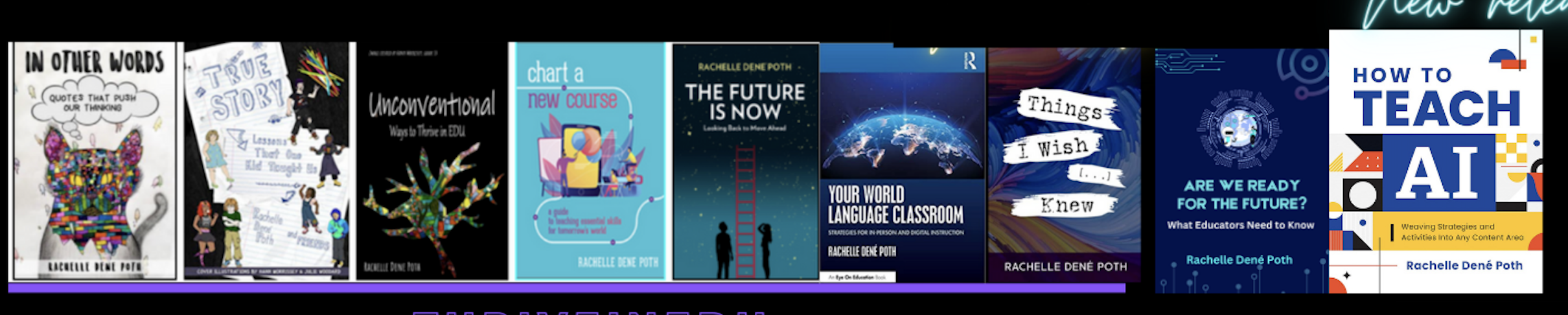
**Interested in writing a guest blog for my site? Would love to share your ideas! Submit your post here. Looking for a new book to read? Find these available at bit.ly/Pothbooks

************ Also check out my THRIVEinEDU Podcast Here!

Join my show on THRIVEinEDU on Facebook. Join the group here.

ReadSpeaker: Accessibility for All

The Case for Normalizing Accessibility Tools in Schools

Guest post by Paul Stisser,

The cornerstone of education is building pathways to success for all students. The right accessibility tools can often help, making it possible for students of all abilities to thrive. But when the same tools that provide assistance to students leave them vulnerable to stares, harassment, or bullying from classmates, they ultimately do as much harm as good. So how can we make sure students get the assistive technology they need while preventing them from feeling self-conscious? The answer is to make tools available to all students and normalize assistive technology.

In schools today, about one in seven children receive special education services. But some children never receive the proper diagnosis to qualify for the support they need. For other students, requests are tangled up in slow-moving processes. The result is there may be even more students than we realize who can benefit from assistive technology. At the same time, more classes are using digital content, especially after the pandemic ushered in a new wave of digital materials, educational apps, and tech-enabled curricula. While the move to higher degrees of digital education has led to big strides in personalization and accessibility of learning, the Office for Civil Rights is also receiving a growing number of complaints about digital accessibility in K-12 schools.

By prioritizing digital accessibility, we have the power to solve the challenges students with disabilities face and improve the learning experience for all students. It’s similar to the effect of curb cuts on sidewalks. While the initial intention of curb cuts was to help people in wheelchairs, they also benefit people with strollers, wheeled luggage, and bicycles. Similarly, when we take steps to enhance accessibility for all students, we foster a stronger sense of belonging in the classroom. Whether it involves making websites more accessible, enabling students of diverse learning styles to easily engage with content, or harnessing text-to-speech (TTS) tools to support those developing reading skills, English language learners, and auditory learners, the path to inclusivity and student success starts with normalizing accessibility. Below are just a few ideas schools and districts can adopt to introduce accessibility tools to more students.

Talk to students

Including the voices of students in conversations about tools and what they need can be very useful. Students can tell you what is working with the technology they have and what else they might need. When talking to students be sure to include diverse perspectives, with voices from students who need accommodations as well as those who don’t. The way you collect feedback can vary too, depending on the culture of your district or school. Many leaders have success with everything from student representatives on technology committees to conducting surveys and focus groups. Remember that candid, informal conversations can surface great ideas too!

Ask vendors about accessibility

When evaluating new edtech, ask vendors about accessibility. Districts and schools should lead the conversation and ensure that products were designed with accessibility as central to their design, not as an afterthought or add-in. By prioritizing accessible tools and features, you add to the voices calling on the edtech community to make inclusivity a key value.

Find tools that connect to your LMS

When students have to log out of one platform and into another to get the support they need, it creates unnecessary opportunities for distractions. That’s true for students who need accommodations as well as those who don’t. Support tools that are connected to your LMS create a seamless experience for all students, keeping them focused on what they need to do. Additionally, LMS-integrated tools reduce the risk of anyone noticing that students who need support are getting it. Familiarize yourself with the 1edtech standards for interoperability. Choose products that are vetted for interoperability or certified.

Emphasize quality

When it comes to accessibility there are often many choices that are low-cost or free. But these tools can come at a cost. For example, there’s a wide variety of voice quality and learner experiences in TTS solutions. Voices that don’t sound realistic or are simply poor quality can cause students to lose focus while learning and stop using the tool.

Paying for tools can also bring helpful features that go beyond the edtech’s core function. Some TTS tools do more than read text. They can be customized with colors and fonts, and the voice sped up or slowed down. They can mask the page and hide distracting ads to keep learners focused, highlight text as it is being read, give multiple language options, and include a speech-enabled dictionary.

When we give all students the chance to use accessibility tools we unlock new levels of classroom inclusivity. By making support tools available to all students, we reduce barriers to engaging with digital content, embrace all learning abilities and learning styles, and foster a stronger sense of belonging. So, let’s normalize accessibility tools so all students can not only succeed but soar.

Since joining ReadSpeaker in 2013, Paul Stisser has been a leader in ReadSpeaker’s TTS Education initiatives. Prior to ReadSpeaker, Paul worked at D2L and start-up Moblmedia. He also has 14 years of education and teaching experience in Rochester, NY, specializing in Special Education and At-Risk Students. Paul attended St. Bonaventure University with degrees in History and Literacy. Currently, he resides in Saint Augustine, Florida.

Blog of Rachelle Dené Poth

Looking for some PD for your school? I provide in-person and virtual training on the following topics. If you want to learn more about and explore AI and ChatGPT, contact me to schedule! Rdene915@gmail.com

**Interested in writing a guest blog or submitting a sponsored post for my site? Would love to share your ideas! Submit your post here. Looking for a new book to read? Find these available at bit.ly/Pothbooks
Buncee + BETT = What a week!

20200131_182015

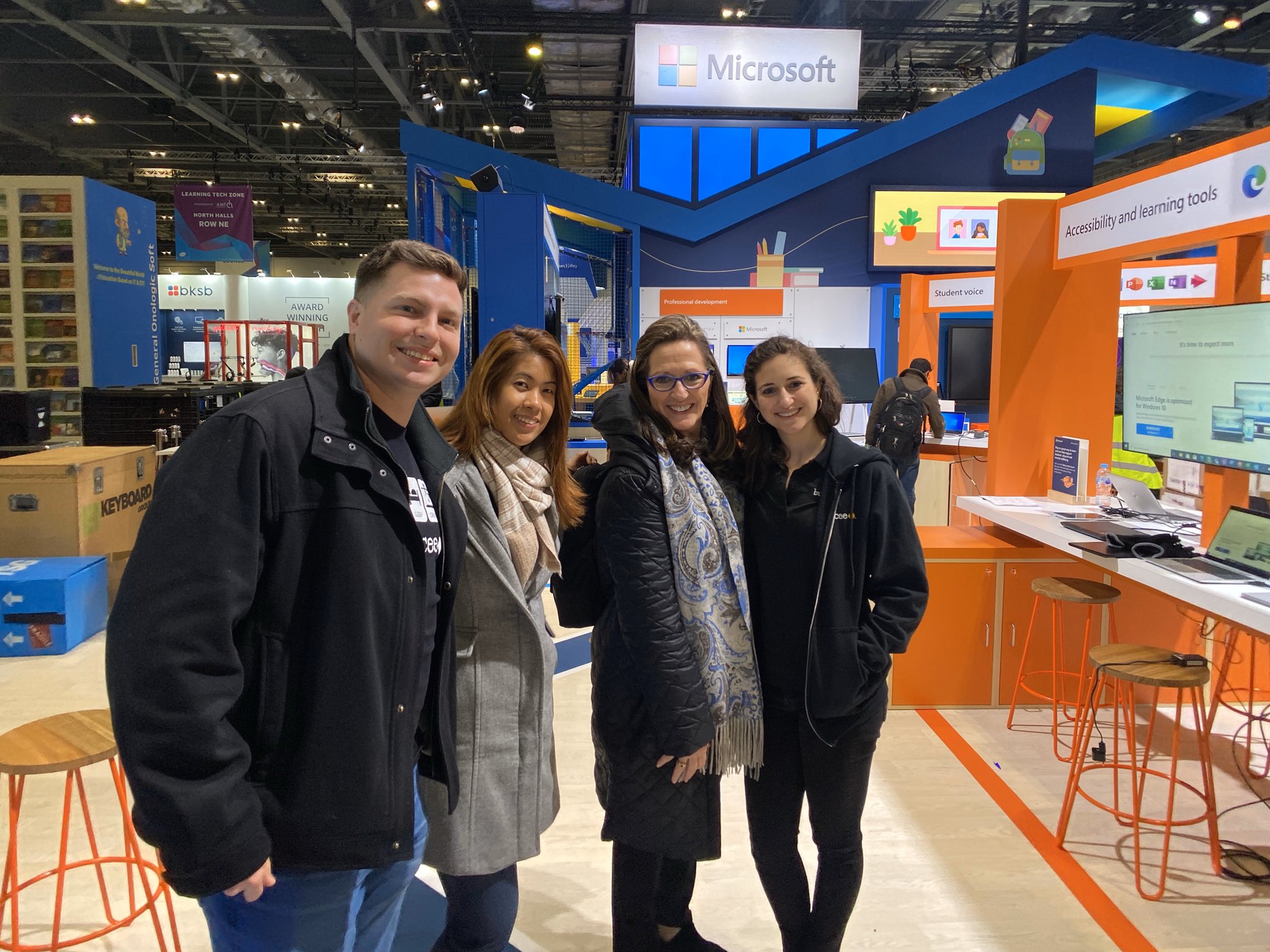
What an amazing week it was spending time with Buncee at BETT, the biggest edtech conference in the world held in London. I am so thankful to be a part of the Buncee family and to have had the opportunity to travel to London and share in this experience with Marie Arturi, Francesca Arturi, Eda Gimenez, and Bryan Gorman. It truly was an honor to be there. I love having an opportunity to share Buncee with educators from around  the world and to be able to talk about the impact it has made for students in my classroom and for me as an educator.


BETT was unlike any other conference that I have attended. It was definitely a unique experience to be in a space with around 34,000 people,  many educators who traveled from around the world to learn about trends in education, emerging technologies, best practices and to exchange perspectives with one another. There were so many exhibits and learning sessions happening, but for me, my favorite part of conferences are the connections that are made and the learning from the conversations that happen with those connections. 


Promoting Awareness

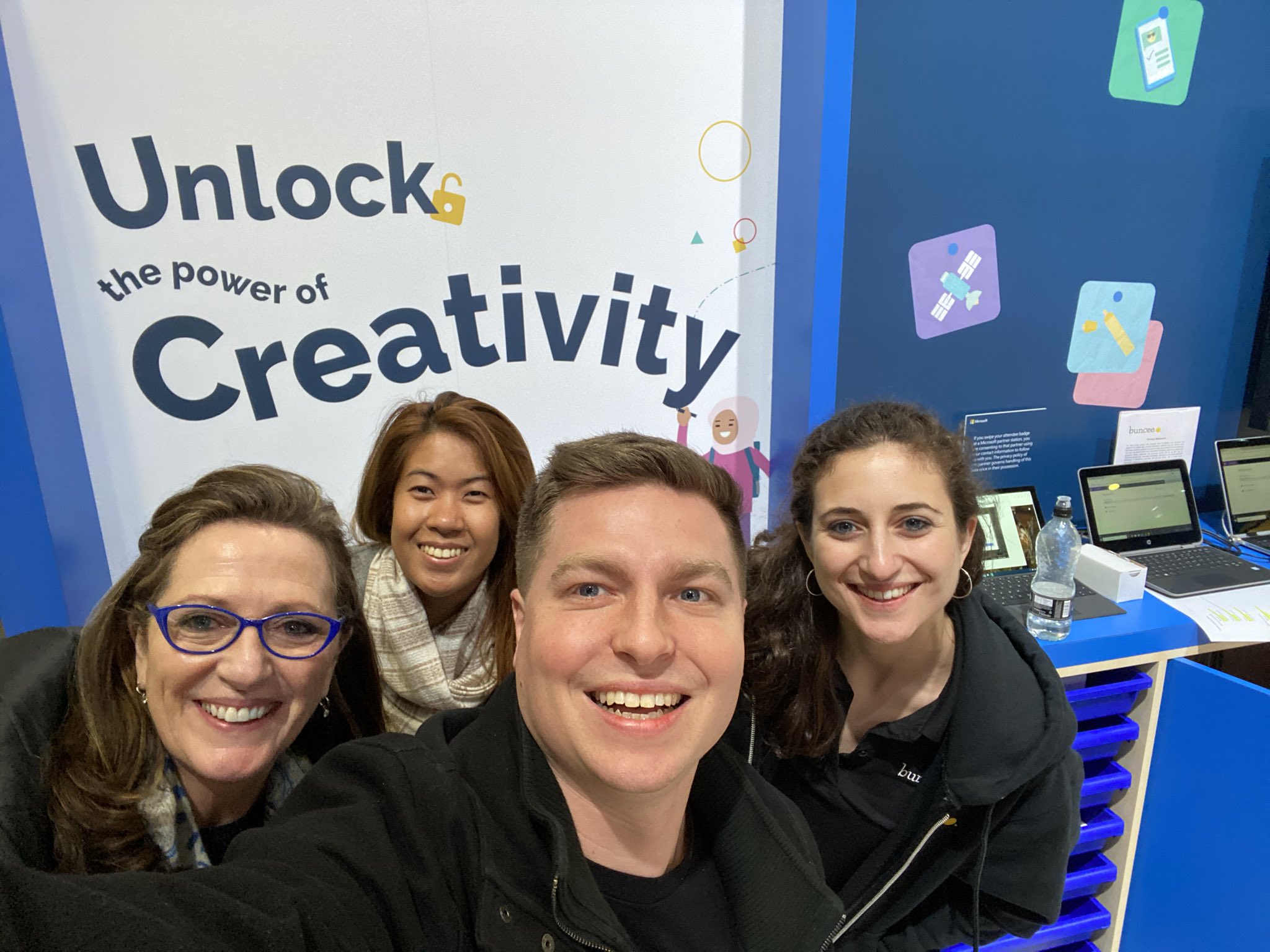
For me, being able to spend time learning about what the educational system is like in so many different countries and to better understand the challenges that are faced by educators around the world was eye opening. During my time at the conference, we had so many groups of educators come to the Buncee booth, eager to learn more about how to amplify student choice in learning, promote creativity, nurture a love of learning and support all students. We had conversations with educators from countries like Nigeria, India, the Netherlands, Pakistan, Belgium, France, Saudi Arabia, Portugal, and many others, almost all of whom had never heard of Buncee before coming by the booth and being drawn in by the “Unlock the Power of Creativity” and the beautiful booth display and many Buncee examples showing on the monitor. Educators and students were curious about what Buncee was and how it could be used.

ImageMarie, Eda, Bryan and Francesca

The booth set up was beautiful and everybody who passed by stopped as soon as they saw it and wanted to capture a picture of Unlock the power of creativity. It might have been the most photographed area of the conference if I were to guess, because there were so many pictures taken during those four days!


null

Francesca had a whole team come together to learn about the power of Buncee

Working Together

There was so much activity in the Microsoft Education space, which highlighted themes focused on personalized learning, student voice and choice, accessibility and learning tools, unlocking the power of creativity, and collaboration, for a few. Educators moved throughout the Microsoft and partner spaces to learn about each of these topics and find out how to provide more for students using the tools available. It was interesting to see the collaboration of colleagues and teams from the same district or even government organizations showing up to learn about what Buncee has to offer students and educators.

Sharing the Power of Buncee

Every time that I have the opportunity to introduce someone to Buncee, I love seeing their response as they observe all of the possibilities for creation that are available. During presentations, I always ask attendees about their familiarity with Buncee, whether they have heard of it or used it before, and I’m always very excited when a lot of hands  go up to say that it is new to them. Being able to share and show all of the options and ways that it can be used at any level, with any content, is always a good experience for everyone. And I always learn more from those attending because of the specific needs they have for their classroom or the ideas that they are looking for.

null

Francesca and Bryan

Powerful learning

Something that I find to be so beneficial in conferences like BETT whether from presenting in the booth, doing demos, or even through poster sessions, is that you get to have those one-on-one conversations to find out exactly what educators are looking for and hoping to learn. You can really connect and work together to explore the tools and strategies out there and personalize it to exactly what each educator needs for their students and themselves. 

When you can make that direct contact and work with closely with them, they walk away with new ideas that they can put into practice right away, and with the reassurance that is sometimes necessary when it comes to technology, that it can be easy to get started, especially with tools like Buncee.

Sharing a love of learning and love of Buncee

nullI was honored to present a session with with Eda Gimenez, about using creativity to nurture a love of learning and the power of immersive reader for accessibility for all learners. We worked on the presentation for a while and I was excited and nervous of course, to present. But what always makes a difference is talking about something  that you are passionate about and believe in and also making a connection with the attendance.
null

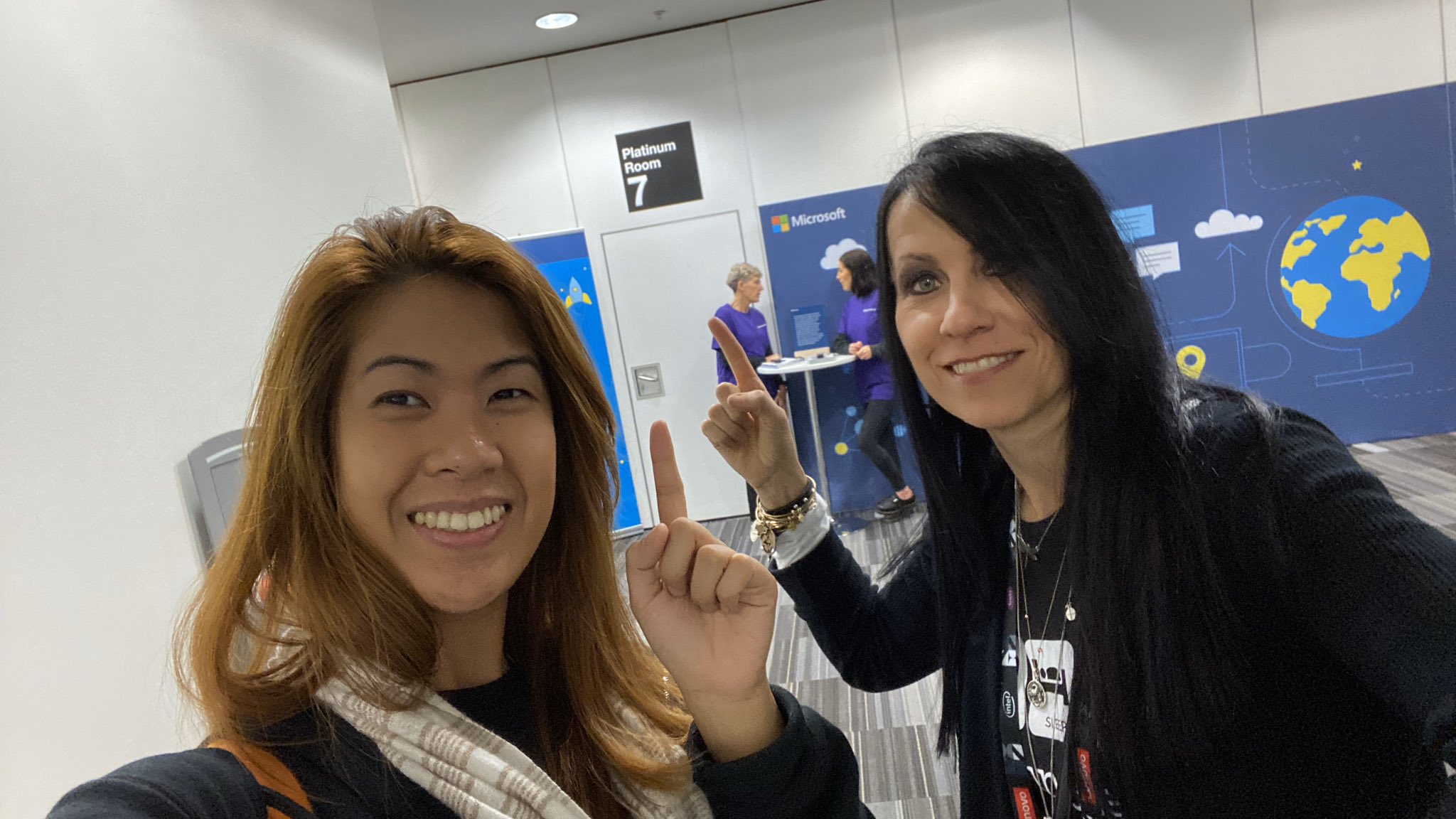
Ready for our presentation

What made this session special is that those in attendance had not experienced the wonder of creating with Buncee and were there to learn about it for the first time. Being able to share all of the potential it has for empowering our students with choices and creating opportunities for all students. I admire Eda and the work that she does, the message she shares about the power of Buncee and Immersive Reader for language  learners and for nurturing “a sense of participation, inclusivity, fun and creativity.”  

Image

We checked out our presentation room early.

An added bonus is that we were also able to try out the live captioning during our presentation. For attendees in our session, they could join with a code and then select their language of choice for captions during the presentation. Being able to communicate your message, tell a story, share learning between students and families is vital for educators and for student learning. With the power of technology, through tools like Buncee and Immersive Reader, we can make sure that families are involved and information is accessible for every student and their families. 

Image may contain: 1 person, coffee cup and text

Eda shared Christine Schlitt’s story during our presentation

There are some common questions when it comes to using technology: 


What are the ways you can use it? 

How much time does it take to get started? 

Is there a big learning curve? 

How does it benefit students?

I always anticipate these questions and appreciate the pushback that comes sometimes because that’s how we know we are truly looking at the tools and methods we want to bring into our classroom with the right lens. I enjoyed seeing attendees from our session head to the booth to learn more!  It was fun interacting with everyone, seeing their reactions to the Buncees on the screen, and many wondering how to unlock the power Several times there were requests to make sure that somebody would be available to explain Buncee, to do a demo, to answer questions later when they brought back the rest of their team.

Image may contain: 4 people, including Eda Charmaine Gimenez, people smiling, text

Image from Buncee

Highlights

One of my biggest takeaways from experiences like this is that regardless of if we are a teacher in the classroom or the one doing the presentation, we learn so much more from those who are participating in our session or the learners in our classroom. Without a doubt, I walked away with so many new ideas for my students and a greater understanding of how different educational systems are and the challenge that educators have when it comes to a lack of resources. 

It is definitely a joint effort where they want to have everybody involved and learning together with a theme of global collaboration, it surely was that. We made new connections, shared and learning experiences together and continue to learn and grow together.

null

We got to meet Maria in person!

Meeting Buncee Ambassadors

Something else that made it wonderful experience was being able to connect with Buncee ambassadors from around the world. Meeting Maria in person for the first time was exciting and she even brought gifts for us from Argentina. She is a beautiful person and I’m so thankful to be connected with her! 


20200122_212639

Thank you Maria for the thoughtful gift from Argentina!

I am so thankful to be part of the Buncee team and Buncee family, who truly does join together to do what’s best for all students, and build a nurturing learning community fueled by a love of learning.

Image

Thank you Buncee for making a difference.

Buncee and Immersive Reader

Buncee and Immersive Reader: A Winning Combination for Assistive Learning

For several years, Buncee has been one of my favorite creation tools; both for personal creation needs and for classroom instruction. While there are many digital tools to choose from when it comes to teaching and having our students create, Buncee’s versatility, ease-of-use, and recent integration with Microsoft’s Immersive Reader make it a go-to tool for all creative needs and accessible for students of diverse ages and abilities to learn 21st-Century Skills and express themselves. What my students love the most is that Buncee offers something for everyone, and I love that they love it.

Always keeping their finger on the pulse of their community’s needs, Buncee listens to educators about the needs for our students and takes action to find solutions! Their integration with Immersive Reader is a perfect example of this.

Immersive Reader: It’s About Opportunities to for ALL Students

This summer, Buncee added Microsoft’s Immersive Reader to its platform, increasing accessibility for students and offering more robust ways to learn. Immersive Reader is full-screen accessibility tool, supporting the readability of text in a Buncee for students with dyslexia, visual impairments, and for language learners and their families. Any text added into a Buncee can be translated and read aloud in over 60 + languages.

There are many ways Immersive Reader can enhance the learning opportunities for all students, build their confidence, and create an inclusive classroom environment. The use of Immersive Reader in Buncee will enable students to do more than just create Buncees, it will help them improve reading and language learning skills, while engaging more with the content in authentic and meaningful ways.

Imagine the possibilities for reaching and engaging students and their families who are just learning to read, who may be struggling with identifying parts of speech or word recognition, or who may be coming from non-native English speaking homes. Educators can use Immersive Reader to create lessons, make interactive flashcards for students and also for communicating with families. Being able to provide for students and their families of different backgrounds and learning styles is something that the Buncee team is definitely passionate about and does well!

How Does Immersive Reader Work in Buncee?

There are several ways to help students to build their skills through the different options available within Buncee and using Immersive Reader.

Getting started with Immersive Reader in Buncee is easy. By clicking on the Immersive Reader icon when viewing a Buncee, options pop up that you can work with to help further personalize the learning experience for students. Immersive Reader can then access the text in a Buncee. For example, it is easy to adjust the reading speed and make changes to the font spacing to help students who might need some adjustments in the visual appearance. You can also choose to display the text in shorter lines, or break down the syllables, to help students process the information in ways that meet their needs.

Navigating the Options

I decided to create a Buncee using some of the new 3D objects and also explore the options available through Immersive Reader. When viewing my finished Buncee, clicking the Immersive Reader symbol takes me to a new screen where I have additional options to further personalize the appearance of the creation. For first time users, it is easy to figure out how to adjust the settings. In preview mode, I clicked on the speaker symbol to listen to the text. Students could use this as a way to practice their own pronunciation, especially when using it for language learning, by repeating after the speaker. Students can also build listening comprehension skills by focusing on the written words and making connections with the audio.

By clicking on text preferences, I can choose the text size, increase spacing, and select from three choices in font style. These are great options to help with readability for students. There are also 21 color choices for the background on the screen. I find this to be very useful, especially as someone who can be sensitive to certain colors when reading. I’ve also had students experience difficulty with reading on certain colored backgrounds, so this is a definite plus.

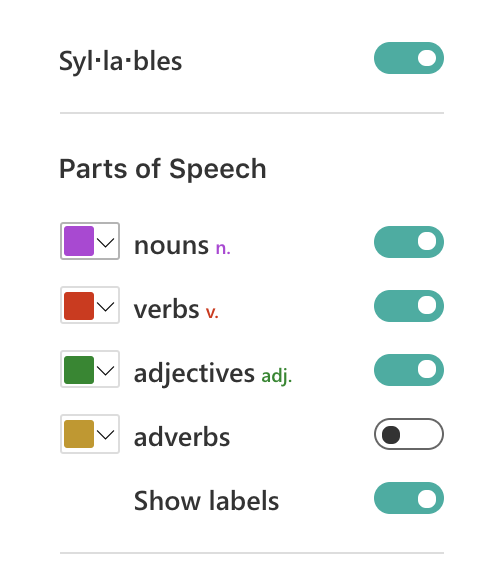
The grammar options enable you to turn the syllables on or off and also color code the different parts of speech. Being able to use the color codes to help with the identification of nouns, verbs, adjectives, and adverbs will help students to build their grammar skills. These labels can be turned on or off, which means that families can work with their children and use it as a teaching tool for review.

Just to experiment, I turned everything off except for the verbs. Displayed on the screen were the two verbs in the sentence both highlighted in red. I then selected a different color for each part of speech, I chose purple to identify nouns and green for the adjectives. I was amazed at how quickly this could be set up and the possibilities for helping students with reading comprehension and language skills. Using this as a way to further engage students with identifying parts of speech and making the visual connection is another option for more interactive learning.

Under reading preferences you can focus on one line or on the entire text.

When you focus on a line, it closes the screen down to that one specific sentence, which you can also make narrower or thicker depending on your choice.

There are more than 60 languages available for translation. I decided to try French first, and when I clicked on a word, it showed me the word in French and in English. I also explored other languages, including Spanish and was impressed with how much it offered to reinforce the content and to provide a more personalized learning experience for students. You can choose the voice and speed of reading, so it provides a great way to reinforce speaking skills as well as listening, reading and writing.

In his book, Digital Leadership, Eric Sheninger talks about the critical competencies needed by learners to be successful in today’s world. These competencies are in alignment with the ISTE standards for students and teachers, and can be addressed through the use of Buncee. Now with Immersive Reader integrated, the possibilities to address these standards is open to all learners. Beyond the potential for creativity, collaboration, critical thinking, and communication, using Buncee, students can build skills in digital media literacy, entrepreneurship, technological proficiency, and digital citizenship. Students have the opportunity to use technology as a tool for solving real-world problems or making real-world connections. We have to look beyond simply using digital tools to engage students in learning and instead, empower them through opportunities to apply what they have learned in unique ways.