12 Tools to Try…before summer break!

Updated from the Original Post on Getting Smart, January 19, 2018

Looking for new ideas to try before the end of the school year? If you have not tried some of this, now is the time!

There are so many digital tools available today that offer opportunities for promoting student creativity, student voice, and expanding where and how students learn. I had my own list of the tools that I found made a big difference in my classroom, but decided to ask students for their input.

Here is a list of tools to try in 2018, (or to try before the end of the year, let’s keep learning!)

Each of these offer multiple ways for students to create, connect and engage in more authentic learning experiences.

Promoting Connected Learners

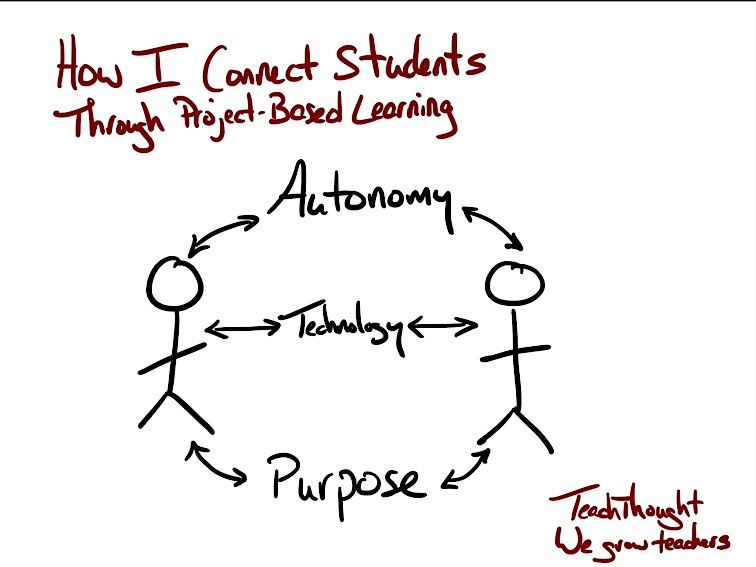
We were able to take our learning to a whole new level this year through Project Based Learning (PBL). Using these tools enabled us to connect with students from several Spanish speaking countries, which created tremendous possibilities for more authentic learning and broadening our cultural understanding.

1) Edmodo: Virtual learning space, where teachers can set up a digital classroom to connect students with the resources they need, in a safe learning environment. Edmodo can be used for assessments and integrates with Microsoft Office and Google, making it easy to share files with students. Students relied on Edmodo to connect with students in Argentina, Mexico and Spain for their PBL. One student said “these connections enabled me to sculpt my PBL, and learn in ways that books, videos and regular classroom lessons cannot provide.”

2) Flipgrid: Video response tool, which became one of the most talked about tools this past year after launching new features, making it even easier and more fun for students to share their ideas. Students can record up to a five minute response, add emojis to their photos and access the “grid” quickly through a grid code. It is a great tool for helping students to become more comfortable and confident in sharing their ideas and sparking curiosity with their peers.

3) Padlet: Padlet, a virtual wall, is a favorite in our classroom. Students can create a digital portfolio by uploading files and links to projects, curate resources for PBL, or have discussions with classrooms around the world. Other popular ways to use Padlet are to ask questions, post homework, or as a classroom website. Newer features include being able to “like”, “grade” or “upvote” a post and directly transfer posts to another Padlet wall.

4) Recap: Recap 2.0 is a free video response tool, which integrates with Edmodo, Canvas, Schoology, Google Classroom and Blackboard, making it easy to implement right away. It provides a comfortable way for teachers and students to ask questions by setting them up in a “Queue”. Students can submit questions and receive direct feedback, in a safe moderated environment.

Tools to Engage Students in Learning

5) Quizlet Live: Quizlet Live is a fun way to encourage student collaboration by playing a team game using a set of Quizlet study cards. Teachers select a set of study cards, launch a Live game by providing students with a join code, and students are divided into teams. To play, you need at least four players and a study set with at least 12 unique terms. Only one member of the team has the correct answer and answering incorrectly bounces the team score back to zero.

6) Quizizz: Quizizz has launched some new features, including integrating with Edmodo and Google Classroom, which makes sharing or assigning games and reviewing results much easier. When playing live, students can see the class accuracy reflected as it updates the leaderboard live with each response. There are thousands of games available in the library, making it easy to get started or create your own.

7) Kahoot!: Some big changes to the layout and options of the platform make it easier to navigate and review questions in class. Teachers can now assign “challenges” to students as a fun way to practice by sharing a code. The new “Nickname Generator” creates fun and unique usernames such as “Mystery Panda” or “Fantastic Bat” to students. It definitely saves time rather than waiting for students try to come up with their own “creative” names.

8) Kidblog: Blogging has many benefits for helping students to express themselves and begin to develop their online presence. Teachers can provide students with a variety of writing prompts to not only assess student learning, but promote creativity, communication, collaboration and digital citizenship skills. With Kidblog, teachers can even AppSmash (use two or more apps or tools together to complete a task) by embedding other tech tools into the platform, such as Buncee, Flipgrid or by uploading images and documents directly from Google Drive.

Creativity, Assessments, Interactive Lessons and More

9) Buncee: Buncee, a versatile presentation and assessment tool, is great for creating multimedia projects full of animations, graphics, audio, and videos. Choose from thousands of templates, backgrounds, animations and other graphics to create invitations, classroom signs, and unique “Buncees” for any purpose. Buncee enables every student to find exactly what they need to add into their project and to bring out their creativity.

10) Formative: An interactive tool for creating formative assessments, for use in class or as student-paced practice. Students enjoy using Formative because they receive feedback quickly, they are able to “show” their work and when done as practice, move at their own pace. Teachers can create Formatives with different question types, content and even the ability to upload and transform files. Try having students create their own Formatives as a way to have more personalized and authentic practice.

Immersive Learning, Coding and Problem Solving

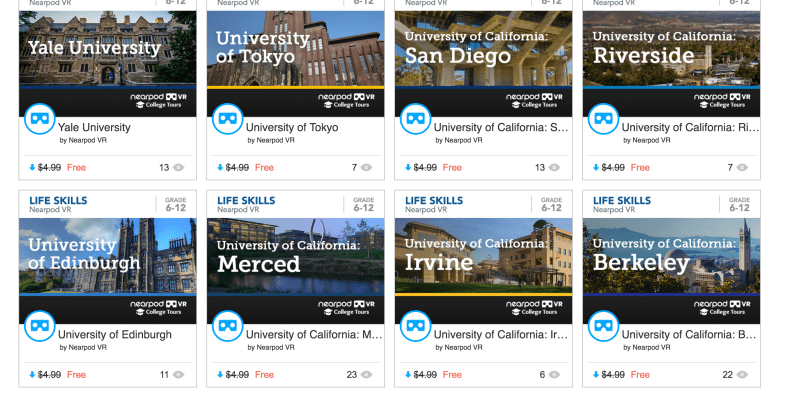
11) Nearpod: Nearpod continues to be a game changer in our classroom. It provides so many options for presenting material as well as assessing students through diverse activities. The chance to be immersed in the virtual field trips and explore places around the world is of tremendous value for students. Educators can quickly create interactive lessons which include multiple question formats, the ability to upload content, BBC lessons, PhET simulations, and even add in GIFS! Nearpod integrates with Google Classroom and Canvas, and most recently with Remind, making it even easier to share lessons. Nearpod also added 27 “College Tours”, available in VR, a great way to have students experience different schools by immersing in the campus, without having to travel the distance.

12) CoSpacesEDU: CoSpacesEDU provides students with a way to not only create their own “spaces”, but to be able to walk in the spaces created by their peers. To explore in VR (Virtual Reality) and problem solve by figuring out how to code using Blockly, offers students a truly authentic way to learn, create and problem solve. The Gallery is full of examples to get you started with ideas for your classroom. Use CoSpaces to have students represent a scientific concept, a book report, or create a scene representing something studied in any content area. Talk about creativity, imagination, innovation and critical thinking, and more all in one tool.

In the End

These are just 12 of the many tools out there for education. The most important thing to remember is the “Why”? behind using these in the classroom. While these 12 tools made a difference in my classroom, they may not have the same impact in yours, but I do recommend giving them a try. Think about the tools you are currently using to amplify or facilitate student learning. What is making a difference in how, what and where students learn? Could one of these be used in place of another, as a way to engage students more in learning, or even better, provide opportunities for students to move from consumers to creators?

My advice is to simply choose one of these 12 tools and give it a try. See how it goes, ask your students for some feedback, and then plan your next steps.

Rubicon Summit: Classroom’s Journey To Student-Led, Interactive Lessons

A Classroom’s Journey To Student-Led, Interactive Lessons

Written for the RUBICON SUMMIT

About two years ago, I found myself struggling to find ways to keep my students engaged in the lesson. I tried to get them involved more in class activities by offering more choices and providing opportunities for them to be part of the decisions made about what we were doing in the classroom. Why did I do this? Partially because I saw – and could feel – a decrease in student motivation and engagement. It was approaching the end of the school year, and the focus had shifted more to “when does summer begin?”

So I tried to do things a bit differently, think creatively, and take some risks. I wanted to keep us all moving, to finish strong at the end of the school year and begin summer vacation with a sense of accomplishment, to celebrate all that we had learned throughout the year and also what we had gained from these new experiences.

Educational Technology and Digital Tools with Purpose
Educational Technology provides so many resources that enable students to learn anywhere and at any time, and at a pace that is comfortable for each student. We can instruct from inside the traditional classroom, ​”​the brick-and-mortar​” ​as it is called, or from anywhere around the world. Using digital tools provides more differentiation and personalized learning, and provides opportunities for the students to move from consumers to creators. When students have choices in how to show what they have learned, they are more likely to be engaged and excited for learning. They will feel valued​,​ and the lesson and learning will be more meaningful because it has been made perso​n​al to them.

Creating Interactive Lessons
What did I change? I started by having my students create some interactive lessons using educational technology tools like Formative, Nearpod, and EDPuzzle, or even games with Kahoot! and Quizizz. It proved to be a very beneficial learning experience for all of us. By doing this, we had extra resources available that could be shared with students who might need some extra practice. I thought it went so well that I decided to take it a step further and start a “teacher for a day” activity during which the students create a lesson based on a grammar topic or vocabulary.

I stepped back and had the students lead our classroom. It was a really good way to learn a lot more about the students, to better understand what their needs were in terms of the content material, and for the students to learn about each other. Giving students the control and the opportunity to become the creators and leaders in the class has tremendous benefits and it has been something that we have enjoyed.

Giving Students the Control
At first when students created interactive lessons, I would launch the lesson and control it on the SmartBoard, but find ways to involve the student who created it during the presentation. I eventually decided to move aside, and took a seat in the back of the room, having the student lead the lesson, give explanations, answer questions, call upon students for answers, and provide feedback. Having the opportunity to sit back and experience this was tremendous. The students enjoyed the activity, supported each other, collaborated, and provided some positive feedback to each of their classmates. I was very impressed with how well they taught, led, and learned during each of the “teacher for a day” lessons.

Empowering Students in Learning
The use of these digital tools means ​that ​the “time and place for learning” is no​ longer​ confined to the ​traditional time and setting of the physical ​classroom​. It opens up the learning environment ​to​ anywhere​, at any time and at a pace that is comfortable for the students as well. Learning and having timely, purposeful and authentic feedback is critical ​for growth to happen. When we shift our focus to creating opportunities, giving students the control, leaving the decision making to students to choose ​how t​o show what they have learned, or ​letting them​ design their own assessments, they are more empowered in their learning.

What are the Next Steps?
Have a conversation with your students and ask for their honest feedback. What did they like? What did they not like? Which lesson or format seemed to help the most? What did it feel like to be in control, decide how to deliver the lesson, and experience being the teacher? You can have this as a face to face conversation, students can respond on paper, or use one of the many digital tools available for communication. No matter which way you choose, look to your students for the valuable feedback to decide your next steps. Be sure to ask yourself these same questions and continue to reflect on steps taken and progress made!

For more strategies about integrating technology into instruction, read Overcome

EdTech’s Problems With Blended Learning!

Practical Ways to bring SEL into the Classroom


Published on Getting Smart, 


Toward the end of the past school year, I noticed some changes in student behavior. There was a decrease in student engagement, especially while I responded to the question of a student seated close to me, students around the room became distracted or stopped listening. Trying to get the group to refocus sometimes presented a challenge and resulted in a loss of valuable instruction time. A second concern was how students had been treating one another. I overheard conversations in the hallways, witnessed unkind interactions in the classroom, or heard directly from students who sought help in dealing with different situations. There were two issues to resolve: eliminate the valuable instruction time that was being lost and help students to develop more positive, collaborative peer relationships. How could I connect students more to the content and to one another, so they could work together to foster a more positive classroom. After some brainstorming, I decided to first focus on ways to promote collaboration and to step out of my role of “leader” in the classroom by stepping aside.

The changes:

My first realization was that I needed to shift roles in my classroom. I needed to get out of the way, and students needed to do more than simply sit for the entire class. To get started, look at your own classroom. Where are you and the students spending the class period? Are you the only one speaking and moving? If so, think about how you can open up space and provide a more collaborative setting for students. Think about how you can involve the students in more “active learning” that will lead to better student engagement.

One morning, I looked at the physical space of my classroom and decided to break apart the rows of desks. By doing this, it created more flexible spaces for students to interact, to create and lead, and do more than just sit and listen. Students need opportunities to work with their peers through lessons and engage in activities where they can master the content together, and that will provide opportunities to develop their interpersonal skills, self-awareness and social awareness of others.


Making these changes can feel uncomfortable because it means going against what likely has been the traditional classroom structure. However, many teachers have moved toward flexible learning spaces, creating a more student-centered and student-driven classroom. A classroom which moves away from simply lecturing, reviewing homework, passing out materials, assigning new homework, and repeating this same routine the very next day. While this process may promote the acquisition and application of knowledge, it does not effectively promote collaboration, invite student input, nor foster development of vital SEL (social-emotional learning) skills.

CASEL (The Collaborative for Academic, Social, and Emotional Learning), formed in 1994, is an organization which actively works toward promoting the importance of developing SEL skills in education. SEL is focused on five competencies: self-awareness, self-management, social awareness,  relationship skills and responsible decision making. The development of these skills can benefit the level of student engagement as well, leading to higher academic achievement and reduce discipline issues in the classroom. To promote the development of SEL, here are some ideas and additional resources to get started.

Practical ways to promote SEL:

  • Icebreakers: I started the school year with fun icebreakers, to get to know one another and to find out what students had in common. Why? It all starts with relationships, building a connection with peers and the teacher, and using this to connect with the content area. Returning after an extended holiday break, doing even one icebreaker can be a good way to welcome students back to the classroom, to ease into the daily routine and to start the year fresh by working on relationships. Perhaps have students share what they did over break, show a picture, talk about favorite foods for holidays even, and let students make connections on their own.
  • Games and activities: Providing opportunities for students to interact through the use of games and activities in the classroom promotes the development of social-emotional learning skills. There are many online tools available to help you get started. For elementary and middle school, Centervention provides free online games, activities and printables for teaching students about SEL. Gaming helps students to learn to problem solve, collaborate, think critically, and develop empathy through scenarios within the game itself, or as a result of being part of a team. It creates a sense of community and belonging, which foster the social-emotional skills students need. Even by using Minecraft, educators have seen a connection between the benefits of gaming for learning and the development of SEL skills.
  • Learning Stations: Something that has really made a difference in my classroom has been using learning stations. I started the year with rows and decided one morning, that the rows had to go. I quickly set up clusters of desks or “stations” to accommodate three students each, with four extra desks grouped together in the center. At each station, students spend 10-14 minutes doing a hands-on activity like a worksheet, creating flashcards, watching a video, playing a game or simply coming up with their own ways to practice. Deciding upon the activities takes some planning, especially when trying this for the first time, but it is well worth it. Start by explaining the “stations”, involving students in the discussion and asking for feedback. When we explain our goals and share any fears we may have, we are modeling “self-awareness” and “self-management”. By using stations, we also have more time to interact with each student and group, work on relationships and foster a deeper understanding of the content as well as connecting with one another and creating a more positive classroom culture.

Challenges and solutions:

  • Groups: The first few class periods there were complaints. Students wanted to work with their friends and others wanted to work alone. It can be awkward if you are the only one who doesn’t find somebody to work with, but it can also be a challenge to work with a group when you may end up being the only one doing the work. Assigning random groups can help alleviate some of these uncomfortable feelings, even though in life and for the future, students may face the same challenges and uncomfortable moments, not having a choice in collaborative work. However, for the time being, the importance is to help students to develop interpersonal skills that will enable them to be successful in the future, to develop the social and emotional learning skills, especially in terms of relationships, decision-making and developing a self- awareness.
  • Timing: It can be a challenge at first to know how much time to provide for each station. I started by spending ten minutes reviewing material, asking questions, or doing an activity with the whole class, before starting stations. I tried giving 15 minutes for each, so students would work through two each day. Some students finished early and wanted to move on. To work through this, I would use the time to speak with each group or individual students, and then make adjustments during the next station rotation. There is always room to improve, but the important thing is remembering to be flexible and open to changes that will positively impact student learning and relationships.

Benefits:

  • Student engagement: Students have been more engaged in learning, and have come in to tell me how much they look forward to coming to class. Because of the different activities within the stations, students participate more because they are active and moving, and know that each station offers a new way to learn.
  • Student leaders: Students are offering to help one another, to explain concepts, and to cheer each other on. They keep each other on task and by working in these small groups, there are less distractions than working as a whole group. Each small group can ask questions, receive individualized feedback because I can freely move around the classroom and clear up any misunderstandings.
  • Teacher-student relationships: Students are getting timely, authentic and personal feedback. By using learning stations, more time is student-focused and those individual conversations can happen as needed, to help students to be successful and be more confident.
  • Student learning: In terms of academic achievement, the participation and results of recent assessments are the highest they have been. Students enjoy coming to class because they know they’re going to be leading and making decisions about their learning, in a way that is comfortable, flexible and fun.The learning experience is more authentic and meaningful for students. Research has shown the positive benefits of incorporating SEL into the curriculum.
  • Student behaviors: As for the class distractions and the negative interactions that existed before, both have decreased tremendously. It is not something that is going to change overnight but what matters is that we make constant progress. We are learning and becoming better together.

For This Lesson, I Stepped Aside To Become A Facilitator Of Learning


Posted on TeachThought, August 29th, 2017  (Thank you Terry Heick)

It started with a cross-class collaboration idea.

I was not sure the idea would work, but was willing to give it a try and it had captured the interest of students. I connected four levels of Spanish and created a team project using Google and Padlet so students could collaborate and share their work.

The experience went so well that it led me to think about other ways to engage students more in a collaborative online learning space. Students need to be connected with authentic learning experiences and develop digital citizenship skills, and to be given choices in learning. Trying to build on the prior project collaboration, I wanted to explore possibilities of using Google slides to have students work simultaneously on a whole-class project.

I asked the students if they had done any type of collaboration online like this before, and I was surprised that they had not. Knowing this pushed me more to decide that I should definitely create this learning experience with them.

Connecting students

I decided to try something more collaborative by using Google Slides. We are a Microsoft Office school, but many students use Google Drive on their own. I also use Edmodo in my classes and like the students to have experience with different kinds of tools. I like that students can work on a document or a presentation at the same time, as this substantively changes the methods and frequency with with students share ideas.

By having students create a class presentation simultaneously, the teacher can then take that extra time to facilitate their learning and interact with students to do something more specific, like assessing their content knowledge. Giving students the opportunity to work as a team toward one whole class project rather than completing individual projects opens up new and more engaging ways for the students to learn not only content or technology skills, or even ‘soft skills’ like collaboration, but also get to know one another more as well.

Connecting students with their peers promotes a friendlier and more cohesive class culture, and I think makes learning more authentic and meaningful for students. To be able to see what they are each working on and to be part of the whole class presentation in real-time requires constant interfacing of different personalities and skill levels.

The divergent interests, backgrounds, and experiences of the students in each class are emphasized in whole-class projects like this, which both strengthens the learning experience while also being more demanding of the technology.

When doing individual projects, it’s not always the case that each student has the opportunity to see the work of the other students. Doing this can be quite time-consuming and feel ‘wasteful,’ but the long-term momentum of successful projects that are as highly-visible as a whole-class collaboration are worth the time taken, and hiccups along the way, especially early in the year.

Our Presentation

To have the students practice the new chapter material on clothing and shopping preferences, I created a Google Slides template for a Fashion Show.

I set up a presentation for each class and shared it with the students. I provided instructions for what was expected for their slide, and reminded them to only work on their slide and respect the work of the other students.

For the fashion show, they were to choose a celebrity, find a picture and write a description in Spanish of the clothing that the person was wearing. They also had to write a few statements about where the clothing could be purchased as well as the cost for the items.

In doing this I thought it would be a great reference because the students could refer back to each slide, read the descriptions, and reinforce and review their content knowledge. Plus, depending on the types of clothing pictures the students chose, it could be a lot more fun–definitely more engaging and an interesting experience for all students than individual study.

This ‘real-world topic meets real-world technology meets whole-class collaboration’ ended up being a more authentic way to practice the content than even I had hoped, increasing the language and content retention for the students as well as teaching them new technology skills.

The students really liked seeing the Fashion Show displayed on the Smartboard, which was another opportunity to reinforce the vocabulary by asking students questions about each slide, reviewing the verb forms, and more.

For the most part, they did respect the work of their classmates. A few students enjoyed adding pictures of some celebrities onto the slides of their peers, which resulted in peers responding instantly and removing them–I didn’t even have to say anything!

A risk in giving open access to the editing of the presentation ended up being worth the risk taken, and was a way to teach lessons about digital citizenship as well.

Next Time

Always thinking of the next thing, I decided that perhaps another opportunity to work collaboratively would be to create a class review presentation for final exams. This might take more planning, but I think the long-term effect will be worth it.

This approach is a great way for the students to prepare for final exams and have a reference to review the material covered in the level 1 Spanish course. The idea is that each student will be assigned a slide and given a verb or grammar topic as well as some vocabulary to include.

For their slide, the goal is to teach a mini-lesson, provide references, include a video or link to a game and some sample sentences. Though I’m taking this approach to teach a foreign language, it could be used to teach, learn, or review almost anything, from math definitions and historical trends to literacy devices, phonics, word parts, and more.

I also hope that it will end up being a good way for students to have some personal instruction as well as a choice in what they are creating–and another opportunity for students to collaborate with their peers as the teacher shifts roles from leader to facilitator of learning.

PBLTT

New features to our favorite tools: Part III

I have really enjoyed getting to know the creators of Quizizz and being able to try some of the new features and learn about how they got started with this great learning tool. I am impressed with their dedication to creating a learning tool that will engage students in learning and offer more ways for students to engage in more authentic experiences. There is more to come from them, stay tuned!

Quizizz has continued to improve and add new features over the past two years,  especially with the option to assign games for practice, which students can do wherever they are, at any time. There is so much discussion and debate about the value of homework, and the “value” in having students complete the exact same assignment. Quizizz offers a better way to engage students in more authentic practice and be able to receive feedback available instantly. It is of great benefit for students to then be able to review their responses after completing the game. Learning opportunities like this are much more authentic than having students complete a traditional worksheet.

Joining a game of Quizizz simply requires sharing a join code with students, whether it be during a live session or assigned as a practice game. Teachers can set up a practice game for students and extend the time period that the game is open, for up to 15 days, and if students start the game, they can resume at a later time by using the same login information.

In addition to these ways of sharing the game, I was absolutely thrilled to find that I can assign the games directly to my students through Edmodo which is our base for our class.  I had been sharing games by posting the join code on our class pages in Edmodo, and I had no idea that this option existed until I created the game for practice, and it showed up as an option. Let me just say that my students in the room wondered what happened because I jumped up and yelled “YES!”  I really was excited to see this available. 

How does it work? When assigning a game for practice, you now have the option for sharing to Edmodo. When this is done, it creates an assignment where you can choose which class to assign it to, and you can also provide additional instructions. Once completed,  it posts the game directly to Edmodo for students to access. This addition makes it a lot easier to share games rather than having to remember the join code or going back to search through the reports to find it. Quizizz also integrates with Google Classroom.

Earlier this fall, Quizizz also launched their app, ZipQuiz, full of games to challenge friends in different content areas. Read about it in my prior post here.


Stay tuned for some new things coming from Quizizz, not going to give any details yet, but let’s just say, they’ve got some really great updates and features coming out very soon. Stay tuned!!


These are just a few of the newer updates to some very popular digital tools. If you have not tried them, choose one and start there. See what your students think, and see how adding just one of these in can increase student engagement and provide more meaningful practice for students.

Next up, taking a lot at the AR and VR tools available! Metaverse, Merge VR, CoSpaces, ARKit

IMG_20170628_111914745.jpg

New features to our favorite tools: Part II

Kahoot!

Over the past couple of years, there have been a lot of new features added to make Kahoot even more engaging for students and teachers. Some of my favorite features are the questions automatically going through to the next one, the podium feature, its method for kicking out inappropriate names, the new Kahoot! app and other subtle changes to layout and options of the platform.  This year has brought two new things, that may be my favorites so far.

The first one I learned about while at ISTE in San Antonio, when I had the opportunity to spend some time with the team of Kahoot and learned about the “challenges” that they were creating. If you haven’t had the chance, you can “challenge” students to complete one of your games by sharing a code with them, just as you do for the live games but students can log into it within the app on their phones. Students can even challenge one another on different topics that they find in the app and so it’s a good way to provide practice for students outside of the classroom, where they don’t have to rely on the Smartboard to see the questions but rather have everything available on their device.

Screen Shot 2017-12-04 at 10.25.45 PM

Photo from Kahoot! Blog

RockstarPanda, EpicFox, Friendly Moose and StellarCheetah?

But the most fun that I’ve noticed is unexpectedly was about 2 weeks ago, I created a game for my students to play and at the top of the options, I noticed the option for “generating creative usernames”. So I figured why not, selected it and couldn’t wait for the students’ responses. The generating of creative student names resulted in my students saying that I was taking away their creativity. Kind of funny but these generated names were much more original than the names that they had commonly used when joining our games. I’m not going to lie, it was quite fun to yell out who is “Mystery Panda”, “Fantastic Bat”, “Daring Dog” rather than the usual names. Plus I think it’s a nice way to have anonymity in the game so that students feel more comfortable answering and not so worried about what their score is in front of everyone else.(Even though the often yell out what their score is).

The “Nickname Generator” has a list of 800 unique two word name combinations and using it is a great idea, because it saves the time lost while students try to come up with their own “Creative” names.

Games for the Hour of Code

In recognition of the week of December 4th through the 10th, being Computer Science Education Week, and the “Hour of Code”, Kahoot has added some games to help students understand some basics of coding. Try these out for some fun ways to get the students involved with coding and use the game as a starting point for some class discussion.

Screen Shot 2017-12-04 at 10.24.44 PM.png

From Kahoot!

New Look for the Kahoot details page

 I noticed something different when I launched a Kahoot game and that was the appearance of the page once I clicked on the game we wanted to play. It has a much clearer appearance, easy to navigate and a nicer layout. Here is how it looks:

Screen Shot 2017-12-04 at 10.17.26 PM.png

The “Play” and “Challenge” buttons are easy to find. You can see the questions and timers for each. By selecting the “Show Answer”, you are then able to see the choices for each and the correct response for each question.

Screen Shot 2017-12-04 at 10.20.48 PM

New features to our Favorite tools! Part I

Here is the first part of a series focused on some of the latest updates to four of the digital tools that we regularly use in our classroom. I admit that I may have been more excited than the students, when I came across these updates, but once we tried them in class, the students were just as excited for these new features.

First is Nearpod. Nearpod + VR College Tours and Remind! Nearpod has been a game changer in my classroom. Students have engaged more in learning when we do lessons in class and they are interested in creating their own lessons, and taking on more of a leadership role by running the lessons on their own. Nearpod continues to add new features, making it a versatile tool that provides an immense library of lessons to choose from and a wide selection of activities, content and other resources to include into each lesson. Over the past few months, Nearpod has made some updates and integrated new features into the already extensive platform. Some of the new features  launched include: having more than 50 video lessons available through the BBC, option to view in “Student Mode” on the Teacher Dashboard, PheT Sims interactive Math and Science Lessons, and  making lessons with these resources available for immediate implementation into class. It is easy to find lessons that pertain to different content areas and grade levels, and which include a variety of tools for assessment and for engaging students more in learning.

Nearpod provides a very user friendly interface, which makes it easier for teachers to start using Nearpod and to build comfort when designing their own lessons. It is also highly beneficial for keeping the students actively learning on days when teachers have to be away from the classroom, through the use of Nearpod for Subs.
Launching lessons can be done live, with a join code in class, or shared through
a link, social connections, or through Google Classroom. But there is a new
update that makes it even easier to share, and that is Nearpod’s integration of
Remind as a way to share lessons. By integrating with Remind, educators send
the link through Remind, enabling students to start the lesson whenever they can
and wherever they are.
Another recent addition to the vast Nearpod library are the College Tours,
available in VR. What a great way to have students take a look at different
schools, without having to travel the distance, and to be able to immerse in the
campus and look around. There are currently 27 different colleges represented in
the collection, which include Universities such as Cambridge, Oxford, UNAM and
Taiwan and Tokyo, to name a few. A really great addition to the Nearpod collection and I recommend checking out the tours, and you can even use these as a way to create a scavenger hunt for students.

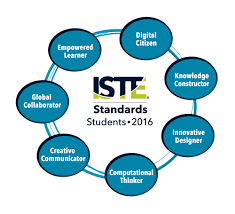
How Kidblog supports and meets the ISTE Standards for Students


  1. Empowered Learner
  2. Digital Citizen
  3. Knowledge Constructor
  4. Innovative Designer
  5. Computational Thinker
  6. Creative Communicator
  7. Global Collaborator


The Student Standards reflect the skills that we want the students of today to develop, so they can become more connected with their learning and prepare for their future in an increasingly digital world. The use of blogging is a good way to address the ISTE Standards for Students. The new standards, which were released in June 2016, focus more on what we want for students – The pursuit of lifelong learning and ways in which we can help to empower students in their learning. The emphasis is on providing opportunities which promote student voice and choice and help educators to implement technology in ways that will increase student growth and readiness for the future. The ISTE standards represent the skills and qualities that students need for su​​ccess in the 21st century.

Supporting the standards with technology
There are many educational tools (both digital and traditional) available to promote student voice in the classroom. Blogging is one tool that serves to support and meet the ISTE standards. Educators can refer to the standards as a guide for selecting tools to use with students that will amplify learning and promote student choice. The goal is to support students so they begin to take ownership in their learning. A move in the classroom from teacher-centered, to student-centered and optimally, student driven. Here is how Kidblog can help.

1. Empowered Learner: As empowered learners, students “leverage” technology to show their learning and demonstrate their mastery in a platform that is comfortable to them and in a personalized space. Students take more responsibility for and have choices in how to show their learning.

2. Digital Citizen: Blogging promotes digital citizenship as it helps students to develop their social presence. Through blogging, students become active in online communication, learn about proper use of internet and resources and interact in a safe learning environment. Posting online and sharing information helps students to develop the skills they will need in the future and to recognize their responsibility when it comes to digital resources. Blogging gives students the opportunity to practice appropriate and ethical online behaviors, which transfer into the classroom space as well.

3. Knowledge Constructor: Students gather information and resources to use in creating stories, conveying information in a way that is more authentic and meaningful for their learning. The use of blogs helps students to work on their writing skills and ties in nicely with gathering information to share in their digital space. Students can research and analyze the resources, to determine which is most relevant and applicable to their task.

4. Innovative Designer: Students can use the different tools and features in the Kidblog platform to express themselves in a more unique way, share ideas and create in an innovative way. Designing and creating more authentic ways to show their knowledge as well as creating new and more “imaginative” solutions to a question or problem presented.

5. Computational Thinker: Students can use blogs as a way to discuss and talk through a process of decision-making. Blogging is a great format for working through projects or solving complex problems, and to demonstrate the thought processes and analysis involved through their writing.

6. Creative Communicator: Students can use the different features of Kidblog to share their knowledge, convey information or tell a story in a more engaging and creative way, to be shared with peers and the teacher. Blogging opens up more opportunities for students to be more expressive than the traditional formats such as paper or other digital tools. Students can express themselves in a way which promotes creativity and with Kidblog, can incorporate other tools to present their information in a way that supports the learning goals and meets individual student needs and interests.

7. Global Collaborator: Students can use blogs as a way to learn about other cultures and connect with others by posting their blogs and sharing information with peers. Students narrate background experiences and connect with others in a safe learning environment that builds confidence and promotes student learning. Students share their blogs with peers and can also connect with other students from around the world. It facilitates the opportunity to local and global issues and perspectives, and to use the blog as a way to express their thoughts.

The focus of the ISTE Student Standards, helping students to become better with communication, collaboration, critical thinking, problem solving and to express themselves in more creative and innovative ways, falls in line with the features of Kidblog.

7 Tips to Get The Most Out of Blogging This Year

Getting ready for the start of a new school year – new students, new curriculum, and new tools – means teachers have a lot of preparation ahead of them. Whether new to Kidblog or a veteran classroom blogger, these tips will help you get the most out of your class blog this year.

1) There is no better way to start the year than by way of introductions. Blogging can be a great way to get your students comfortable with you as their new teacher, as well as, their new classmates. In my classroom, I also use this time to cover expectations in the classroom. This is all done in a “Welcome back to school” blog post. Choose a fun theme for the class, add some links and include helpful information. Share information about you, including some fun facts, and encourage students to then respond to your post. You can begin to develop those vital relationships for your classroom.

2) Get parents connected. Make the decision to use blogs as a way to keep parents informed about what is going on in the classroom. Set a goal to write a blog post with a weekly update and share what is going on in the classroom, give highlights of upcoming events and activities the students will be participating in. Also, use the blog as a way to share student work with parents, which will really connect the home and the classroom, and involve all members of the learning community.

3) Involve students in planning for blog posts. Encourage students to come up with their own ideas or to work with peers to brainstorm some writing prompts to use throughout the year. Gather their ideas and then draw from their prompts. Involving students in the decision making process in the classroom helps to provide more authentic and meaningful learning experiences. It promotes student voice and choice in the classroom and helps students feel more valued and empowered. By actively engaging them in classroom decisions, students will feel more connected to the content and their peers.

4) Create a bridge between content areas by doing some cross-curricular blog posts. Find time to talk with and encourage other teachers who may not be using blogs, to work with you to create some cross-curricular opportunities. The blog can be a way for students to complete some writing assignments or projects for communicating their ideas and showing their learning. Students create their own personal space to share ideas and really have an opportunity to practice their skills for multiple content areas in a comfortable manner.

5) Try adding some other tech tools to app smash with Kidblog or use Kidblog as the means to share student work! Implementing other tools will help students develop their technology skills and digital literacy. For example, have students create a Buncee and write about what they’ve created, or, they may share it with a peer to create a story. These apps can be easily embed into Kidblog for their classmates to comment.

6) Have a routine for sharing student blog posts and set aside time in class for the students to work together to share their blogs, offer feedback and learn to reflect on their work. Making time for students to work with peers will build those positive classroom relationships and help students to become more confident in their learning. Their confidence will increase through the writing process and also by communicating and collaborating in the classroom.

7) Be sure to have resources available for students so they understand how to use the blog, how to write a post and to properly cite any images or other information they add to their posts. A great way to do this is by screen-casting a tutorial available to students, as well as, creating a “guide post” that gives students pointers on how to publish a post, the required format, and other information related to your expectations. By providing all the information in a place which is accessible, the process will be much easier for students throughout the year to have the support they need when they need it.

Kidblog

6 Digital Tools To Engage Students

 Original Post Published on Teach Thought May 22, 2017, few updates added


Are you looking for some new ways to get students engaged this school year?

Here are 6 tools that I had found to be quite helpful as this school year winds down. More importantly, these are also some of the student favorites, in no particular order.


Flipgrid

Flipgrid is another video response tool that offers ways for students and teachers to interact with a variety of discussion topics. You start by creating a “grid” and then adding a “topic.” There have been some major updates and new features added to Flipgrid this summer. Longer recording length, stickers, gifs, integrations and more. Be sure to check it out!

A grid in my case is one of my Spanish classes.  Students go to the grid to see new topics which are posted for discussion and then record a response and even reply to classmates.

I have used Flipgrid as a way for students to reflect on their project-based learning, and for basic speaking assessments with my Spanish 1 and 2 students, where I can listen to their pronunciation and provide feedback. Flipgrid is also a way to connect students with other classrooms or even professionals in different fields, to connect with real-world applications of the content material.

Some additional features include the ability to give a rating to the response, read the transcript, provide written feedback which can then be emailed to each respondent, as long as an email address has been provided.

When setting up the topic, there are options for recording a video prompt, adding additional details in writing, and then customizing the topic based on whether or not other people can see the responses. You can freeze a topic, so new responses cannot be recorded but all prior responses can be viewed.

There are other features such as tracking the number of views, likes, and comments. Flipgrid is available on Chromebooks, iOS and Android devices and can also be embedded into an LMS or other websites. It is another tool that is easy to set up and might just be what you are looking for, especially at the end of the year,  to have students provide feedback on the course, to offer some information to help with the summer reflection.


This slideshow requires JavaScript.

Recap 2.0

Recap 2.0 is a Question and Answer platform available on Chromebooks, iPads, iPhones and Android devices, which can be implemented right away and is easy to use. Recap enables teachers and students to ask questions, share a reflection, and provides a comfortable way for students to communicate their thoughts. Recap also had many new updates this summer and is a great way to spark curiosity in students and to help students learn ways of asking questions and seeking more independent learning.

Students can submit questions and receive direct feedback from the teacher, parents can receive feedback by email through Recap, and there are many other features available for assessment and classroom management. Recently Recap added another feature to its platform by introducing ‘Journeys.’

In a Recap Journey, teachers create a multi-step path for students. It starts with a 60-second video and then the learning path, which leads to more independent learning and can also be a great way to differentiate instruction. As an end to the “Journey”, students can share their information or create a presentation.

In my experience with the Journeys, I had students explore Spanish-speaking countries and included different links for them to explore more based on their own interests.

It was very easy to create my own Journey and there are also many Journeys available to try through the Recap Discover.

2016 Pioneer Badge

Kahoot!

By now, you’ve likely heard of Kahoot! Especially last week when CHALLENGES came out after a period of Beta testing following discussions at ISTE in San Antonio. I was fortunate to be one of the testers and Challenges are great for having students practice the content and even for fun with family and friends.

Kahoot! is great for assessments and having a game based learning element added to your classroom. It can even be used for professional development or family fun. Kahoot! offers many quizzes in the public library which can be duplicated and then edited to make your own.

When playing, it also has added new features for auto advancing, playing in ” ghost mode ” which enables players to try and beat their first score. ‘Jumble,’ which is one of the most recent additions has proved to be a lot of fun and very beneficial for learning.

In Jumble, you create a question and each of the four colored tiles becomes part of the response. When the question appears on the board, the squares on the board are shown but the order is “jumbled.” Players must then slide the squares into the right order to either spell the word, properly form the sentence, or answer the question.

As a foreign language teacher, this has been quite beneficial for having students practice their spelling as well as for reinforcing proper word order for sentence structure in Spanish. Playing with Jumble mode has livened up the classroom because it is something different to try and the students are always excited about trying new things.

Setting up a game played in Jumble mode, or encouraging students to create games as a review, will add to classroom resources and be more authentic practice for the students.

Buncee

Buncee is a multimedia presentation tool which can be used to create interactive presentations, cards, signs and other engaging visuals.  (see recent post on new Buncee features, and look into Buncee Classroom)

There are many new items added to their library and some additional features, including the ability to use it for assessment. I have enjoyed testing out Buncee with my students. It is easy to create with Buncee, you can add multiple items o n to the canvas and move them around very easily. Teachers can create lessons with assessments through the classroom edition.

But what is most exciting about Buncee is that it offers many ways for students to be creative and more engaged in learning by creating something authentic, as there are thousands of items that you can add to bring it to life and make it your own.

Students can design Buncees for any class and will have the opportunity to create more authentic work which represents what they can do with the language material we have covered. Creating will be a lot of fun for students and teachers. And great for doing a Twitter Chat too! Lots of great templates.

full-1

Telegraph

Telegraph is a very easy site to publish a stand-alone web page, which can be used to create a sign, a newsletter, a journal entry, or anything as an alternative format to pen and paper or using a Word or Google Document.

It is simple to use: type in the website, add a title to it, your name and add some pictures or links to other websites and once you’re finished, you publish it and it provides you with a web address. You can easily share that link with anyone.

My students created a site to tell about a favorite trip, one to talk about sports and favorite athletes, and another some even made Mother’s Day pages and then printed them. If you’re looking for a way to have students practice simple writing skills and do so in a more digital way, I’d recommend trying Telegraph. No log-in is required and it’s very easy to use.

Quizizz

Quizziz is a fun assessment tool that continues to add more features, which makes obtaining feedback from students and providing feedback to them much easier. Some of the newer features include receiving a daily report of the Quizizz summary and being able to send parents the results of a student’s Quizizz game. (See new Quizizz features)

The daily summary report shows the number of Quizizz games used, number of responses, percentage correct as well as additional information. It’s nice to be able to have that data available so quickly. There is also the option to email the data directly to parents, which is great especially for communicating student progress and in a timely manner.

Quizizz is another tool which is easy to implement, you simply create your own by adding your own questions or search from the public Quizizz available and drag in the questions you want and then edit them according to your preferences.

Other benefits include the ability to either play it live or assign it as “practice” or homework. You can store your Quizizz games into Collections to find them easily, quickly build games and it has a much improved UI, and it was pretty good to begin with.

And if you create the Quizizz and do not have enough time for students to finish, no worries because when students use the same login and pin number, they can pick up right where they left off in the game.

This slideshow requires JavaScript.