Empowering Students Through CodeMonkey: A Journey into Coding and AI

A post in collaboration with CodeMonkey. All opinions are my own

I remember when I started to learn how to code as a seventh grader many years ago and the impact it had on me. Writing lines of code and seeing what we could create was fascinating. Back then, we did not have the powerful tools or resources available in our classrooms today. As a student, I did not realize how beneficial of a skill coding was then, nor how much of an increasing demand for coding skills there would be.

As educators, we want to ensure that we prepare students for the future with the right skills and a variety of learning experiences to build those skills. Learning about STEM, especially AI and coding, is at the top of the list. I’ve taught a STEAM course to 8th graders for the past 8 years, and a lot of what we cover involves AI and coding. When I came across CodeMonkey, I couldn’t wait to try it in my classroom and share it with other educators.

CodeMonkey is a great option that benefits every student, regardless of their starting point and comfort level with coding. For educators wanting to dive into coding and unsure where to begin, CodeMonkey’s K-8 curriculum offers a great choice because it focuses on developing coding skills, fostering digital literacy, and introducing AI concepts to all students. Its design makes it easy for educators to get started in any classroom. I enjoyed learning more while chatting with Jonathan Schor, the CEO and Co-Founder of CodeMonkey, on my ThriveinEDU podcast!

Curriculum for Every Learner

One of the standout benefits of using CodeMonkey is that it helps educators meet students where they are. Preschoolers who are just learning about computational thinking can do so with CodeMonkey Jr. Elementary students can learn about logic by using Beaver Achiever. When students get stuck, they can get a hint to help them continue the coding process! It’s so much fun with the coding, sounds, and animations!

Students enjoy trying to problem-solve when different animals come up, and they have not programmed the right shake to be made!

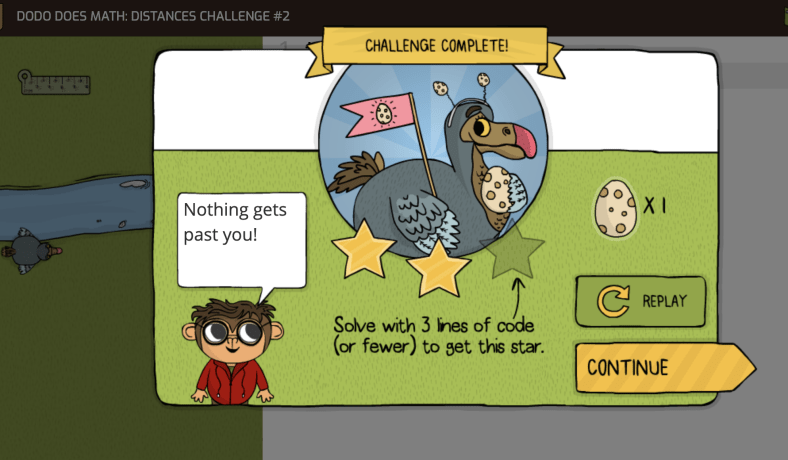
Courses like Dodo Does Math and Coding Adventure teach students to use code to solve problems and express their creativity. Students need to use the ruler, do math, figure out steps and learn the process of coding to carry out the task. So much fun!

When students reach middle school, they are better prepared to explore more complex concepts, like designing their games in Game Builder or exploring artificial intelligence in the award-winning AI for Kids curriculum. CodeMonkey offers something for all grade levels. The Artificial Intelligence lessons are great for building students’ understanding of AI, its components, how it works and building their skills in various areas.

Diving in with CodeMonkey

Whenever I try something new, I like to dive in on my own and just know enough to get my students started. It is fun to learn with and from them. In my 8th-grade STEAM classroom, I started my students with CodeMonkey’s advanced courses like Coding Chatbots and the AI for Kids curriculum since we had spent a lot of time learning about AI. These courses resonated with students who were excited about these rapidly advancing topics. I was thrilled to see their interest in continuing to work independently and sharing their learning with me and their classmates.

Beyond building coding skills, I also see how CodeMonkey’s gamified, scaffolded approach helps to empower students of any age to build their confidence and skills in coding. Building confidence is key, especially as I have seen how frequently students tend to be afraid of coding or hesitant to start for fear of being unable to figure it out and problem-solve. However, the support provided by CodeMonkey helps students become more comfortable with learning about coding, which leads to increased confidence.

Some of CodeMonkey‘s great features are the user-intuitive drag-and-drop functionality of block-based coding and the logic-driven challenges of Python. Each course helps teach students about core programming concepts while fostering creativity and problem-solving, which are essential skills for future preparedness. I also appreciate its emphasis on ethical considerations.

In my classroom, we discuss bias in AI, privacy concerns, and the societal impact of automation. Engaging students in discussions focused on these ethical considerations helps them understand that coding is not just about algorithms—it’s about understanding the implications and how to safely, ethically, and responsibly leverage this technology.

How CodeMonkey Benefits All Students

By the time students reach the 8th grade, they’re ready for more complex challenges and real-world coding applications. CodeMonkey’s progressive curriculum helps educators to provide great learning experiences for all students. My students have enjoyed working in Python-based courses like Banana Tales and Coding Chatbots, which move them beyond basic coding into text-based programming, focusing on logic, creativity, and problem-solving.

For students new to coding, the structured, scaffolded approach ensures they don’t feel overwhelmed. Each lesson builds on the previous one, and the platform’s gamified elements make it feel more like an adventure than a traditional coding class.

Bringing Artificial Intelligence into Every Classroom

The AI course is one of the highlights of using CodeMonkey with my 8th graders. Covering foundational AI concepts like machine learning, neural networks, and the ethics of AI, this course bridges the gap between theoretical knowledge and practical application. Now that my students know they can train models using image and pose recognition and then apply these skills to create games, the learning becomes more authentic and meaningful.

In class, we also connect these AI lessons to broader societal implications. For example, we discuss how neural networks are used in everything from social media algorithms to self-driving cars. Then, we connect it back to real-world scenarios the students can relate to. When we do this, it sparks meaningful conversations about the impact of technology on our lives. It highlights the importance of responsible AI use—a topic I’m passionate about as an educator and attorney.

Building Real-World Skills

CodeMonkey isn’t just about coding; it’s about preparing students for the future. Through its courses, students develop essential skills like problem-solving, planning, and critical thinking, which are invaluable not only in STEM fields but also in life.

For example, in the Game Builder course, students can design their games from scratch, learn to iterate on their ideas, debug their code, and test for user experience. This mirrors the iterative design process used in tech startups, giving students an idea of what creating in a professional environment would be like.

Digital Literacy and Citizenship

In addition to coding, CodeMonkey offers a Digital Literacy course that introduces students to the safe and responsible use of technology. This has been especially valuable in my 8th-grade emerging technology class, where we discuss topics like the metaverse, AI ethics, and digital citizenship and focus on cybersecurity and topics like phishing. CodeMonkey’s approach aligns seamlessly with these discussions, reinforcing that coding is not just a technical skill but a tool for thoughtful and ethical problem-solving.

Coding Tools for All Teachers

As a classroom teacher, one of the things I appreciate most about CodeMonkey is how user-friendly it is. When I explore new tools, I always evaluate how long it will take to get started, what the learning curve might be, and what it offers for all educators. In CodeMonkey, the Classroom Dashboard provides teachers with a clear overview of student progress, making it easy to identify students needing extra support quickly. Automatic grading and detailed lesson plans save time, allowing me to focus on fostering creativity and critical thinking.

CodeMonkey’s resources make it easy for teachers new to coding to get started, but I can’t recommend it enough. Whether teaching block-based coding to younger students or diving into Python and AI with older students, this platform has something for everyone. Its intuitive design, gamified approach, and focus on real-world skills make it an invaluable resource for K-8 classrooms as they prepare students for the future.

At a time when technology is evolving faster than ever, teaching coding and AI isn’t just an optional extra; it’s a necessity. Platforms like CodeMonkey make coding approachable and enjoyable—for teachers and students. As someone who has seen firsthand the impact it can have, I’m excited to continue exploring what’s possible with this incredible tool.

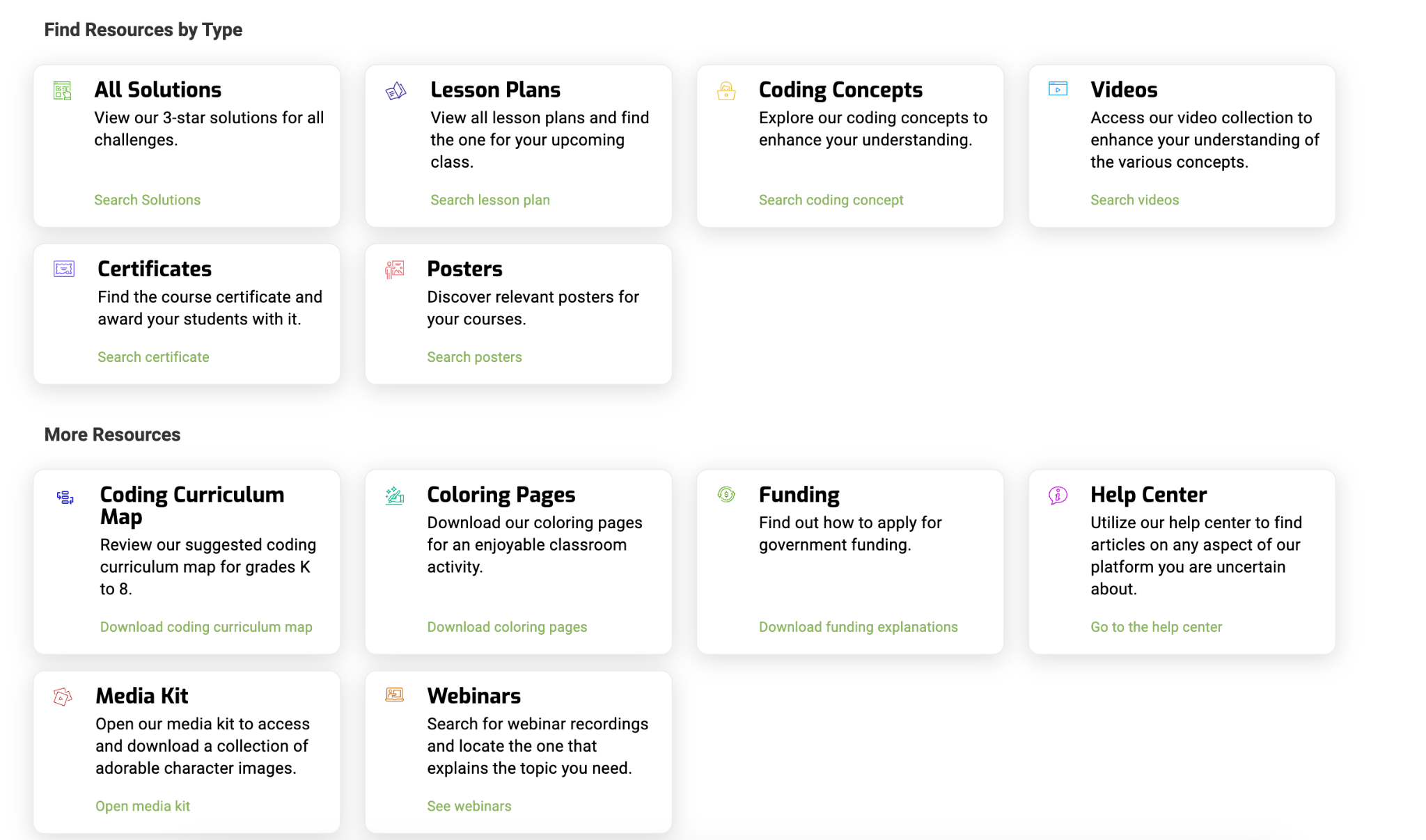
If you’re an educator ready to take your students on a coding adventure, CodeMonkey is the perfect place to start. CodeMonkey doesn’t just teach coding; it fosters creativity, critical thinking, and a love of learning that will serve students well in any field they pursue. There are so many support resources available for educators! You can find lesson plans, videos, webinars, and more!
It’s a great option for introducing coding to kindergarteners or guiding 8th graders through AI and Python. CodeMonkey offers a curriculum that adapts to students’ needs and inspires them to keep pushing through and having fun with it. Listen to my podcast with CEO and Co-Founder Jonathan Schor here. Happy coding!

About Rachelle

Dr. Rachelle Dené Poth is a Spanish and STEAM: What’s Next in Emerging Technology Teacher at Riverview High School in Oakmont, PA. Rachelle is also an attorney with a Juris Doctor degree from Duquesne University School of Law and a Master’s in Instructional Technology. Rachelle received her Doctorate in Instructional Technology, and her research focus was on AI and Professional Development. In addition to teaching, she is a full-time consultant and works with companies and organizations to provide PD, speaking, and consulting services. Contact Rachelle for your event!

Rachelle is an ISTE-certified educator and community leader who served as president of the ISTE Teacher Education Network. By EdTech Digest, she was named the EdTech Trendsetter of 2024, one of 30 K-12 IT Influencers to follow in 2021, and one of 150 Women Global EdTech Thought Leaders in 2022.

She is the author of nine books and a blogger and podcaster.

Contact Rachelle to schedule sessions about Artificial Intelligence, Coding, AR/VR, and more for your school or event! Submit the Contact Form.

Follow Rachelle on Twitter(X) and Instagram at @Rdene915

**Interested in writing a guest blog for my site? Would love to share your ideas! Submit your post here. Looking for a new book to read? Find these available at bit.ly/Pothbooks
************ Also, check out my THRIVEinEDU Podcast Here!

Join my show on THRIVEinEDU on Facebook. Join the group here.
Time for new ideas


null

The end of the school year is the perfect time to try the tools or explore new ideas that perhaps you did not get to throughout the year. We can also use this as a time to prep for the next school year. By trying different tools and platforms during the last few weeks, we can then take the summer break to reflect on their impact on student learning. During the spring, I notice a drop in student engagement and an increase in the number of students missing classes due to testing, sporting events, or regular absences. Finding a way to keep students connected and engaged in the lesson is critical.

To resolve these challenges, I try to find something that will benefit students, resolve any disconnect or gaps in learning that might be happening and increase engagement. A new tool that caught my attention recently is NoteAffect. It is a platform focused on enhancing and understanding student engagement and empowering teachers with a powerful tool to better understand student learning.

Why NoteAffect?

NoteAffect provides a unique platform for personalizing the learning experience for students. Using NoteAffect, teachers can deliver lessons in a more interactive way that empowers students to be more involved in the lesson and have access to all of the course materials within one platform. Whether or not students are present in class, they can log in to their account at any time and either view the lesson they missed, or review a lesson in preparation for an exam or for continued review.

NoteAffect offers the right resources and methods to better engage students in learning and helps teachers to track student progress, better understand the questions that students might have and use it as a way to reflect on their own teaching practice. Worried about having devices that are compatible with? No worries as NoteAffect can be used on a PC, Mac, Chromebooks, Android, and iOS devices, so students can interact in class or on their own schedule.
null

Getting started with NoteAffect is easy!

Finding time is always a challenge with so much to do in our school days and prepping throughout the week. However, with NoteAffect, teachers can quickly set up an account, invite students to join classes and begin sharing a lecture. The dashboard is easy to navigate and it provides access to the materials that empower teachers to better understand student needs and learning trends.

Once you have created your courses in NoteAffect, it is easy to have students join in the course and participate in minutes.

To invite students, simply follow these steps:

  1. Go to your Dashboard and select “Instructor Tools” and then “Course Management.”
  2. Select the appropriate course from the menu on the left.
  3. Select “Participants” and then select “Add participant” from the top right corner.
  4. Enter the student’s email address and click “Add.”
  5. Students will receive an email with a  prompt to join the course.

Once students are participants in your course, they will be able to see any prior lectures and participate in the current lecture being delivered.

To start a lecture:

  1. Click “Start new lecture” and you will be prompted to open the Broadcaster.
  2. Once the Broadcaster window opens, use the drop-down menu to determine which application to display or if you have other files that you want to use for your lecture.
  3. Once you select the app, it starts to share your screen with your students and it will record the audio as well.
  4. When finished, simply End Lecture and it will be available to students.

Features of NoteAffect

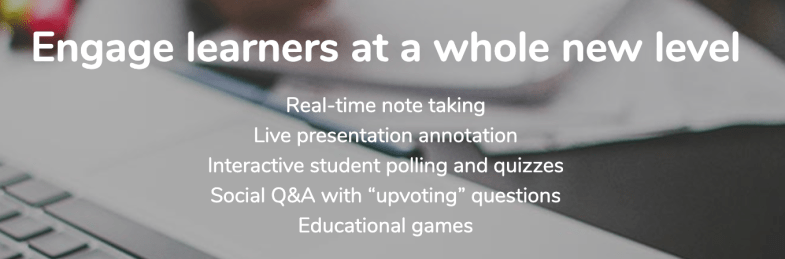
  • Students can take notes, highlight important points, make annotations on the lecture notes and even submit an anonymous question during class. Classmates can see the questions and upvote a classmate’s question, making it more interactive.
  • It’s a great way to have everything accessible in one place as opposed to writing on pieces of paper or having to pull from different presentations. By using notes, students have access to everything within one platform, making it even easier for students to manage.
  • Teachers can deliver their lessons and add in or embed live polling, and further engage students in the lesson.
  • Using the analytics, teachers can see the level of participation and engagement with the material.
  • Analytics provide information including the views, notes taken, words per note and annotations made by students, providing a clearer picture of the level of understanding and engagement of students.

null

It will be easy to get started with NoteAffect in your classroom or to recommend to colleagues and administrators for use in their classrooms and schools. To learn more, check into NoteAffect here and get started with a demo today! Be sure to follow them on Twitter 


For my prior post on NoteAffect, click here


Leveraging Technology to Enhance the Learning Experience

Updated from an original post on DefinedSTEM.

Technology creates many opportunities for teachers to provide innovative learning experiences for students. An even greater benefit is that these learning experiences can take place regardless of the time and place, and offer students more personalized opportunities for interacting with their peers and the content. With so many choices now available, sometimes deciding on a specific digital tool or a type of tool can present a challenge.

I am often asked about where a teacher should start when either implementing technology for the first time or creating a blended learning environment. What I suggest is to first think about some of the learning activities that are already being used in the classroom. What has seemed to work the best and what are some that possibly either take a lot of time to create or that don’t offer students a lot in the way of choices.

Another consideration is focusing on your goals and what you are hoping to accomplish by using technology. Is it to create an access point where students can ask questions, obtain class resources or interact with their peers? Or is it to provide students with different methods to practice the content and also to apply their learning in more authentic ways?

Here are four strategies for helping students to communicate, collaborate and create in the traditional learning space as well as beyond the classroom setting. By trying some of these ideas, you will see some positive changes that promote student voice, create more time for you to interact with and support students in learning, and it will help students to build digital citizenship skills as they learn to leverage the technology and navigate in the digital world.

Improve Communication Through Effective Technology Use

One way that I have used technology that has had a big impact in my classroom is by using a messaging tool. A few years ago I noticed a disconnect with students and the class, either they were absent and could not get materials or they had questions after the school day had ended. By using messaging apps, I can send reminders, answer student questions and provide feedback when students need it. You can also use some of these apps to connect with families as an alternative to email. There are a lot of options available and your choices will depend on the level and area you teach and whether your goal is to set up communication between students and you or with parents. I use Remind with students and parents, and BloomzApp is another option for creating a space to interact with parents. Either of these is good for providing students and parents with live feedback. It is easy to sign up for either of these using any device, and privacy and security are provided.

However,  I was recently looking at communication tools and thinking about promoting family engagement and came across ParentSquare before attending FETC in January. ParentSquare is more than simply a one-way communication tool. It is a multi-purpose platform with capabilities to facilitate communication, collaboration and increase family engagement in schools. ParentSquare is for use in grades PreK-12, geared toward streamlining parent notifications, increasing participation and family engagement in the school community and more. It can be used by students, teachers, staff members, administrators, and parents, and it creates a virtual space where so many vital communications and interactions can be completed. 


ParentSquare provides a consistent and reliable way to communicate within the school and school district, fostering and building the relationships that promote better communication, student success, and family engagement.

Enhance Collaboration Through Digital Learning Spaces

By establishing a specific location for students to access class resources, find out about assignments, and to ask questions, we can provide the support that students need to be successful. Some of the ways that I have used Edmodo and Google Classroom are to curate and provide resources, post daily assignments or reminders, announce upcoming class events, and to be accessible for student questions. Depending on the platform you use, it is easy to update the site and it is also a good way to help parents stay informed of what is going on in the classroom. It can be a collaborative learning space for students to interact with their peers or to connect globally using additional digital tools that are all housed within one learning space.  Tools like Edmodo, a blogging site, Google Classroom or creating a standalone website will help to create a connection between you, the students, and their learning.

Foster Active Discussions

Sometimes you may want to have students brainstorm an idea, participate in a scavenger hunt, share a learning experience, or just respond to a question. While we can always use the traditional tools for this in class, sometimes we may want the discussion to go beyond the class time and space. I would recommend trying either Padlet or Synth. There are so many ways to use Padlet, that if you want students to post images, record audio, upload video, or simply respond to a question, it offers all of these options in one tool. Students have come up with some great ideas for using Padlet, such as building a digital portfolio, creating a multimedia presentation, or presenting their Project Based Learning. It is a versatile tool that many educators may already be using, but may not be aware of other innovative ways to use Padlet.

Also by using Synth, a tool for podcasting, educators can provide daily class updates, add links or resources to supplement what was done in class, and even interact with other students in classrooms around the world. It enables discussions to happen at any time and is an easy tool to use for promoting discussions and helping students to share ideas. There are many ways that these tools can also add to the organization in the classroom by providing written or verbal directions and ways to reinforce instruction.


This slideshow requires JavaScript.

Enhance Visualizations and Presentations

Some students are visual learners and having tools which enable them to display different types of information and content, they will be able to retain the content in a more authentic and meaningful way as they create. Infographics are useful for so many class assignments and projects that are student created, but they are beneficial for teachers to create a course syllabus, make visuals for the classroom, or to create a flipped lesson and display all of the learning materials in one graphic. Beyond creating representations of learning, they are useful for sharing information and offering ways for students or parents to contact you or access class materials. Some of the options available are BunceeCanva, Piktochart, Smore, and Visme. It is always good practice to learn with and from the students, so try creating some new materials for your classroom as well. Perhaps create a class newsletter, or make some signs that will be useful for your learning space.


There are many ideas for how to expand the learning space and to set up different learning opportunities for students. These are just a few of the ideas that we have used and that have worked well in our classroom. Sometimes we just need to brainstorm a little or, if you want to find new ways to use some digital tools in your classroom, try asking your students. Students come up with really creative ideas and by involving them in some of the classroom decisions, they will feel more valued and have a more meaningful learning experience.


Screen Shot 2017-10-28 at 9.04.12 PM